
Store Credit
Add store credit to a customer's balance, flag it to auto-apply at their next renewal, or apply it manually to new orders and upcoming recurring transactions — in the UI and the API.
Store credit is a great way to reward your best customers and keep them coming back. Drop a credit on a VIP's account, thank a long-time subscriber, or sweeten a loyalty or win-back offer — the credit lands in the customer's balance and is theirs to spend.
It's also a smart alternative to a straight refund. Instead of handing money back, offer a one-time credit toward the customer's next renewal or their next order. You keep the revenue in your ecosystem, smooth over a billing hiccup or service issue, and give the customer a reason to stick around for the next cycle.
Once a credit is on the balance, it's flexible: apply it to a brand new order at checkout, or knock it off an upcoming recurring charge. Need it to expire? Set an expiration date and Vrio stops counting it once it lapses.
Key Takeaways
- Store credit is a manual credit you add to a customer's balance.
- The balance is a single pool — once added, it can be applied to any of the customer's orders or transactions.
- A credit can be used three ways: Auto-Apply (drawn down automatically at the next renewal), applied at order time (new orders/checkout), or manually applied to a specific upcoming transaction. All three work in the UI and the API.
- An optional expiration date removes the credit from the available balance once it passes.
- Permissions: Store Credit – Request access can submit a credit for approval; Store Credit – Process access adds it immediately.
How to Add Store Credit
In the UI
-
Open the customer record.
-
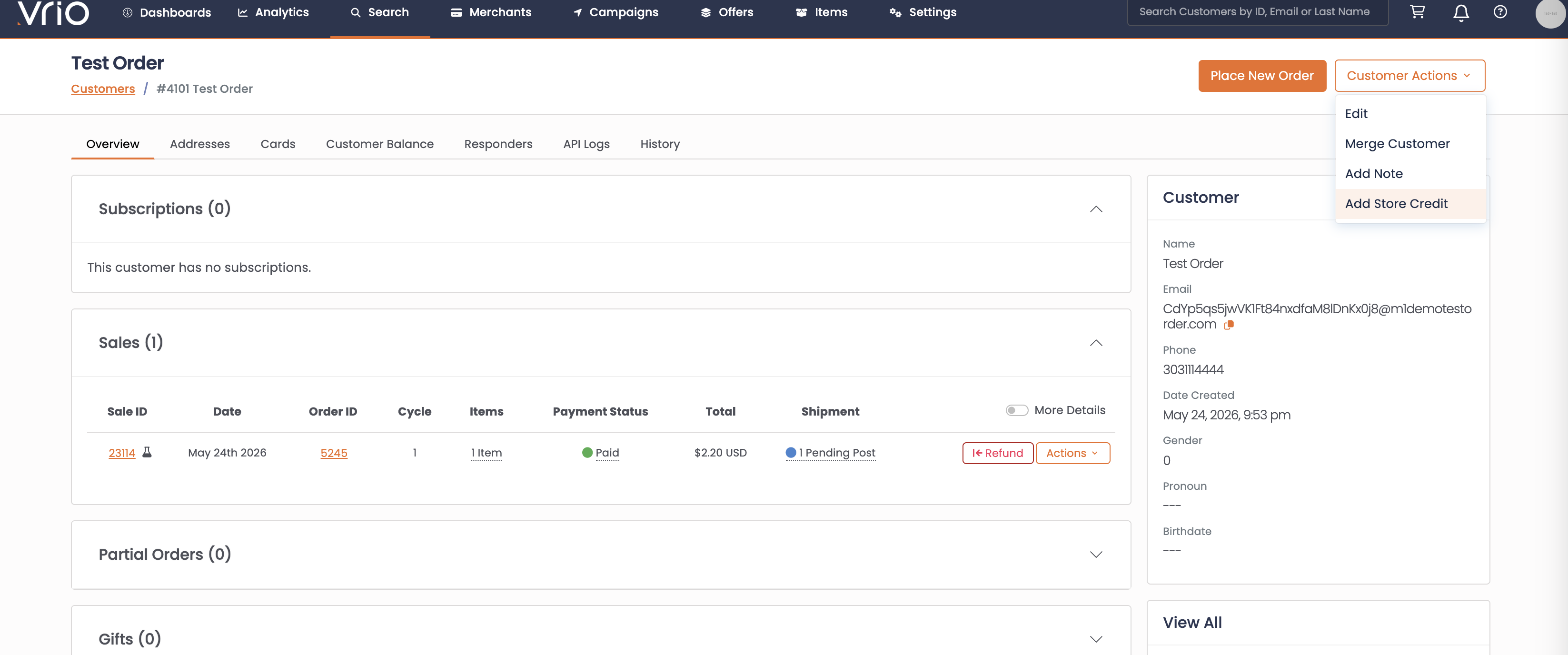
Click Customer Actions.
-
Select Add Store Credit.
-
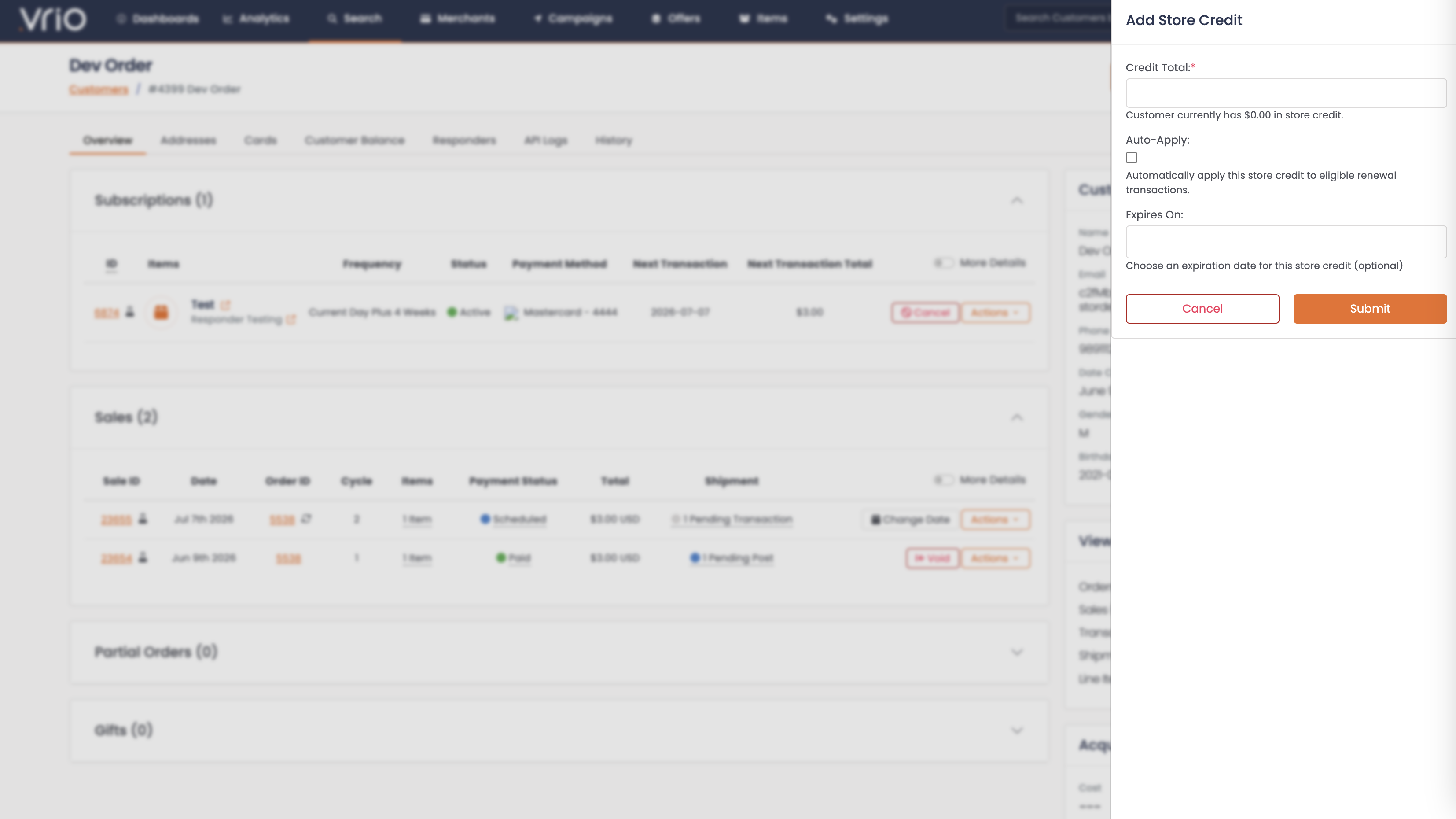
Enter the details:
- Credit Total — the dollar amount to add. The form shows the customer's current balance for reference.
- Expires On (optional) — leave blank for a credit that never expires, or choose a date after which it no longer counts toward the available balance.
- Auto-Apply (optional) — check this to have the credit draw down automatically at the customer's next renewal. Leave it unchecked to keep the credit in the balance until you (or the customer at checkout) apply it manually.
-
Click Submit.
Pending vs. Immediate
With Store Credit – Request access, the credit is created as Pending Approval and does not count toward the balance until someone with Process access approves it.
With Store Credit – Process access, the credit is added and available immediately.


Over the API
Add a credit with the POST /customers/{customer_id}/credits endpoint. The customer is identified in the path; the body takes:
| Field | Required | Description |
|---|---|---|
credit_total | Yes | The dollar amount to add (e.g. 25.00). |
date_expire | No | Expiration date (YYYY-MM-DD). Omit for a credit that never expires. |
auto_apply | No | true to flag the credit for auto-apply — it will draw down automatically at the customer's next renewal. Defaults to false (held in the balance for manual use). |
The same permission rules apply, and the response returns the customer's updated balance.
How to Use Store Credit
A customer's balance can be put to work in three ways:
- Auto-Apply at Renewal — flag the credit when you add it, and Vrio draws it down automatically at the customer's next renewal. Hands-off.
- At Order Time — apply some of the balance when placing a new order or processing a checkout.
- Manually on a Specific Transaction — earmark a specific dollar amount against a specific upcoming scheduled transaction.
All three are available in the UI and the API, and all validate against the customer's available balance.
Auto-Apply at Renewal
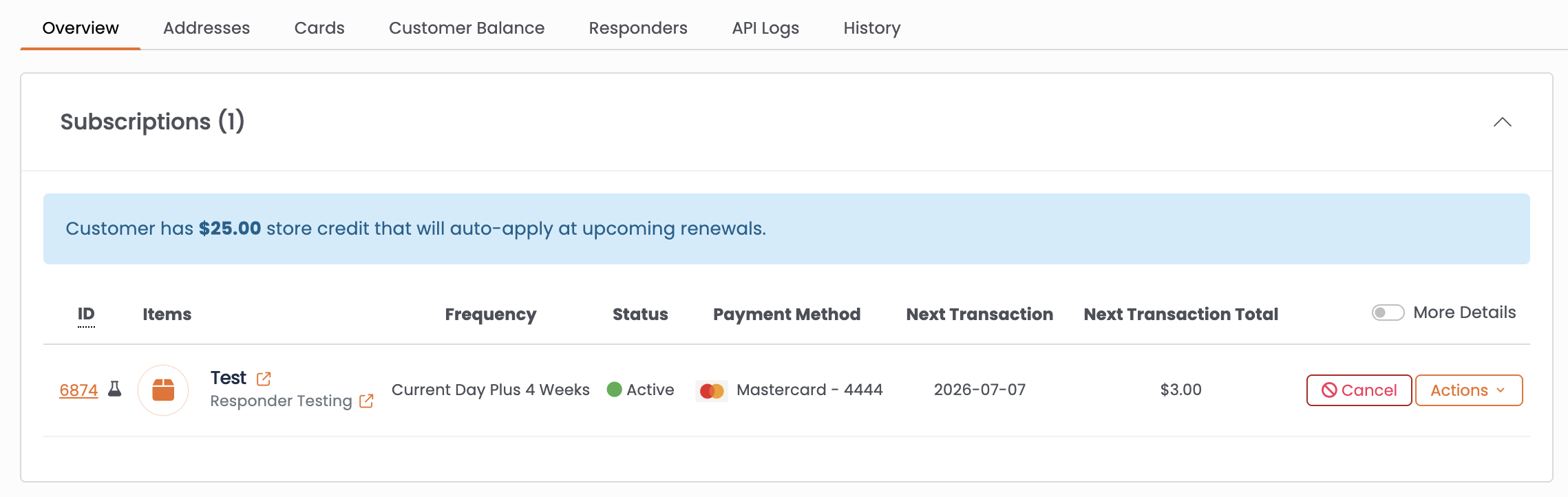
When a credit is flagged Auto-Apply at add time, Vrio uses it automatically at the customer's next renewal — no manual step required. You'll see a banner on the customer's Subscriptions card whenever there's an auto-apply balance waiting:
How it behaves
- At the moment a renewal transaction is billed, Vrio checks the customer's auto-apply balance and applies it against the final amount — after tax and any other recalculations.
- The credit is drawn down FIFO across the customer's renewals. If a customer has two subscriptions, whichever one renews first uses the credit (up to that transaction's total). The next renewal sees whatever is left.
- The banner disappears once the balance has been fully consumed.
To use it
Just check the Auto-Apply box when you add the credit (or set auto_apply = true over the API). There is no separate trigger — the next renewal handles it.
Auto-Apply vs. ManualAuto-Apply is hands-off and customer-level — "use this credit at the next renewal, whenever and whichever that is." Manual apply is operator-driven and transaction-specific — "earmark exactly this much against this exact transaction now." Use Auto-Apply for ongoing loyalty/credit programs, and manual apply when you want to control a specific charge.
On a New Order
In the UI
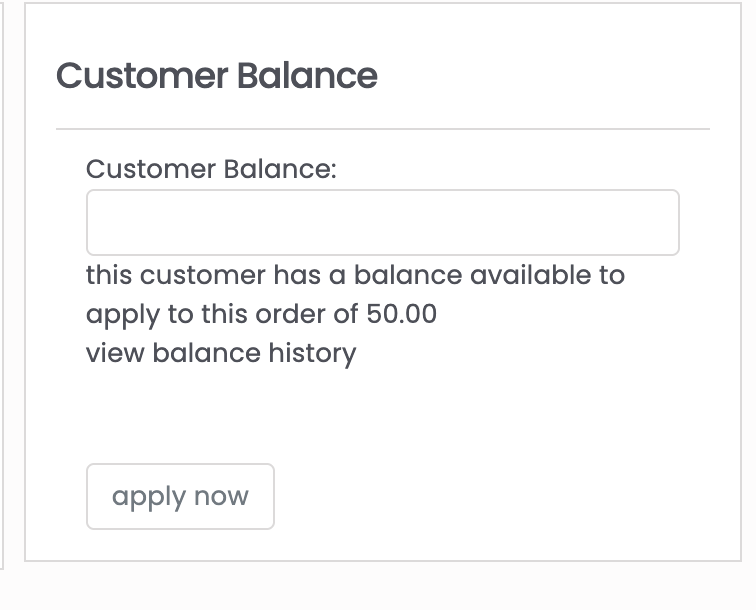
When you place a new order for a customer who has an available balance, the order form shows a Customer Balance field (capped at the amount available). Enter how much of the balance to apply, and it's deducted from that order's total.
Over the API
When you process an order, include apply_customer_balance in the request body to the POST /orders/{order_id}/process endpoint (or /orders/{order_id}/authorize). Vrio validates it against the available balance and spreads it across the order's transactions.
| Field | Required | Description |
|---|---|---|
apply_customer_balance | No | Dollar amount of the customer's balance to apply to this order. Must not exceed the available balance. |
On a Recurring (Upcoming) Transaction
In the UI
-
Open the customer record and locate the upcoming/scheduled transaction.
-
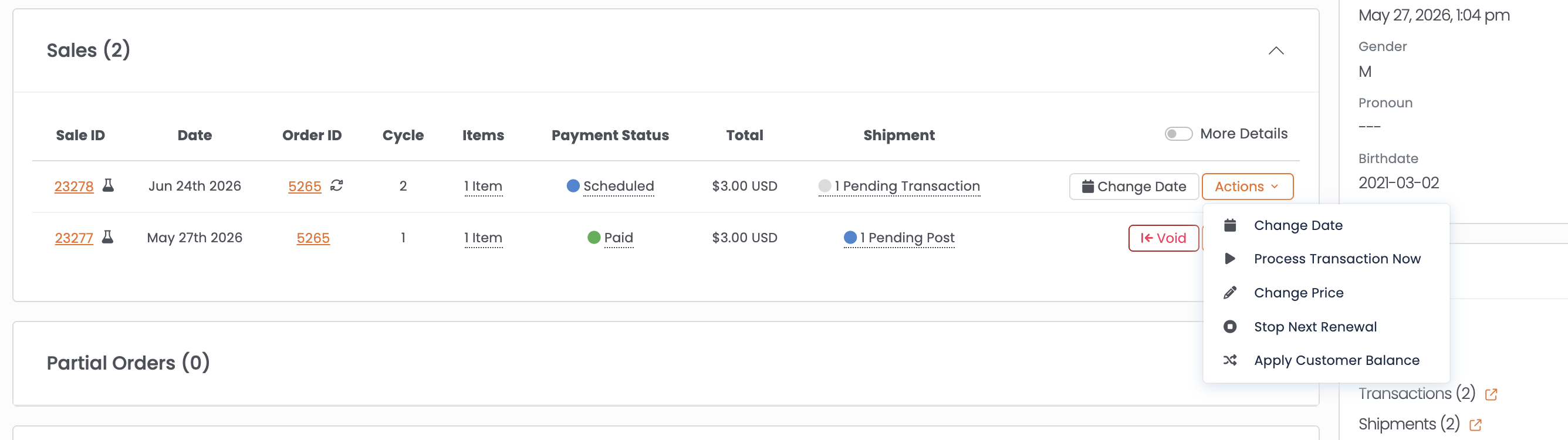
Click Actions on that transaction.
-
Select Apply Customer Balance.
-
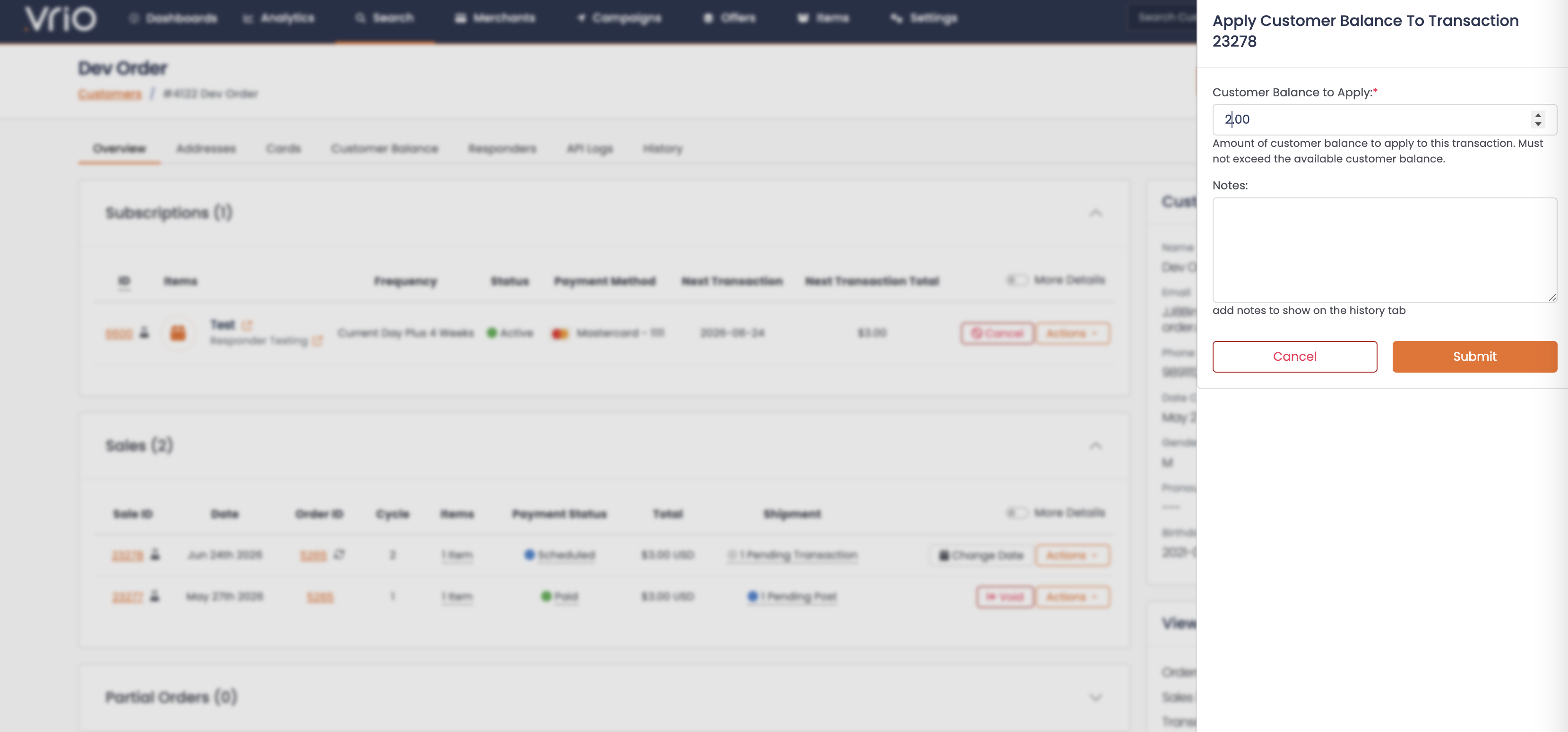
Enter the amount to apply — the form displays the customer's available balance.
-
Click Submit.
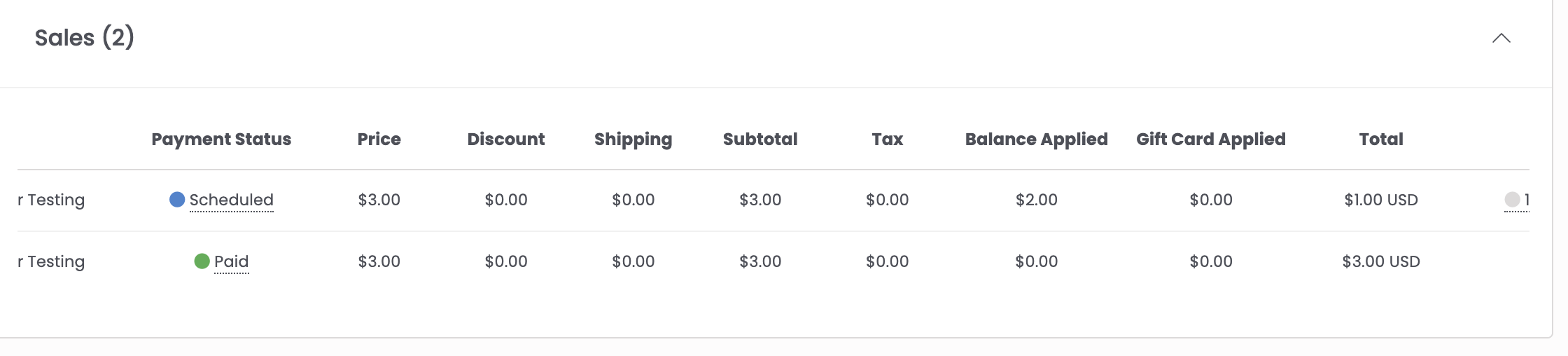
The transaction total is reduced by the amount applied, and the balance is reserved against that transaction.
Over the API
Use the POST /transactions/{transaction_id}/apply_balance endpoint (only valid when the transaction status is scheduled or pending). The transaction is identified in the path; the body takes:
| Field | Required | Description |
|---|---|---|
apply_customer_balance | Yes | Dollar amount to apply. Must not exceed the available balance. |
transaction_notes | No | Optional note added to the transaction history. |
More than the balance?If you try to apply more than the customer has available, Vrio rejects it and tells you the amount requested versus the amount available. If the customer has no available balance, the action isn't offered.
How the Credit Affects the Total
Store credit works like a gift card or cash — not like a discount. It comes off the final amount, after the subtotal, any discounts, shipping, and tax have all been calculated:
Total charged = Subtotal + Tax − Store Credit Applied − Gift Card AppliedBecause it's taken off at the end:
- It reduces what the customer is charged, not the taxable amount — tax is still calculated on the full order.
- It can't exceed the transaction (or order) total — applying credit can't drive a charge below zero.
- On an order that bills as multiple charges, the applied amount is spread proportionally across them.
When Applied Credit Comes Back
If a transaction that has store credit applied — whether manually or by Auto-Apply — doesn't ultimately collect, Vrio returns the applied amount to the customer's available balance so it can be used again. This happens when:
- A scheduled transaction is skipped or cancelled before it charges — the reserved credit is released back to the balance.
- A charge declines — the applied credit is released back to the balance.
- A charge is voided — the credit applied to that charge is returned to the balance.
How the records are handled depends on whether the charge was attempted:
- For a skipped or cancelled transaction (never charged), the applied amount is cleared from the transaction and its total is restored.
- For a declined or voided charge, the transaction keeps the totals that were sent to the gateway — so the history reflects what was actually attempted — and only the customer's available balance is restored.
Declines do not carry the credit into dunningIf a charge declines, the applied credit is released back to the customer's available balance — it is not automatically re-applied to the retry. The dunning retry runs at the full amount. If you want the credit applied to the retry, re-apply it manually to the upcoming transaction.
Viewing the Balance
A customer's available balance and full history live on the Customer Balance section of the customer record:
- Store Credit — credits added to the balance.
- Balance Used — where the balance has been applied.
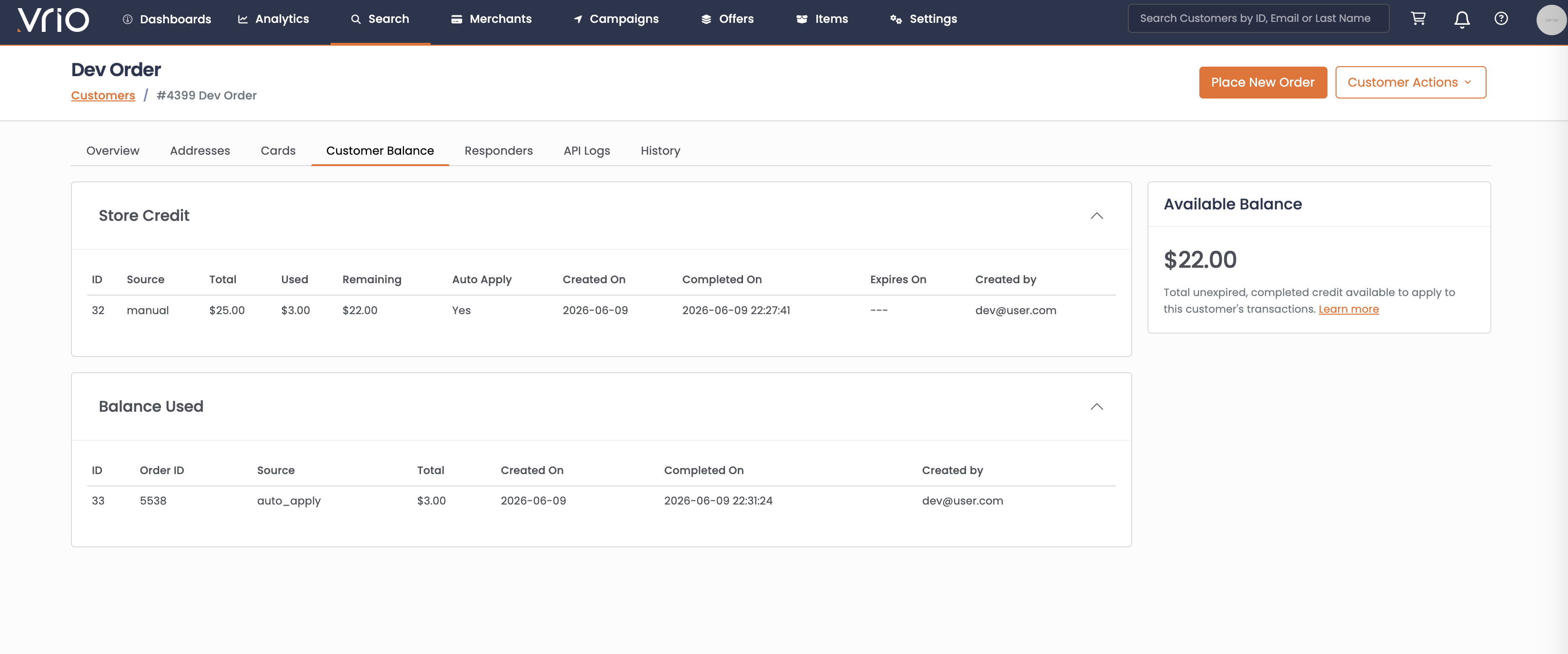
You'll also find a view balance history link wherever the balance is referenced (for example, on the order form). Over the API, the GET /customers/{customer_id}/balance endpoint returns the customer's current balance and history.
Editing, Approving & Removing Credit
-
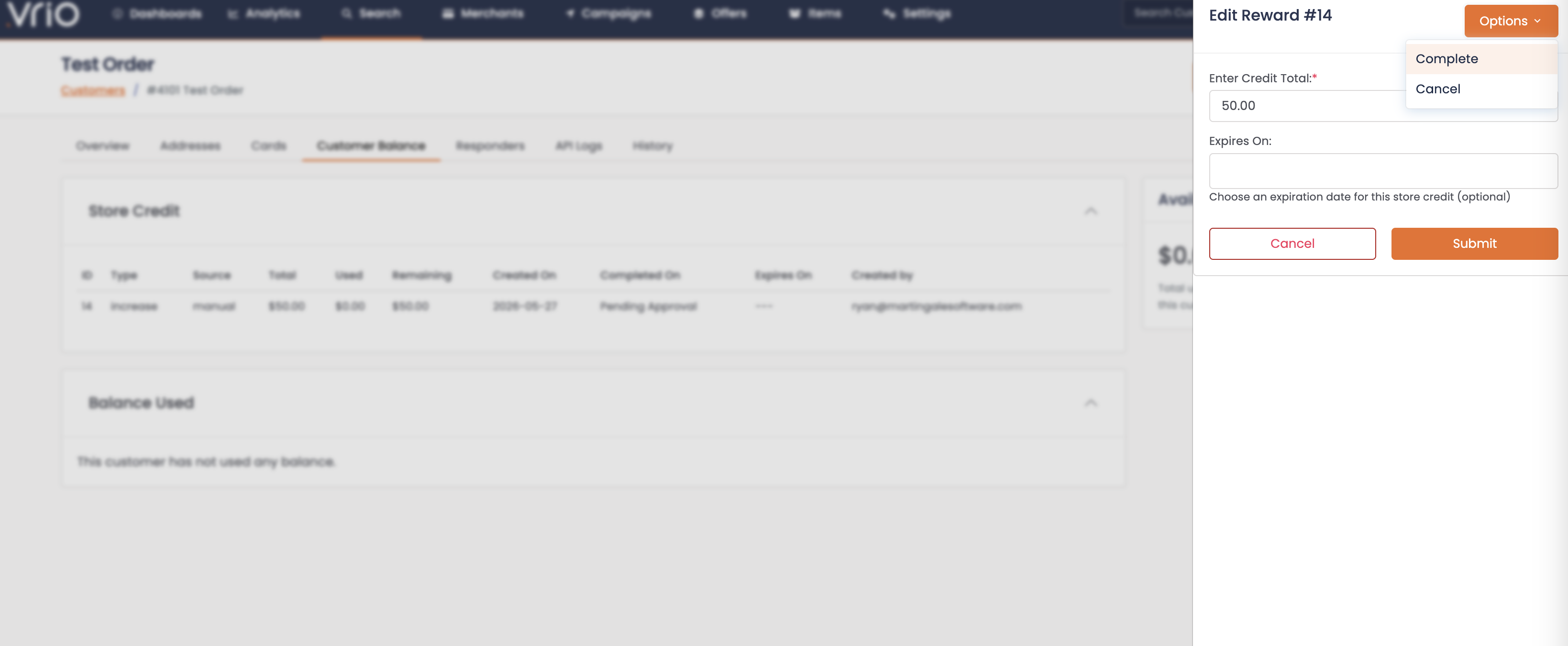
Approve or Cancel a pending credit — a user with Store Credit – Process access can open a pending credit and Complete it, which makes it available in the balance, or Cancel it to remove it.
-
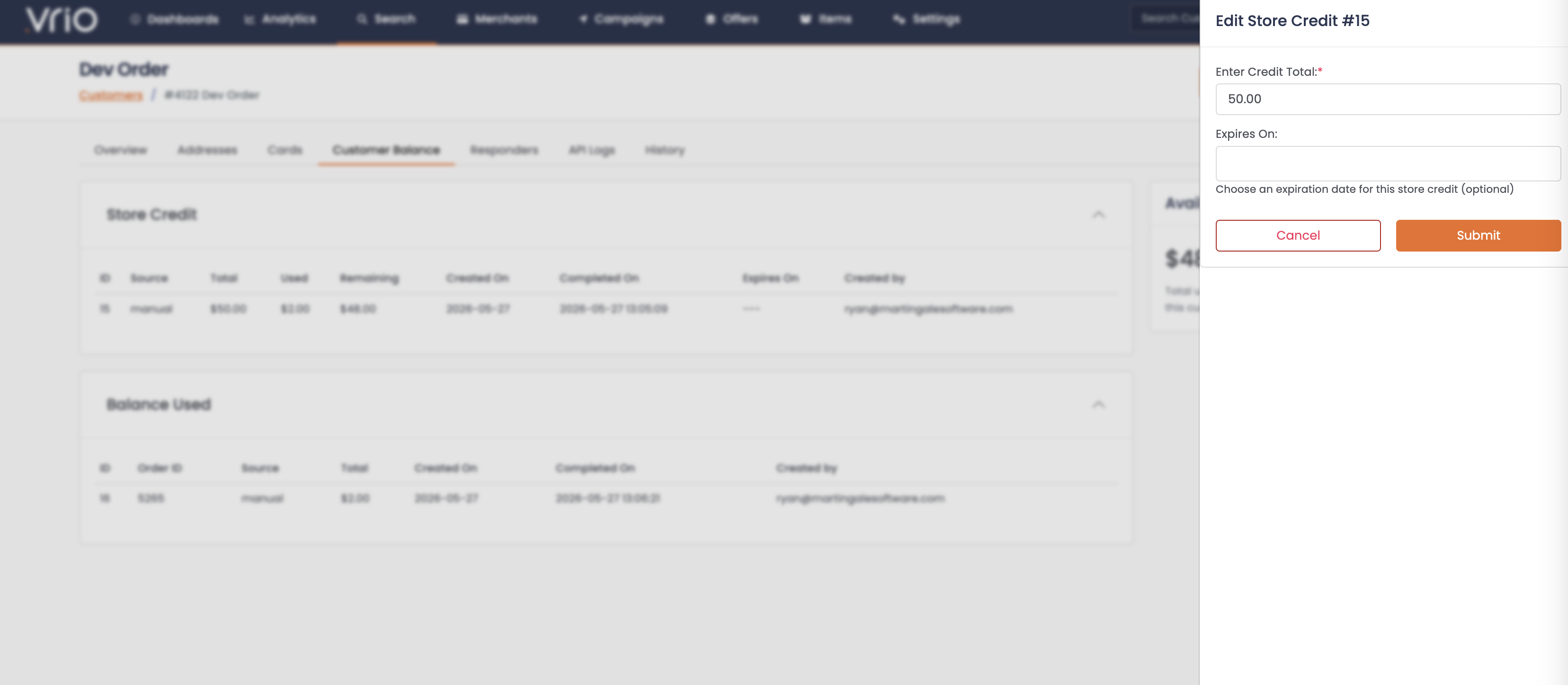
Edit a credit — open the credit to change the amount or expiration date. (A completed credit can only be edited by a user with Process access.). To remove it, you can edit its value to 0
ExpirationA credit with an Expires On date stops counting toward the available balance once that date passes. Credits with no expiration date remain available indefinitely.
Updated 4 months ago