
Mark as Delivered
Manually mark a shipped item as delivered and record the delivery date.
Marking a shipment as delivered manually sets the delivery date and updates the status to Delivered. This is useful when delivery confirmation isn't received automatically from the carrier or when you need to record a delivery manually.
Key Takeaways
- The shipment must already have a tracking number (Shipped status)
- All shipments with the same tracking number are also marked as delivered
- A delivered responder is sent to the customer, if configured — but only if the delivery date is within the last 24 hours
- If the offer cycle is configured to trigger the next cycle on delivery, the next transaction/shipment is scheduled based on the delivery date
Prerequisites
The Mark as Delivered action is available when:
| Condition | Details |
|---|---|
| Has a tracking number | The shipment must have a tracking number assigned |
How to Mark as Delivered
Step 1: Navigate to the Shipment
Find the shipment you want to mark as delivered. The most common methods are:
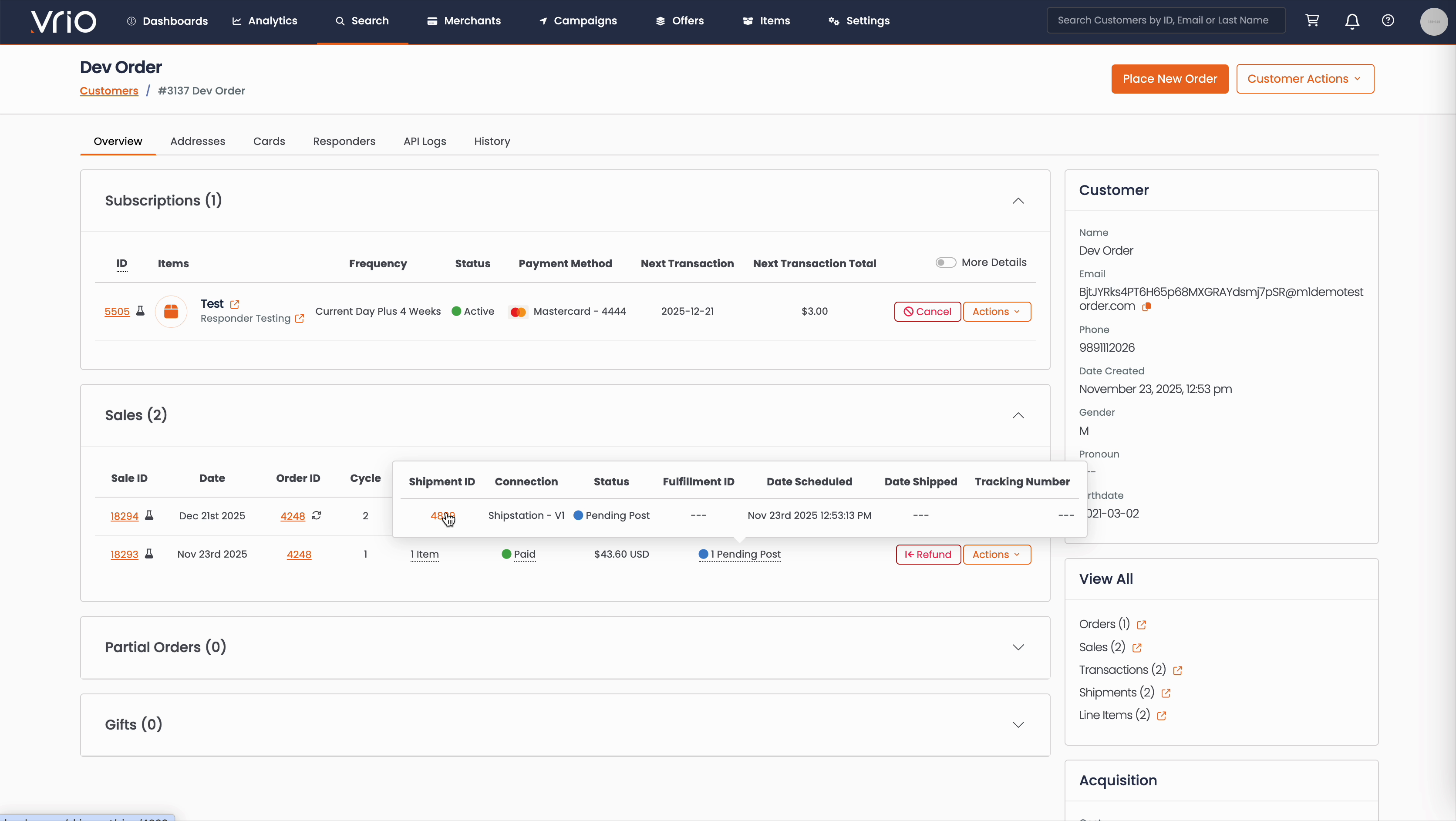
From the Customer Page:
- Navigate to Search → Customers tab and find the customer record
- On the customer detail page, scroll to the Sales section
- Hover over the Shipment Status to expand and show shipment details
- Click on the Shipment ID
From the Shipments List:
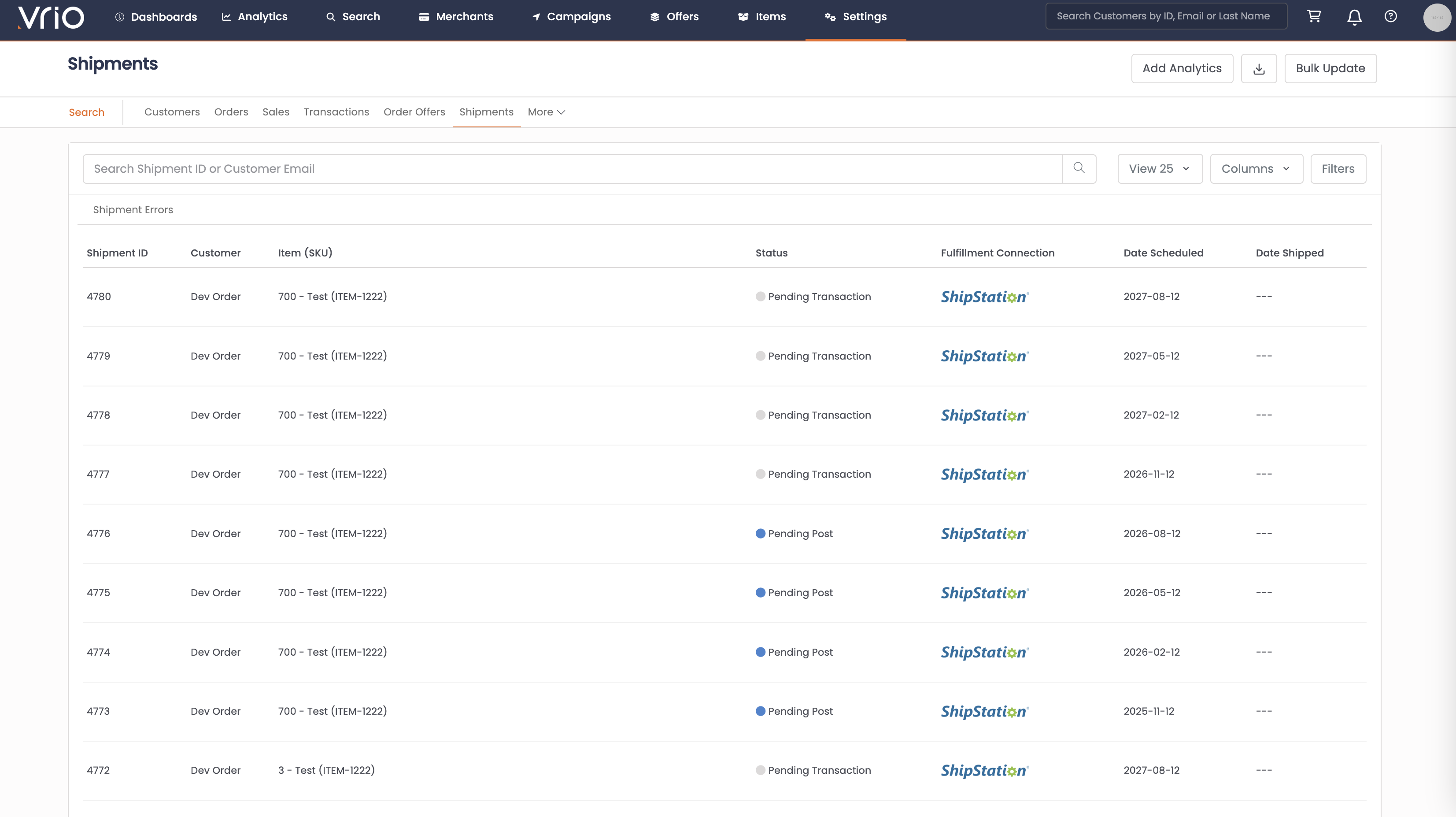
- Navigate to Search → Shipments tab
- Use filters or browse to find the shipment
- Click on the Shipment to open the shipment detail page
Step 2: Open the Deliver Form
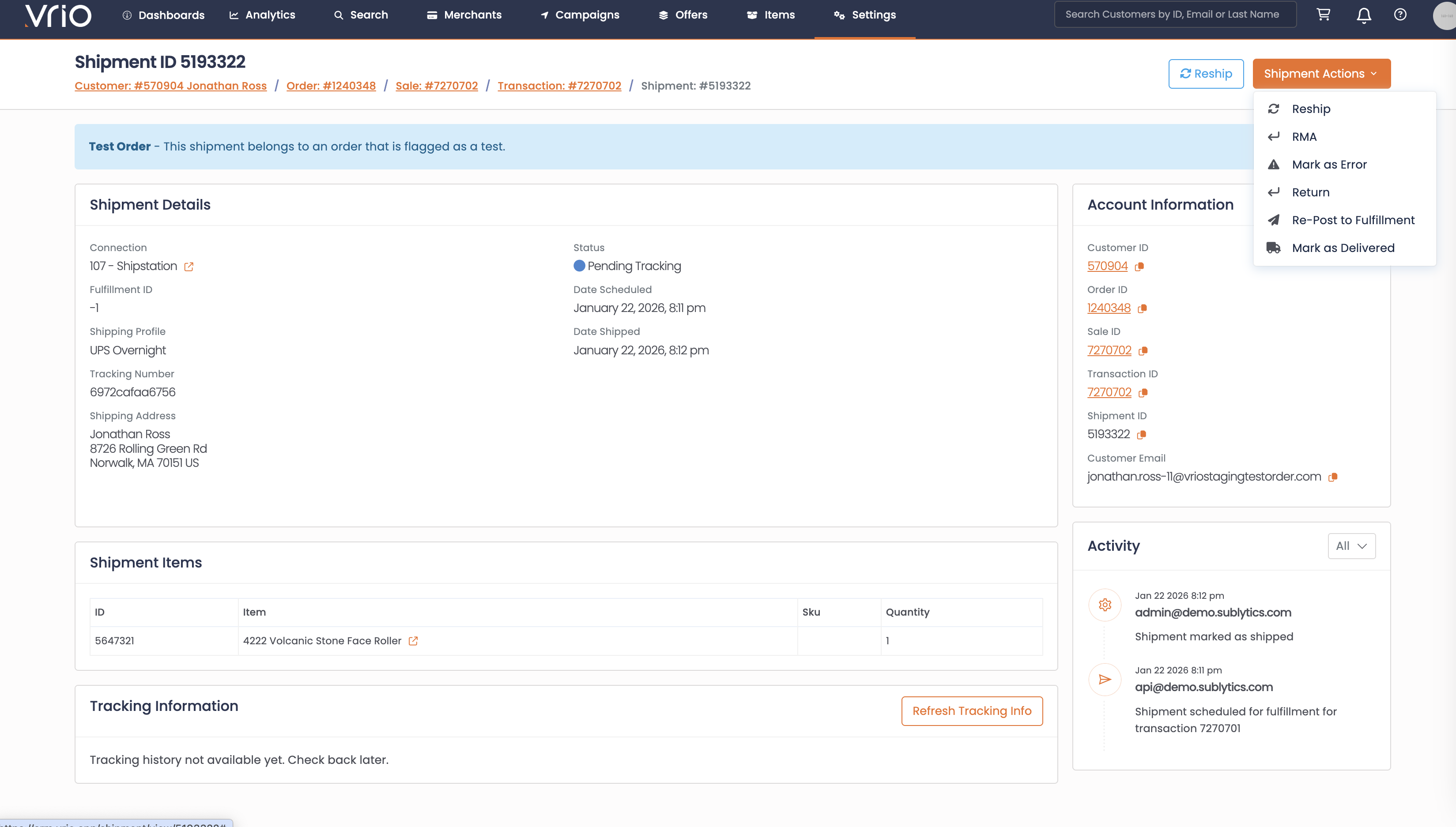
On the shipment detail page, click Mark as Delivered from the Shipment Actions.
Step 3: Complete the Deliver Form
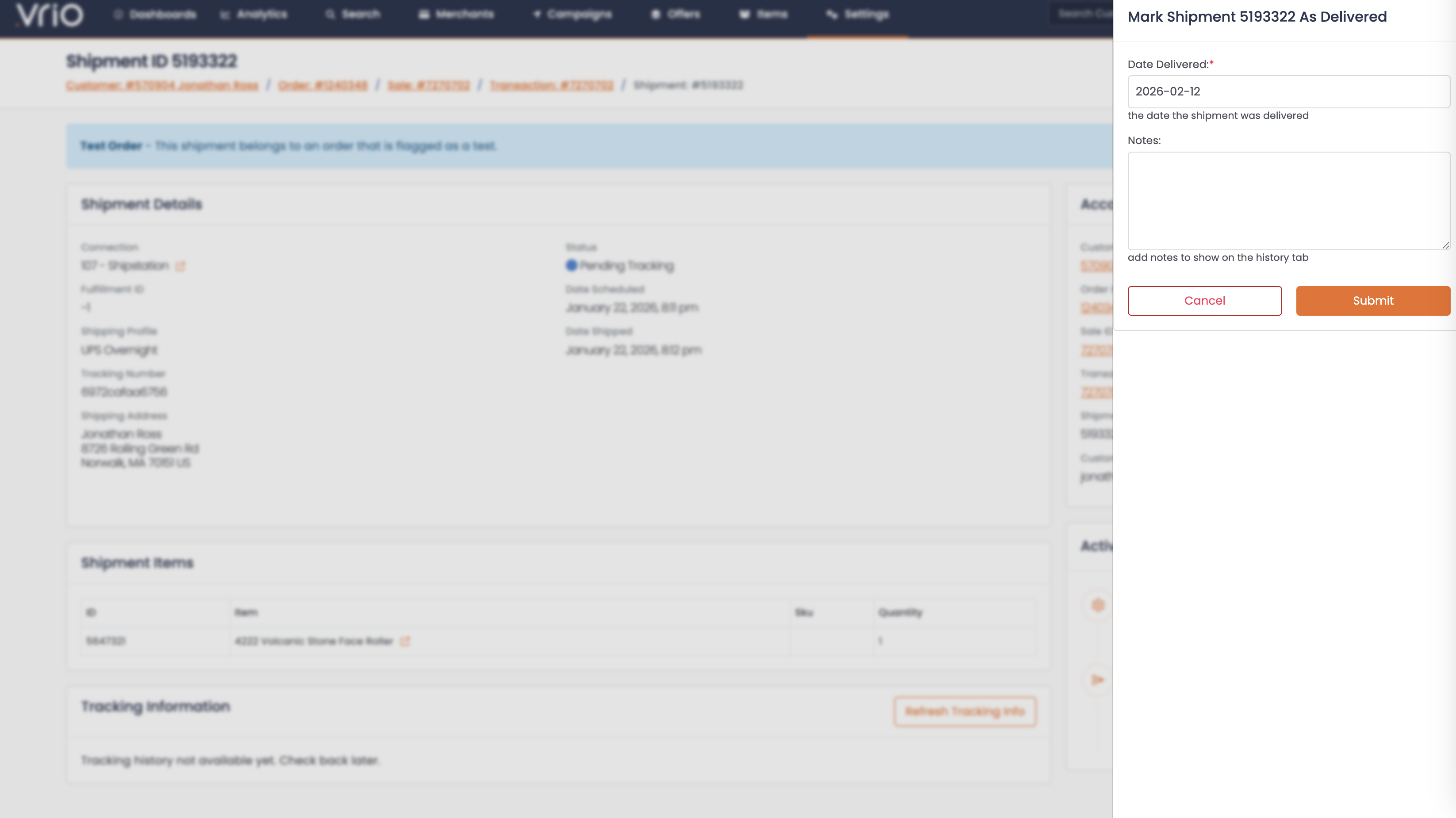
- Delivery Date (required) — Select the date the package was delivered
- Click Submit
What Happens After Submitting
When a shipment is marked as delivered:
- Status updates to Delivered — The delivery date is recorded and transit days (calendar and business) are calculated
- Related shipments updated — All shipments with the same tracking number are also marked as delivered
- Customer notification sent — A delivered responder is triggered, if configured at the offer cycle, offer, or campaign level
- Next cycle may trigger — If the offer cycle is configured with a delivery-based trigger (
offer_cycle_trigger_type_id = 2), the next transaction and shipment are scheduled based on the delivery date
24-Hour Age GuardDelivered responders are suppressed if the delivery date is more than 24 hours in the past. This prevents sending outdated delivery emails when processing a backlog.
Other Ways to Mark as Delivered
- API — POST /shipments/{id}/deliver to mark a shipment as delivered programmatically
FAQ
Q: What if multiple shipments share the same tracking number?
A: All shipments with that tracking number are marked as delivered simultaneously.
Q: Will the customer always receive a delivery notification?
A: Only if a delivered responder is configured and the delivery date is within the last 24 hours. Older deliveries suppress the notification to avoid sending stale emails.
Q: Does marking as delivered affect subscription scheduling?
A: Only if the offer cycle uses a delivery-based trigger. In that case, the next transaction and shipment dates are calculated from the delivery date.
Updated 8 months ago