
Refund or Void a Charge
Process refunds and voids for customer transactions in Vrio. Refunds return funds after a completed sale, while voids cancel transactions before settlement.
Vrio provides two methods for reversing customer charges: refunds and voids. While both return money to the customer, they work differently and are used in different situations. Understanding when to use each method will help you process transactions efficiently and minimize merchant fees.
What is the difference between a Void and a Refund?
Void: A void transaction is a cancellation of a sale before it's settled with the payment processor. This prevents any financial exchange from occurring and can only be done within a specific time window after the transaction.
Refund: A refund occurs after a sale is completed and settled. The customer receives their money back through the payment gateway, reversing the transaction.
Transaction Types
When you process a refund or void, Vrio creates a new transaction record:
- Refund: Creates a transaction with Transaction Type = 2
- Void: Creates a transaction with Transaction Type = 3
These transactions appear in the Child Transactions section of the original transaction, creating a clear audit trail of all refund and void activity.

Where to Refund or Void
You can process refunds and voids from multiple locations in Vrio:
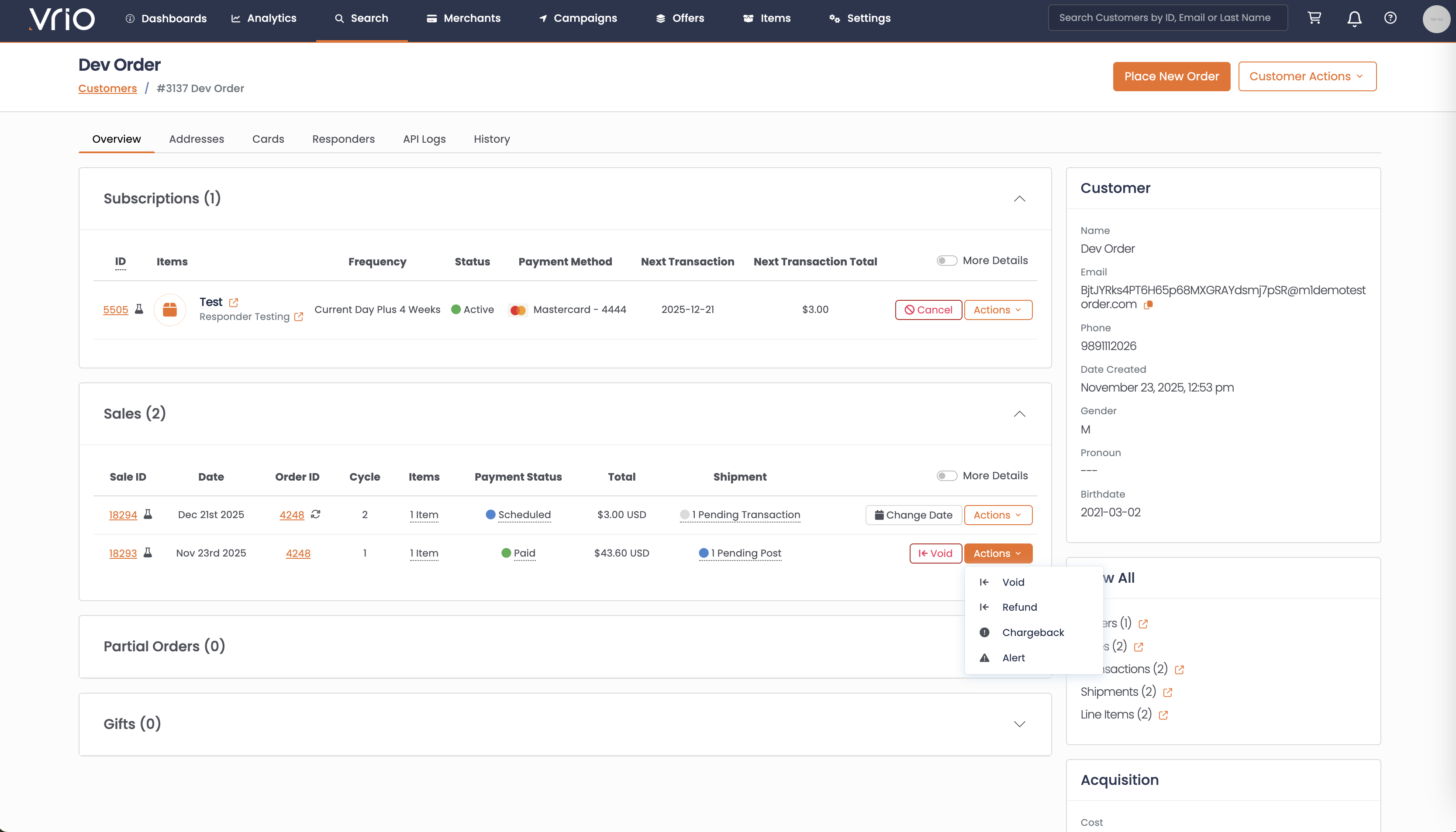
1. From the Customer's Sales Section
- Navigate to the customer record
- In the Sales section, locate the sale you want to refund or void
- Click the Actions dropdown
- Select Refund or Void
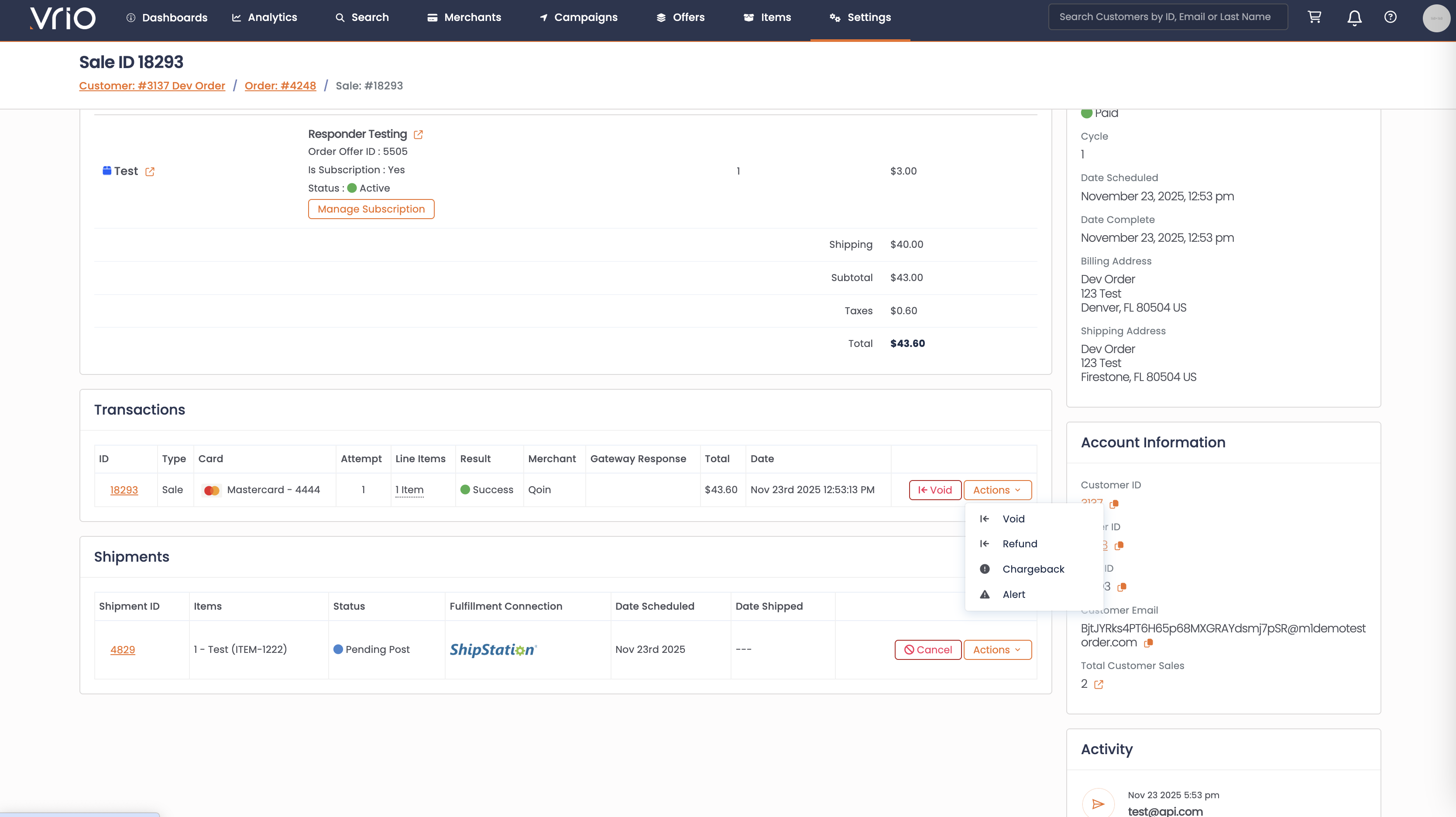
2. From the Sale Detail Page
- Navigate to the customer record
- Click on a Sale ID to view the full sale details
- Click the Actions dropdown
- Select Refund or Void
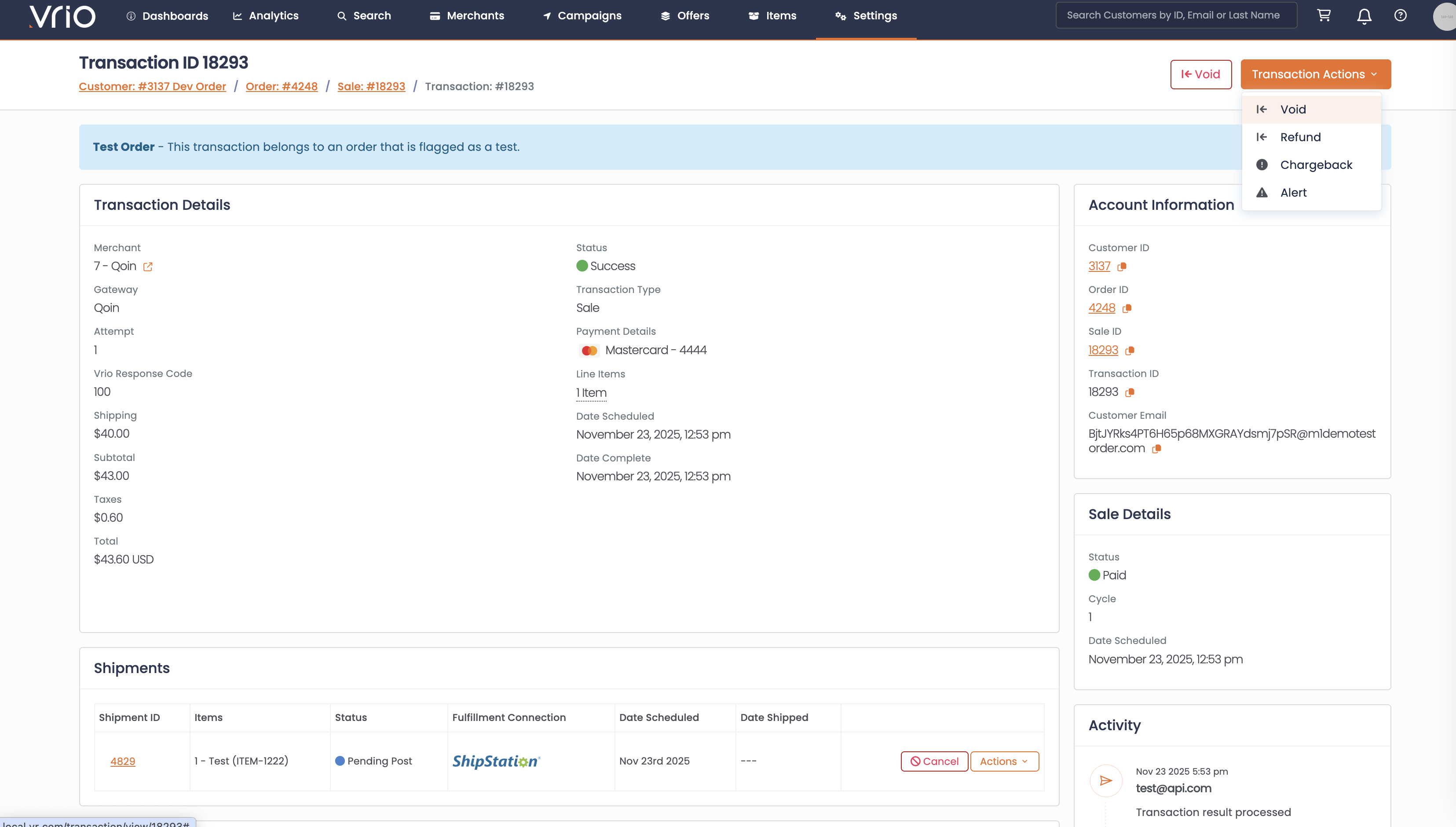
3. From the Transaction Detail Page
- Navigate to Search → Transactions tab
- Click on a Transaction ID to view transaction details
- Click the Transaction Actions dropdown
- Select Refund or Void
Processing a Refund
When you select Refund, you'll see the following options:

Refund Options
-
Refund Amount: Enter the amount to refund (cannot exceed the remaining refundable amount)
- The modal shows Amount Charged and Refunded to Date
- You can process partial refunds
-
Cancel Active Offers (optional):
- Check this box to cancel any recurring subscriptions associated with this transaction
- The specific offer name will be displayed
- The subscription will be cancelled with reason: Refund / Void
-
Cancel Pending Shipments (optional):
- Check this box to cancel any pending shipments associated with this transaction
- If the shipment was sent to a fulfillment connection, Vrio will attempt to cancel it there as well
- Important: If shipments are grouped, all grouped shipments will be cancelled at the fulfillment connection, and the non-refunded shipments will be reset to Pending Post to be reshipped separately
- Learn more about how shipment cancellation works →
-
Check Refund (optional):
- Check this box to issue a check refund instead of processing through the gateway
- Useful when a merchant is no longer active or unable to process refunds
- Learn more about check refunds →
-
Notes (optional):
- Add notes that will appear on the History tab
-
Click Submit to process the refund
Processing a Void
Voids can only be issued on transactions that have not settled yet. The void option will only appear if the transaction is still within the void window.
The void window is determined by the Gateway Batch Time set on the merchant account. This is the time when transactions are batched and sent to the payment processor for settlement.
- Default Batch Time: 17 (5:00 PM EST) if not configured on the merchant
- Void Window: From the transaction time until the next batch time
Examples (assuming Gateway Batch Time = 17 / 5:00 PM):
- Transaction at 2:00 PM → Can void until 5:00 PM the same day
- Transaction at 6:00 PM → Can void until 5:00 PM the next day
Once the batch time passes, the transaction is settled and can only be refunded, not voided. Learn more about Gateway Batch Time →
Automatic Refund Fallback:
If a void is attempted but fails, Vrio will automatically attempt a full refund. If the refund is successful, all the same void functionality will apply:
- Shipments will be automatically cancelled (if applicable)
- Subscriptions will be cancelled (if selected)
- Void responder will be sent to the customer (if configured)
- Grouped shipments will be handled the same way as a void
Void Options
When you select Void, you'll see the following options:
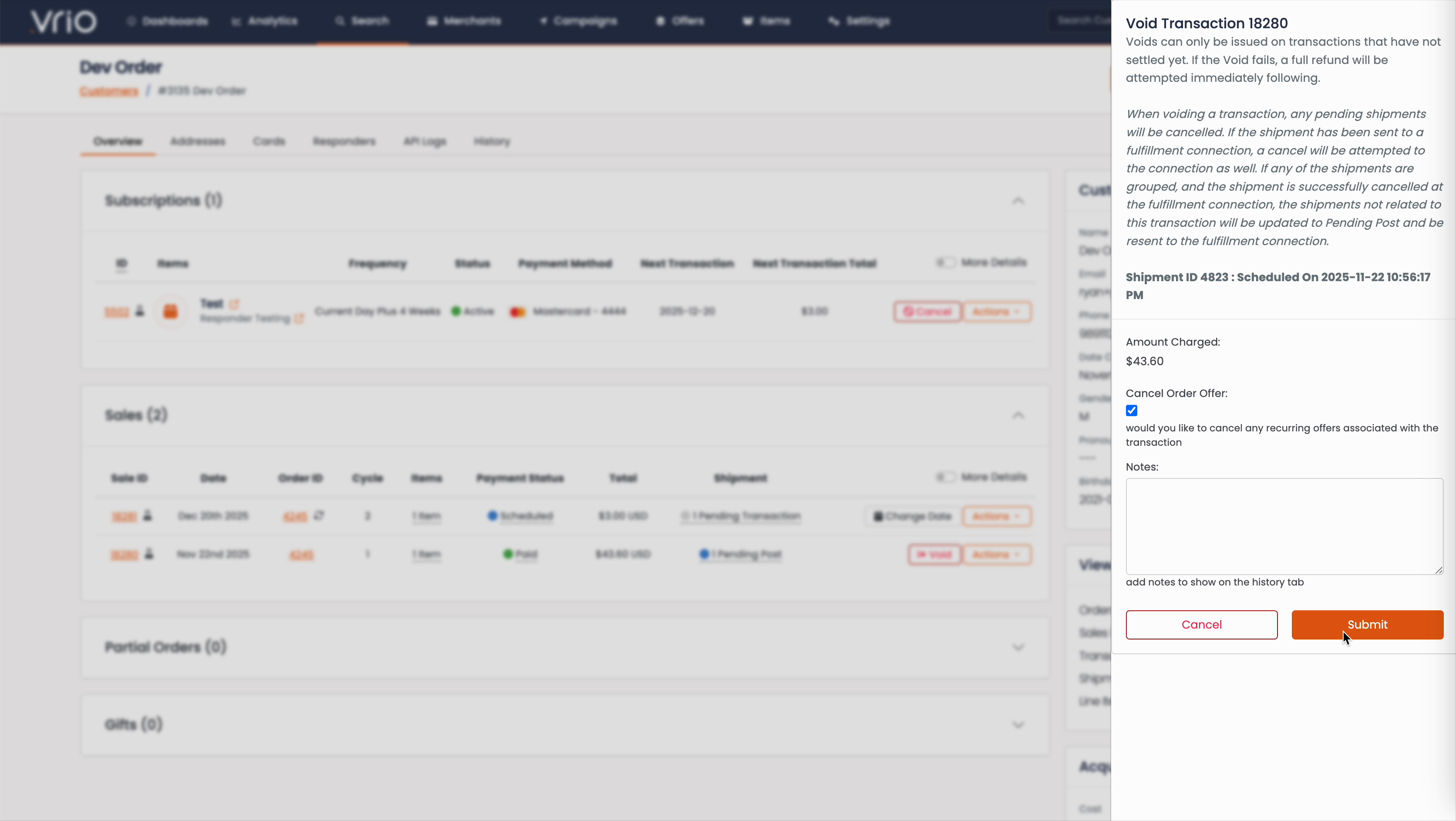
Automatic Shipment CancellationUnlike refunds, voiding a transaction will automatically cancel any pending shipments associated with the transaction. There is no option to keep the shipments active.
When voiding a transaction, any pending shipments will be cancelled. If the shipment has been sent to a fulfillment connection, a cancel will be attempted to the connection as well. If any of the shipments are grouped, and the shipment is successfully cancelled at the fulfillment connection, the shipments not related to this transaction will be updated to Pending Post and be resent to the fulfillment connection.
-
Amount Charged: Displays the transaction amount (voids are always for the full amount)
-
Cancel Order Offer (optional):
- Check this box to cancel any recurring subscriptions associated with this transaction
- The subscription will be cancelled with reason: Refund / Void
-
Shipment Information:
- The modal will display specific Shipment IDs that will be automatically cancelled
- Shows scheduled dates for each shipment
-
Notes (optional):
- Add notes that will appear on the History tab
-
Click Submit to process the void
After Processing a Refund or Void
Once a refund or void is successfully processed:
Transaction Records
- A new child transaction is created with the appropriate transaction type:
- Refund = Transaction Type 2
- Void = Transaction Type 3
- The child transaction appears in the Child Transactions section of the original transaction
- All transactions are visible in the Transactions list with their respective types
Subscriptions
If you chose to cancel active offers:
- The subscription status changes to Cancelled
- The cancellation reason is set to Refund / Void
- A Reactivate button becomes available if you need to reactivate the subscription
Shipments
If shipments were cancelled:
- The shipment status changes to Cancelled
- If grouped shipments were affected, those not related to the transaction are reset to Pending Post
- Learn more about shipment cancellation →
Customer Notifications
If you have Refund or Void responders configured, they will automatically be sent to the customer. Learn more about configuring responders →
Check Refunds for Inactive Merchants
The Check Refund option is particularly useful when:
- A merchant account is no longer active
- The payment gateway connection is no longer available
- You need to issue a refund but cannot process it through the normal payment flow
When Check Refund is selected:
- Vrio creates the refund transaction record (Transaction Type = 2)
- The refund is NOT sent to the payment gateway
- You are responsible for issuing a physical check to the customer
- The transaction history shows the refund was processed as a check refund
This maintains accurate accounting in Vrio while allowing you to handle the physical refund outside the system.
Updated 6 months ago