
Add/Edit Tracking
Manually enter or update a tracking number and carrier on a shipment to mark it as shipped.
Adding a tracking number to a shipment marks it as shipped and triggers customer notifications. Most fulfillment connections fetch tracking numbers automatically, but you may need to manually add or update tracking when using a custom fulfillment provider, handling orders internally, or correcting an incorrect tracking number.
Key Takeaways
- Adding tracking changes the shipment status to Shipped
- A shipped notification (responder) is sent to the customer when tracking is added, if configured on the offer or campaign
- A
shipment_shippedwebhook event is fired to connected systems- You can edit tracking on a shipment that is already marked as Shipped
- For bulk tracking updates, use the Import Data Tool
Prerequisites
The Add/Edit Tracking action is available when all of the following conditions are met:
| Condition | Details |
|---|---|
| Shipment is not Pending Transaction | Status must not be Pending Transaction (waiting on payment) |
| Shipment is not delivered | The shipment has not already been marked as delivered |
| Shipment is not cancelled | The shipment has not been cancelled |
| Shipment is not skipped | The shipment has not been skipped |
| Tracking is empty or status is Shipped | You can add tracking to a shipment without one, or edit tracking on an already-shipped shipment |
How to Add Tracking
Step 1: Navigate to the Shipment
Find the shipment you want to update. The most common methods are:
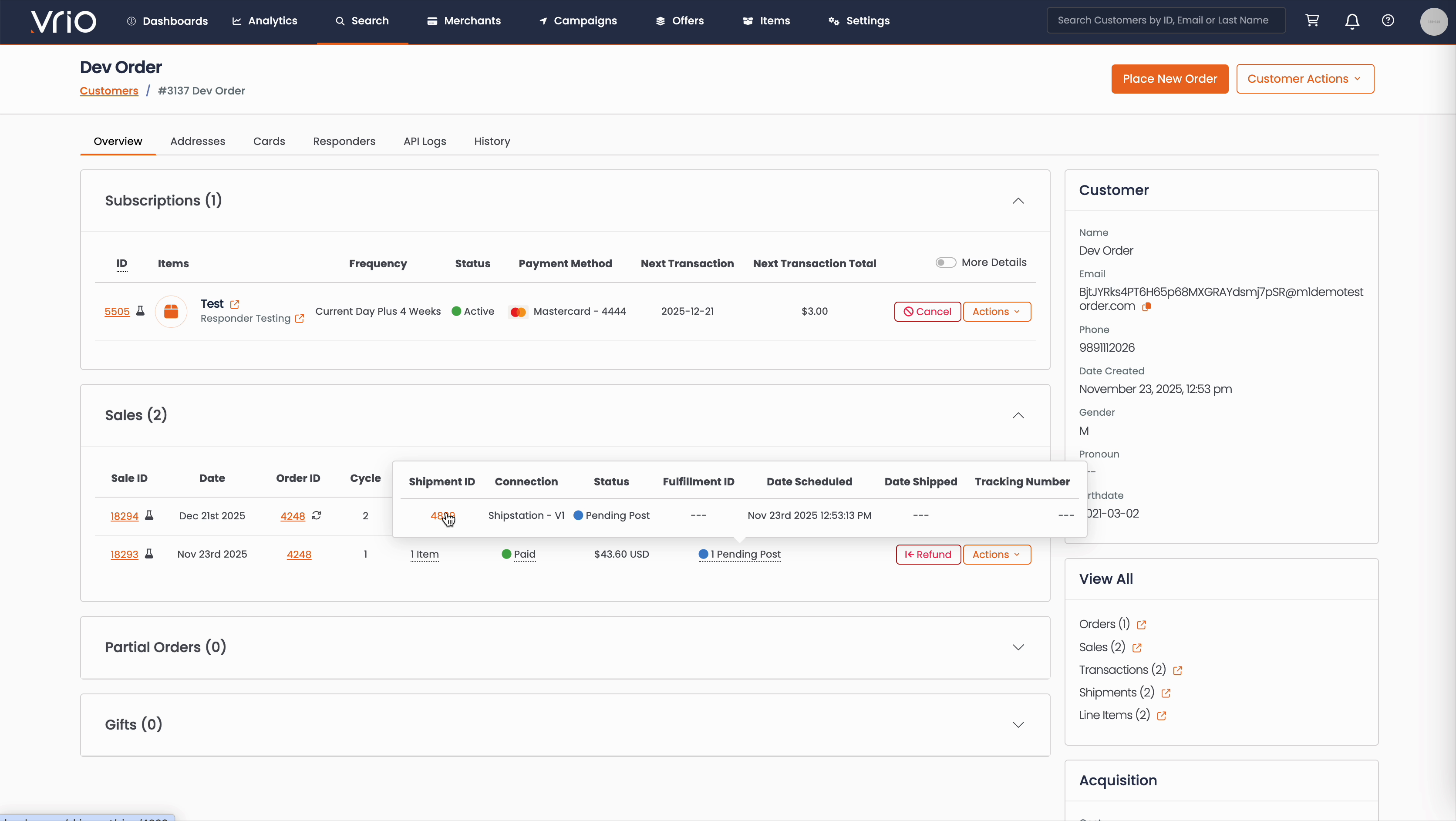
From the Customer Page:
- Navigate to Search → Customers tab and find the customer record
- On the customer detail page, scroll to the Sales section
- Hover over the Shipment Status to expand and show shipment details
- Click on the Shipment ID
From the Shipments List:
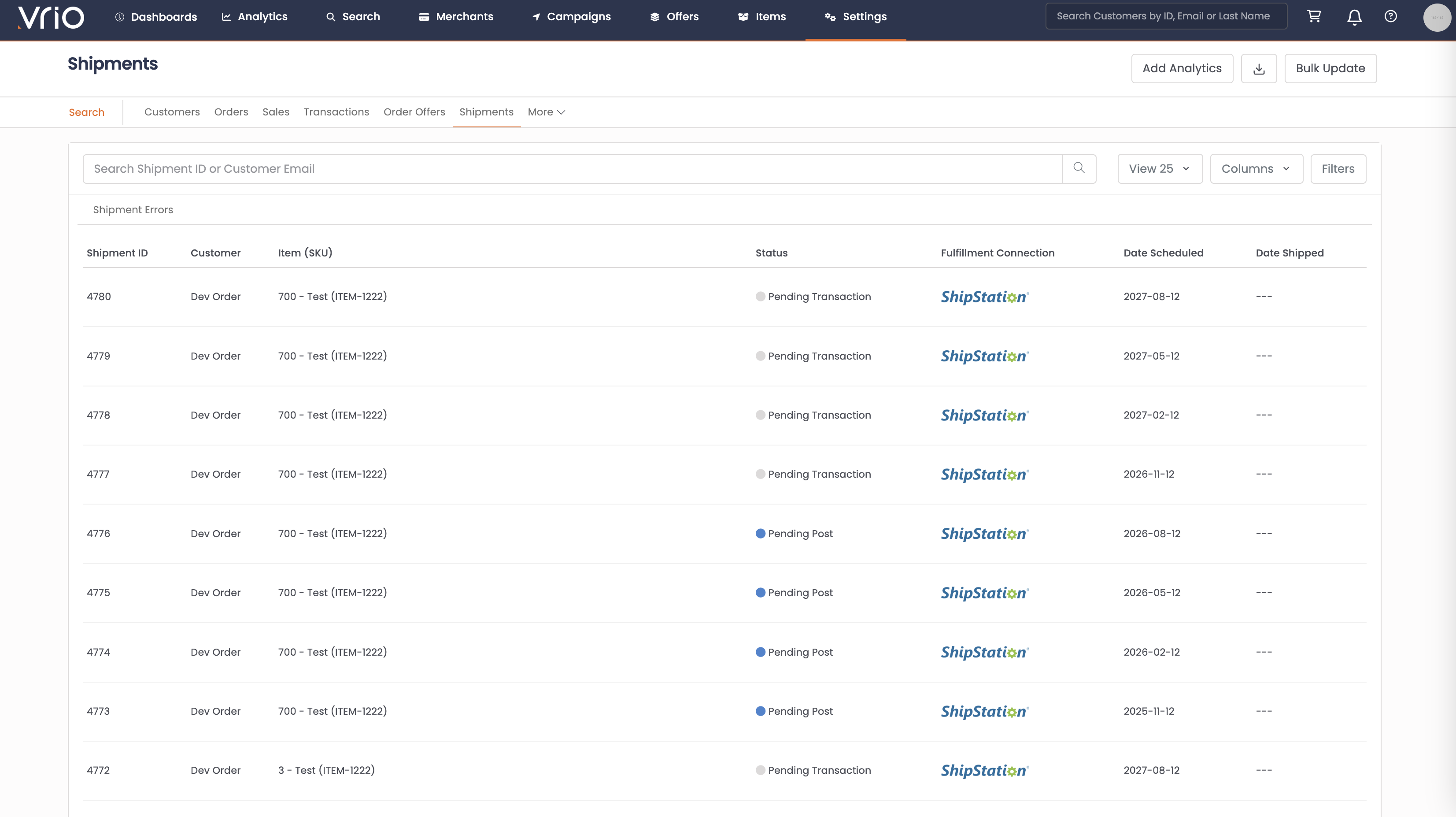
- Navigate to Search → Shipments tab
- Use filters or browse to find the shipment
- Click on the Shipment to open the shipment detail page
Step 2: Open the Tracking Form
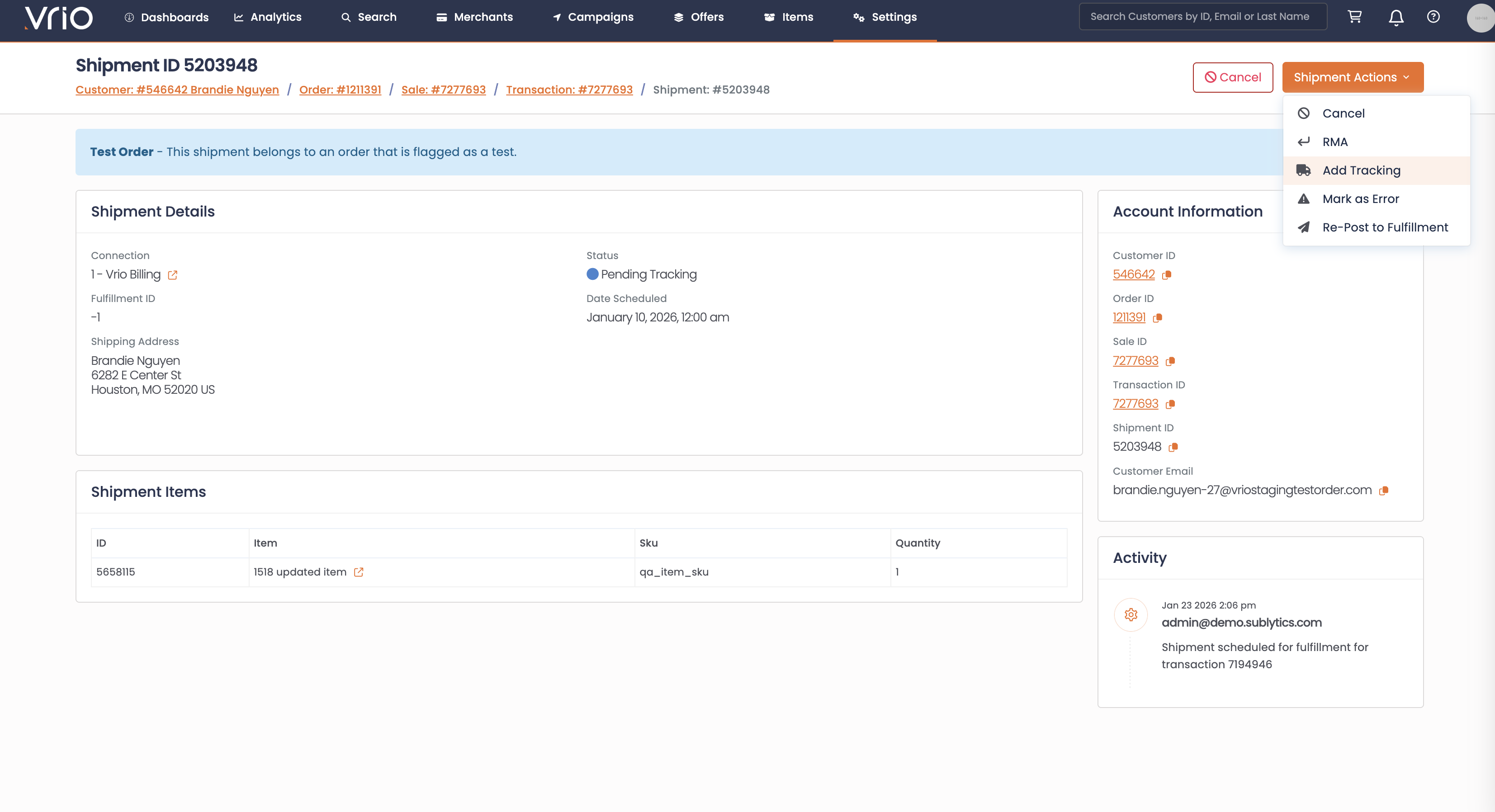
On the shipment detail page, click Add Tracking (or Edit Tracking if a tracking number already exists) from the Shipment Actions.
Step 3: Complete the Tracking Form
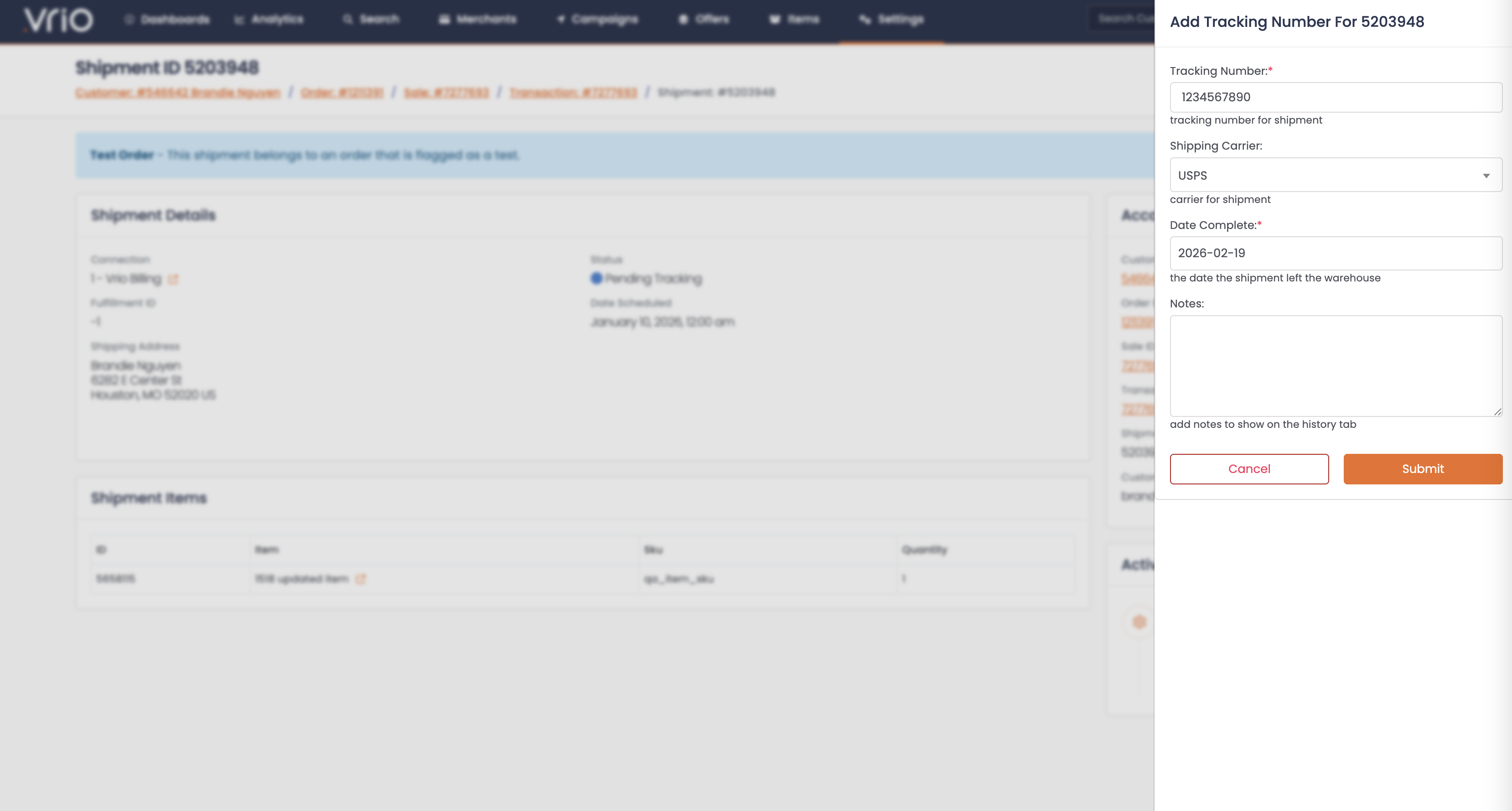
Fill in the following fields:
- Tracking Number (required) — Enter the tracking number provided by the carrier
- Carrier (required) — Select the shipping carrier from the dropdown (e.g., UPS, FedEx, USPS, DHL)
- Ship Date (required) — The date the package was shipped. Defaults to today's date.
- Ignore Grouped Shipments (optional) — Check this box to only apply the tracking number to the current shipment. If unchecked, tracking will also be applied to any grouped shipments.
Click Submit to save.
What Happens After Submitting
When tracking is added or updated:
- Status updates to Shipped — The shipment status changes to Shipped and the completion date is recorded
- Grouped shipments are processed — If this shipment is part of a group, related grouped shipments are also updated with tracking information (unless Ignore Grouped Shipments is checked)
- Customer notification is sent — A shipped responder (email notification) is triggered following the responder hierarchy:
- Offer cycle shipped responder (highest priority)
- Offer shipped responder
- Campaign shipped responder (fallback)
- Webhook event fires — A
shipment_shippedevent is sent to any connected systems - PayPal tracking sync — If the transaction was paid via PayPal, the tracking information is automatically posted back to PayPal
Other Ways to Add Tracking
- API — POST /shipments/{id}/track to add or update tracking programmatically
- Bulk via CSV — Use the Import Data Tool to update tracking on multiple shipments at once
FAQ
Q: Can I add tracking to a cancelled or skipped shipment?
A: No. The shipment must be in an active status (Pending Post, Pending Tracking, or Error) or already Shipped to add or edit tracking.
Q: What happens if I enter an incorrect tracking number?
A: You can edit the tracking number on any shipment that is in Shipped status. Navigate to the shipment and click Edit Tracking to correct it. Note that a new shipped notification will be sent to the customer.
Q: Will the customer receive an email every time I edit tracking?
A: Yes. The shipped responder fires each time tracking is added or updated, as long as a responder is configured at the offer cycle, offer, or campaign level.
Q: Does Vrio validate the tracking number format?
A: Vrio does not validate the tracking number against the carrier's system. Ensure the tracking number and carrier selection are correct before submitting.
Updated 8 months ago