
Reship an Item
Create a new child shipment to re-send items to a customer, with options for alternate items, addresses, and shipping profiles.
A reship creates a new child shipment linked to the original, allowing you to re-send items to a customer. This is commonly used when a package is lost, damaged, or needs to be sent to a different address. Reships are tracked separately so you can monitor how often they occur and why.
Key Takeaways
- A reship creates a child shipment linked to the original — the original shipment is not modified
- You can reship all items or select specific items and quantities
- You can optionally ship a completely different item instead (e.g., if the original is out of stock)
- A different shipping profile and address can be specified for the reship
- Reship reasons are configurable and used for reporting
- You cannot reship a reship (child shipment type must not already be a reship)
Prerequisites
The Reship action is available when all of the following conditions are met:
| Condition | Details |
|---|---|
| Shipment is completed or cancelled | The shipment must have a completion date (shipped) or a cancellation date |
| Shipment is not already a reship | You cannot reship a child shipment that is itself a reship |
How to Reship an Item
Step 1: Navigate to the Shipment
Find the shipment you want to reship. The most common methods are:
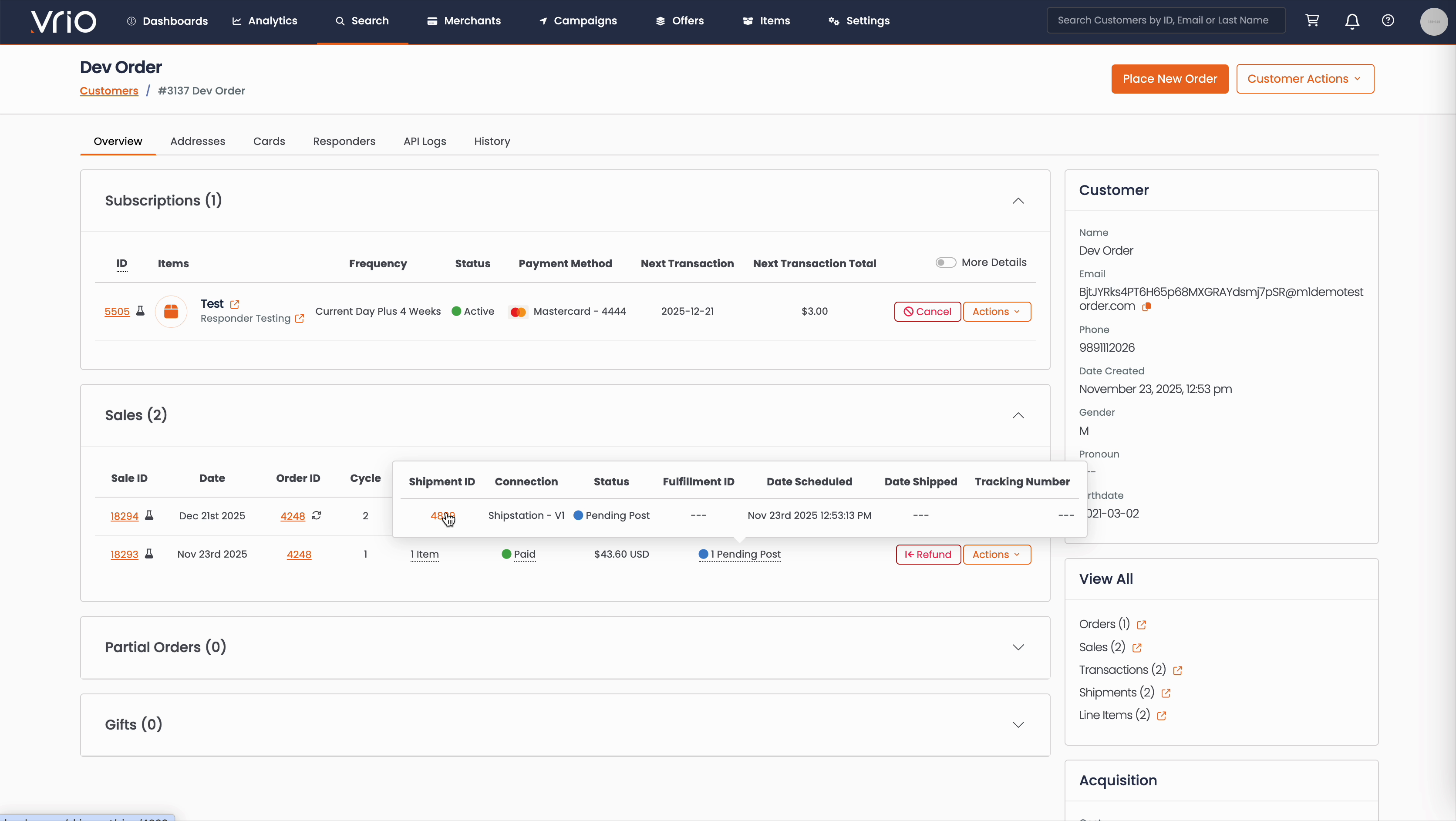
From the Customer Page:
- Navigate to Search → Customers tab and find the customer record
- On the customer detail page, scroll to the Sales section
- Hover over the Shipment Status to expand and show shipment details
- Click on the Shipment ID
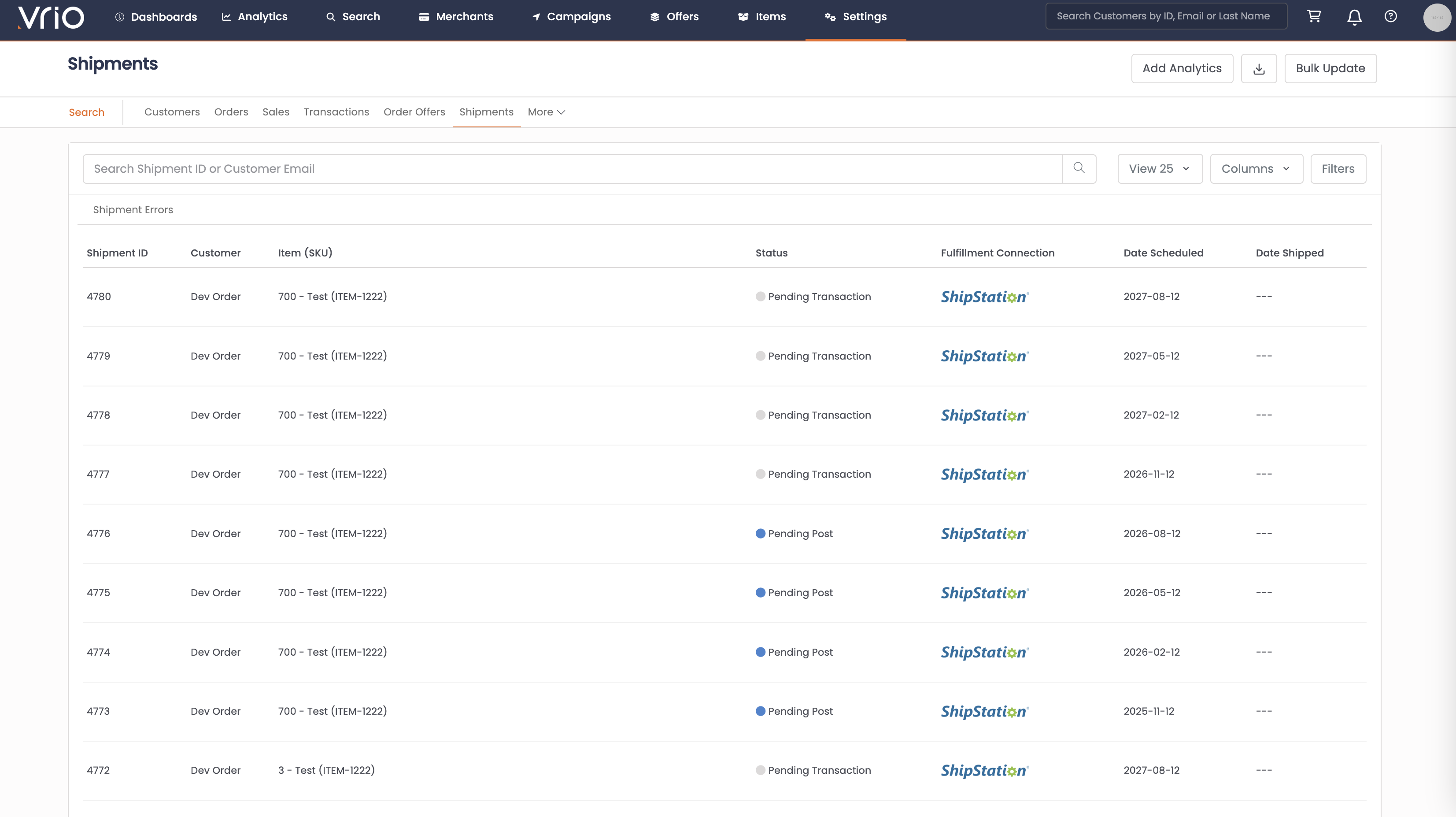
From the Shipments List:
- Navigate to Search → Shipments tab
- Use filters or browse to find the shipment
- Click on the Shipment to open the shipment detail page
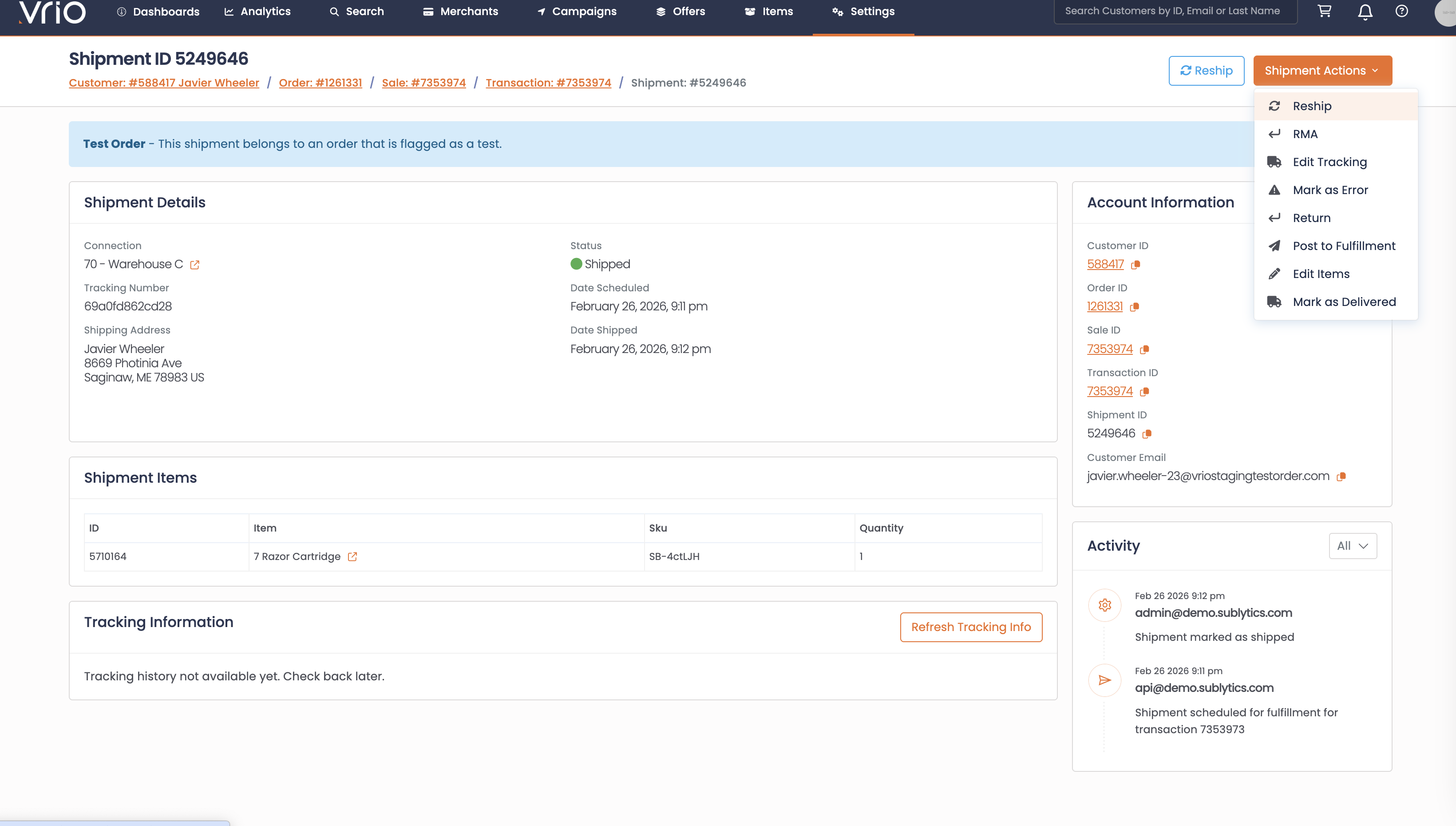
Step 2: Open the Reship Form
On the shipment detail page, click Reship from the Shipment Actions.
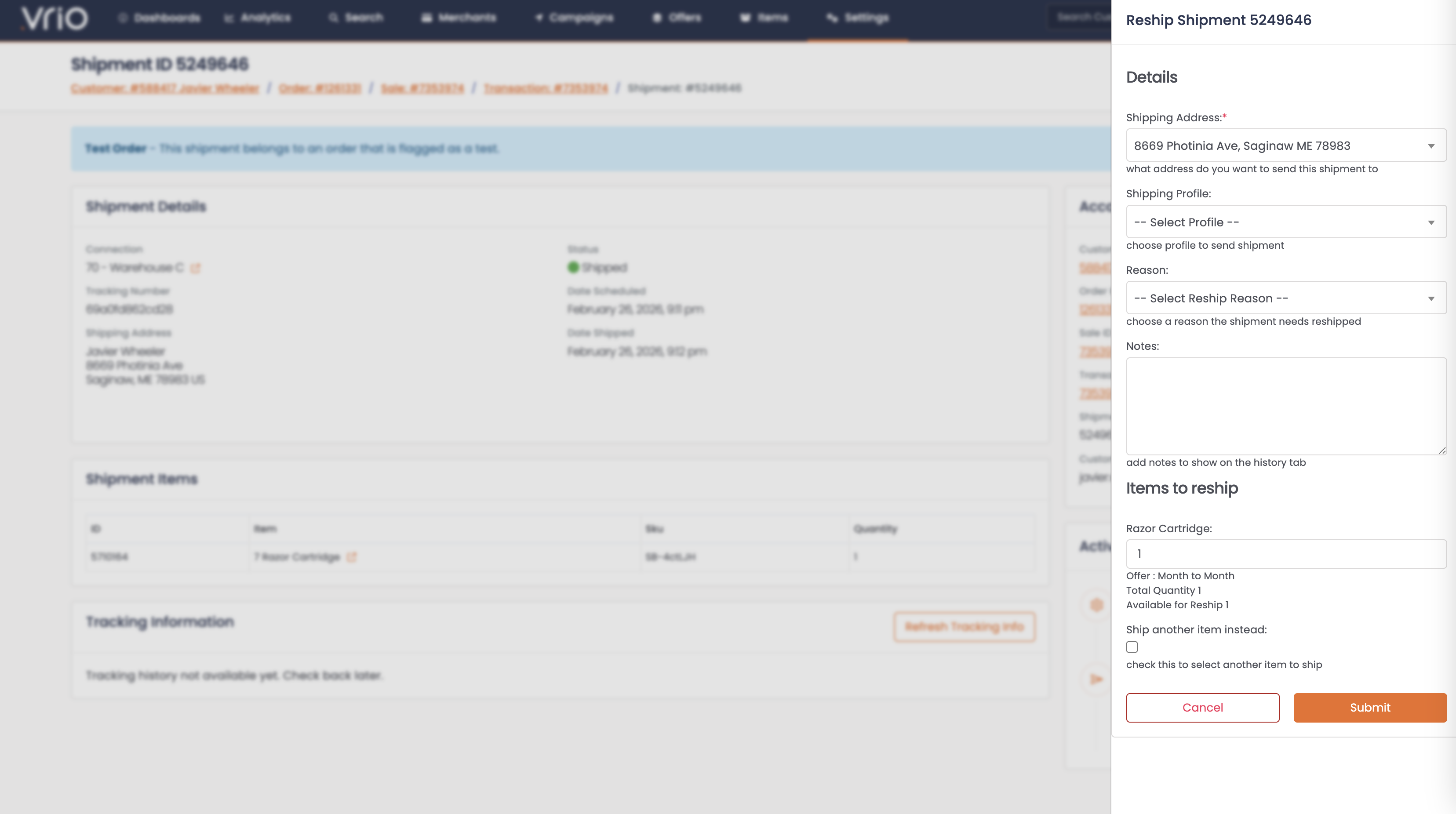
Step 3: Complete the Reship Form
-
Shipping Profile (optional) — Select a different shipping profile for the reshipment, if applicable
-
Reship Reason (required) — Select a reason from the dropdown (used for reporting). Add any additional notes.
-
Items & Quantity — Select which items and quantities to reship. If there are multiple items in the shipment, you can select individual items or all of them.
-
Ship Another Item Instead (optional) — Check this box if the original item is out of stock. You can then select a different Item/Variant and quantity to send.
-
Click Submit
What Happens After Submitting
When a reship is created:
-
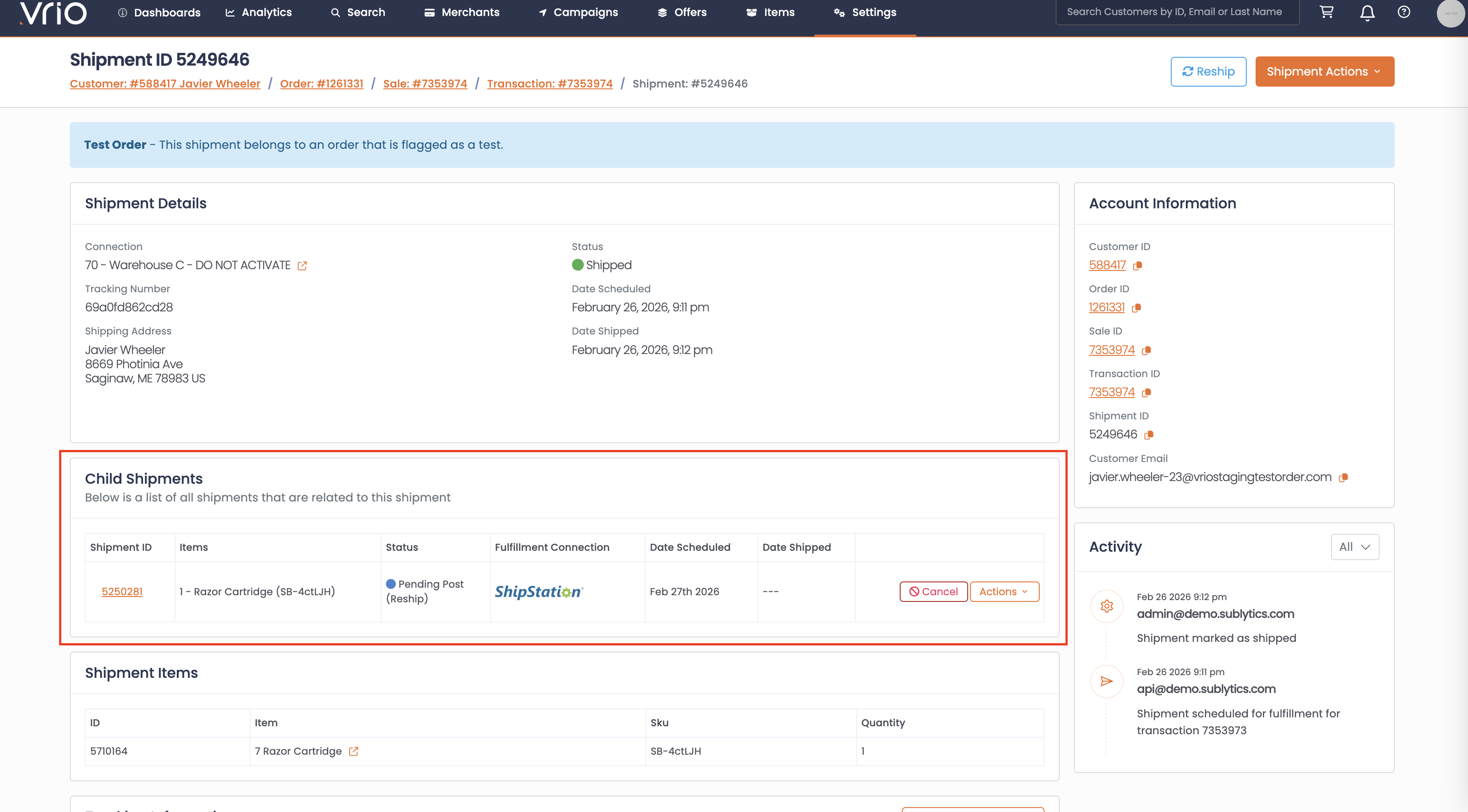
Child shipment created — A new shipment is created with the type Reship, linked to the original shipment
-
Scheduled 15 minutes out — The new shipment is scheduled 15 minutes in the future, giving you time to make edits (e.g., change address or items) before it posts to fulfillment
-
Items assigned — The selected items and quantities are added to the new shipment and assigned to the appropriate fulfillment connection based on the fulfillment priority hierarchy
-
Original shipment unchanged — The original shipment record is not modified
Reviewing Reships
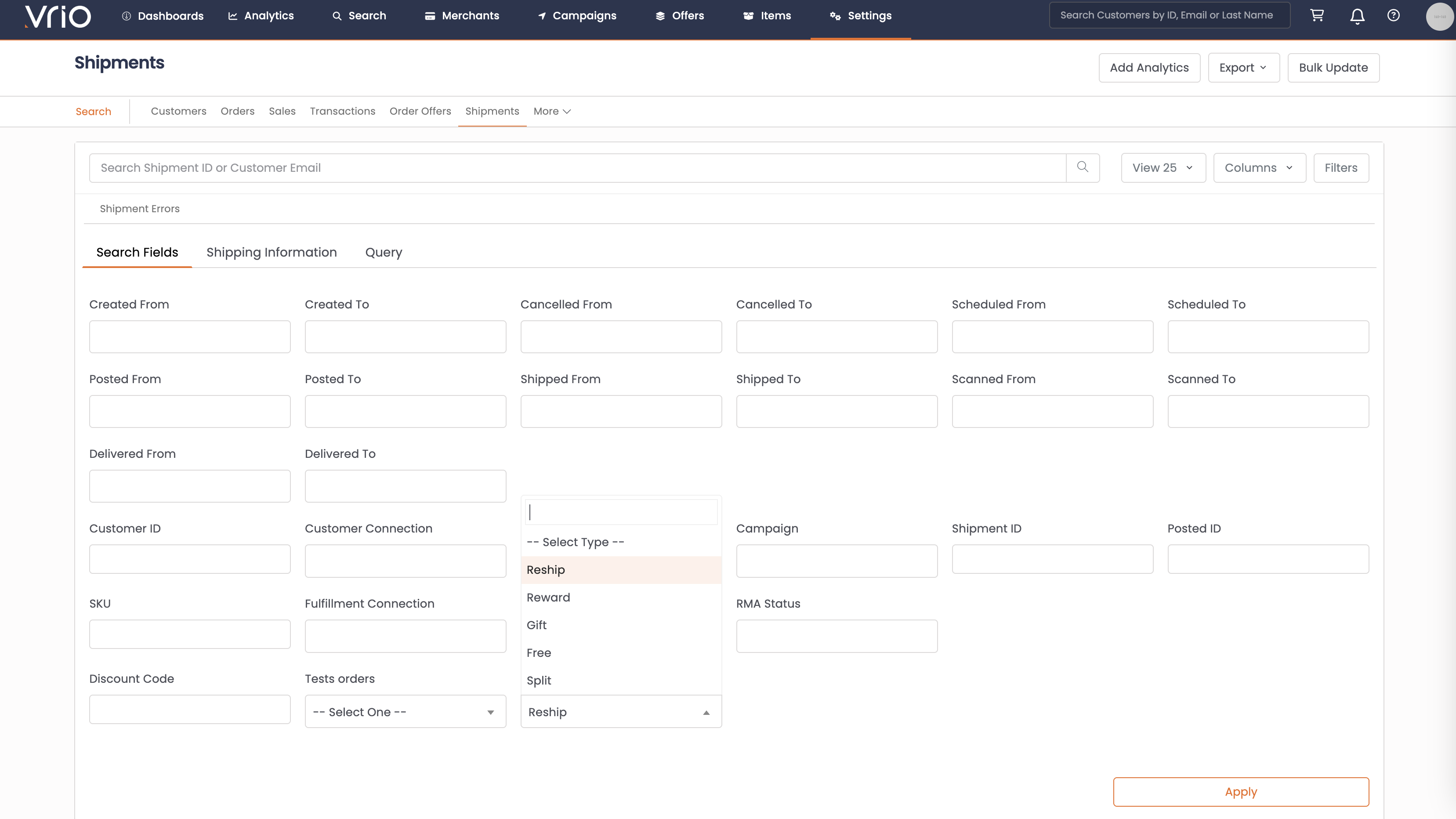
To find all reship shipments:
-
Navigate to Search → Shipments tab
-
Click Filters
-
Set Child Shipment Type = Reship
-
Click Apply
Reship Reasons
Reship reason types are configurable in your Reason Codes settings. It is recommended to add the common reship reasons specific to your business for accurate reporting.
Other Ways to Reship
- API — POST /shipments/{id}/reship to create a reship programmatically
FAQ
Q: Can I reship an item from a shipment that hasn't shipped yet?
A: No. The shipment must be completed (has tracking) or cancelled before a reship can be created.
Q: Can I reship a reship?
A: No. A shipment that is already a reship child cannot be reshipped again. You would need to reship the original parent shipment.
Q: Does a reship trigger any customer notifications?
A: No. Creating a reship does not trigger any responders or webhook events. Notifications will fire when the reship shipment itself is posted to fulfillment or receives tracking.
Updated 7 months ago