
Cancel a Shipment
Cancel shipments in Vrio to stop delivery to customers. Vrio will attempt to cancel the shipment with the fulfillment connection if it has already been sent.
Cancelling a shipment stops the delivery of products to the customer. When you cancel a shipment that has already been sent to a fulfillment connection, Vrio will automatically attempt to cancel it with the fulfillment provider as well.
Key Takeaways
- Cancelling changes the shipment status to Cancelled
- If the shipment has been posted to fulfillment, Vrio sends a cancellation request to the fulfillment provider
- Grouped shipments that are not being cancelled are reset to Pending Post and re-sent separately
- A
shipment_cancelledwebhook event is fired to connected systems- You can also cancel shipments as part of a refund or void
Prerequisites
The Cancel action is available when all of the following conditions are met:
| Condition | Details |
|---|---|
| Shipment is not Pending Transaction | Status must not be Pending Transaction |
| Shipment is not completed | The shipment has not yet been shipped (no tracking/completion date) |
| Shipment is not already cancelled | The shipment has not already been cancelled |
| Shipment is not skipped | The shipment has not been skipped |
How to Cancel a Shipment
Step 1: Navigate to the Shipment
Find the shipment you want to cancel. The most common methods are:
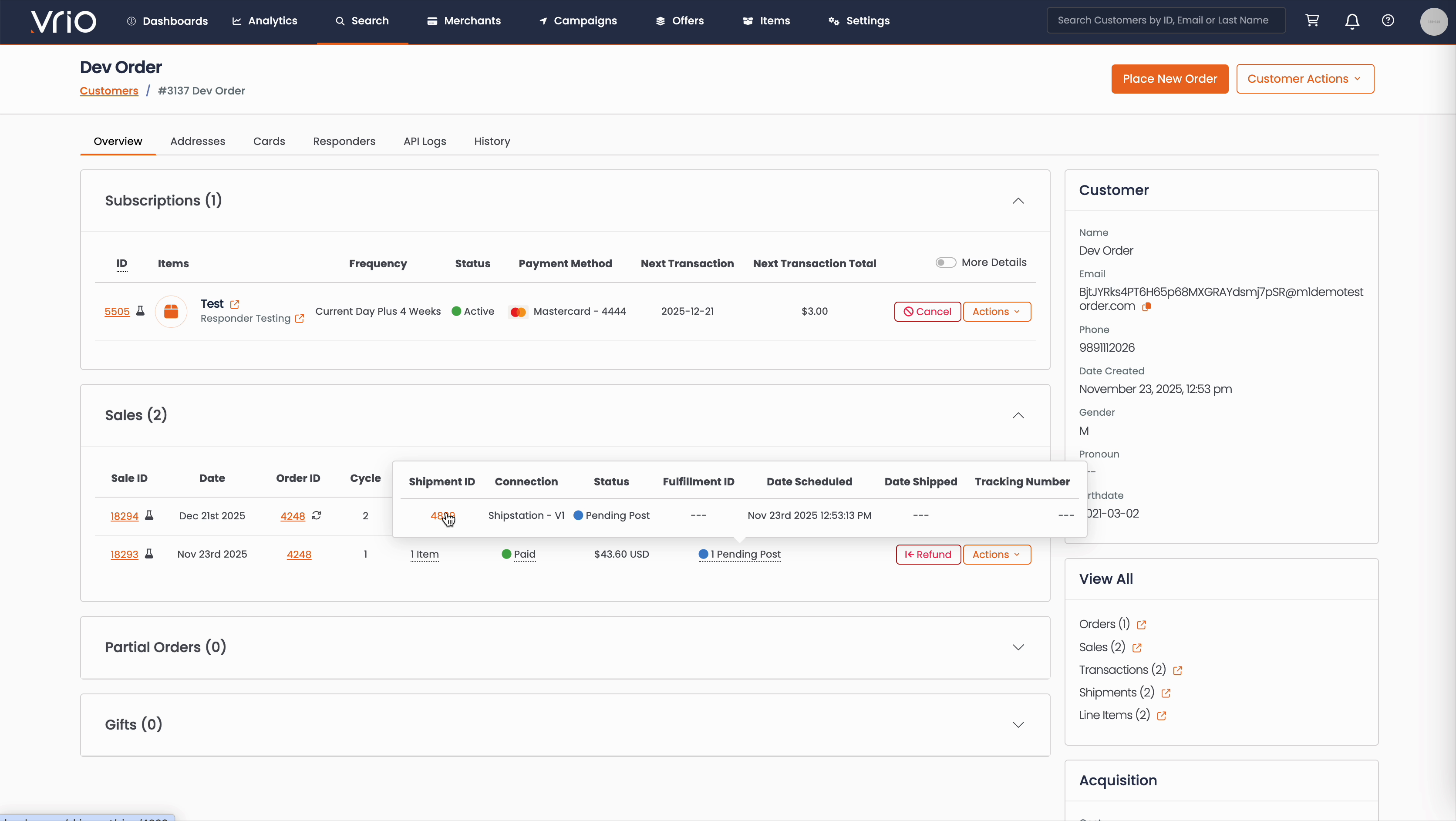
From the Customer Page:
- Navigate to Search → Customers tab and find the customer record
- On the customer detail page, scroll to the Sales section
- Hover over the Shipment Status to expand and show shipment details
- Click on the Shipment ID
From the Shipments List:
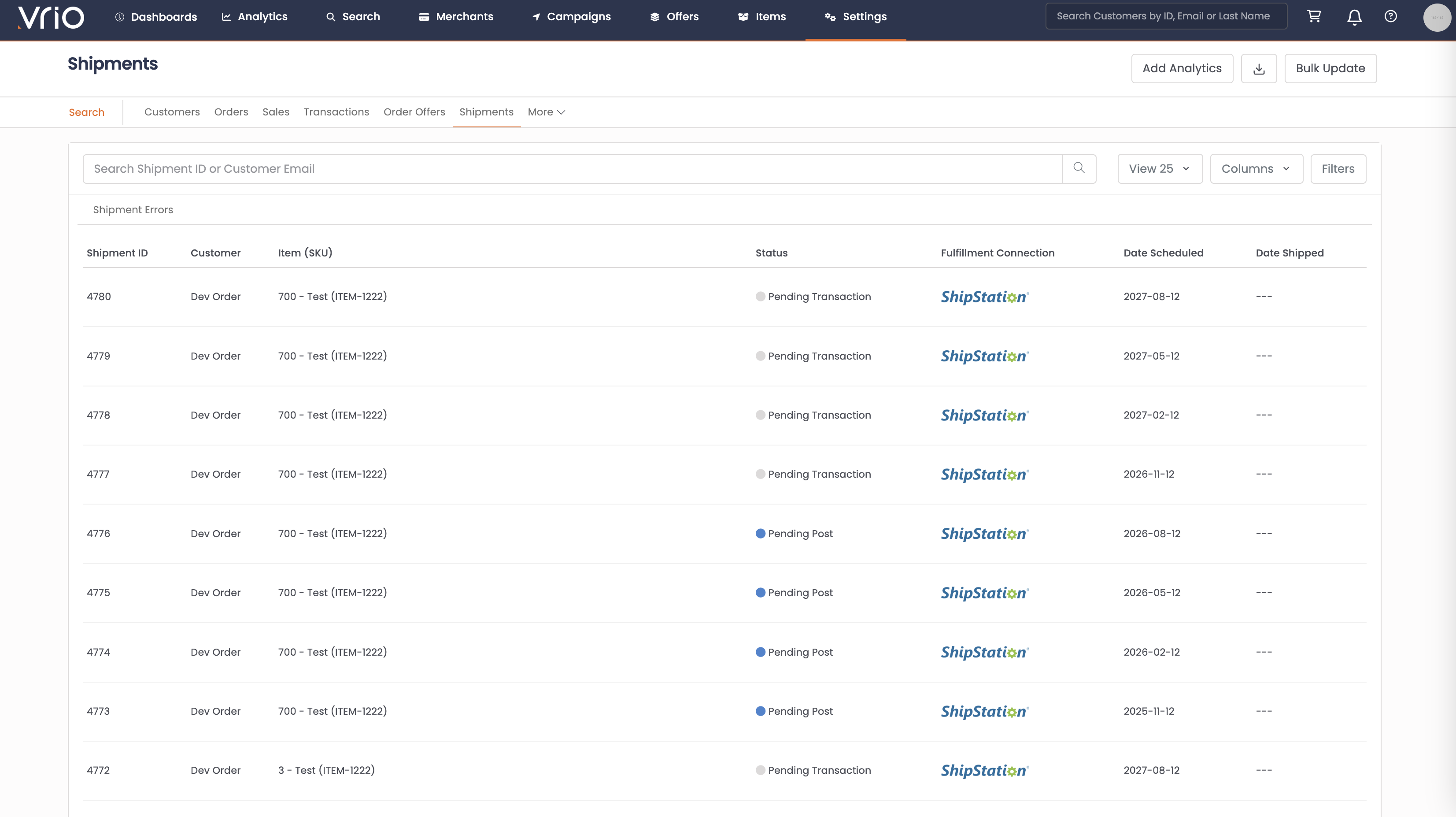
- Navigate to Search → Shipments tab
- Filter shipments or browse the list to find the shipment you want to cancel
- Click on the Shipment to open the shipment detail page
Step 2: Open the Cancel Modal
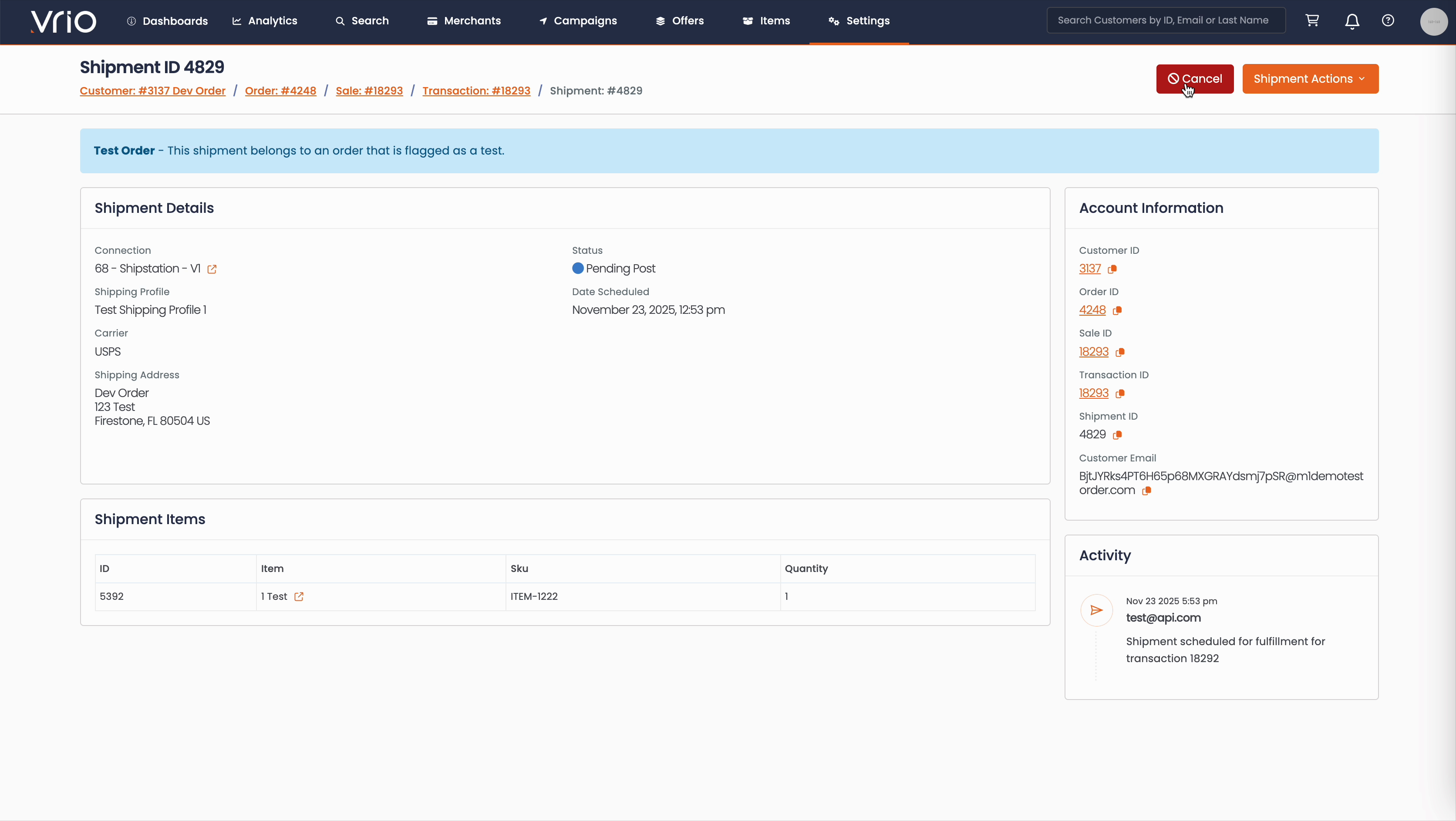
On the shipment detail page, click the Cancel button from the Shipment Actions.
Step 3: Complete the Cancellation Form
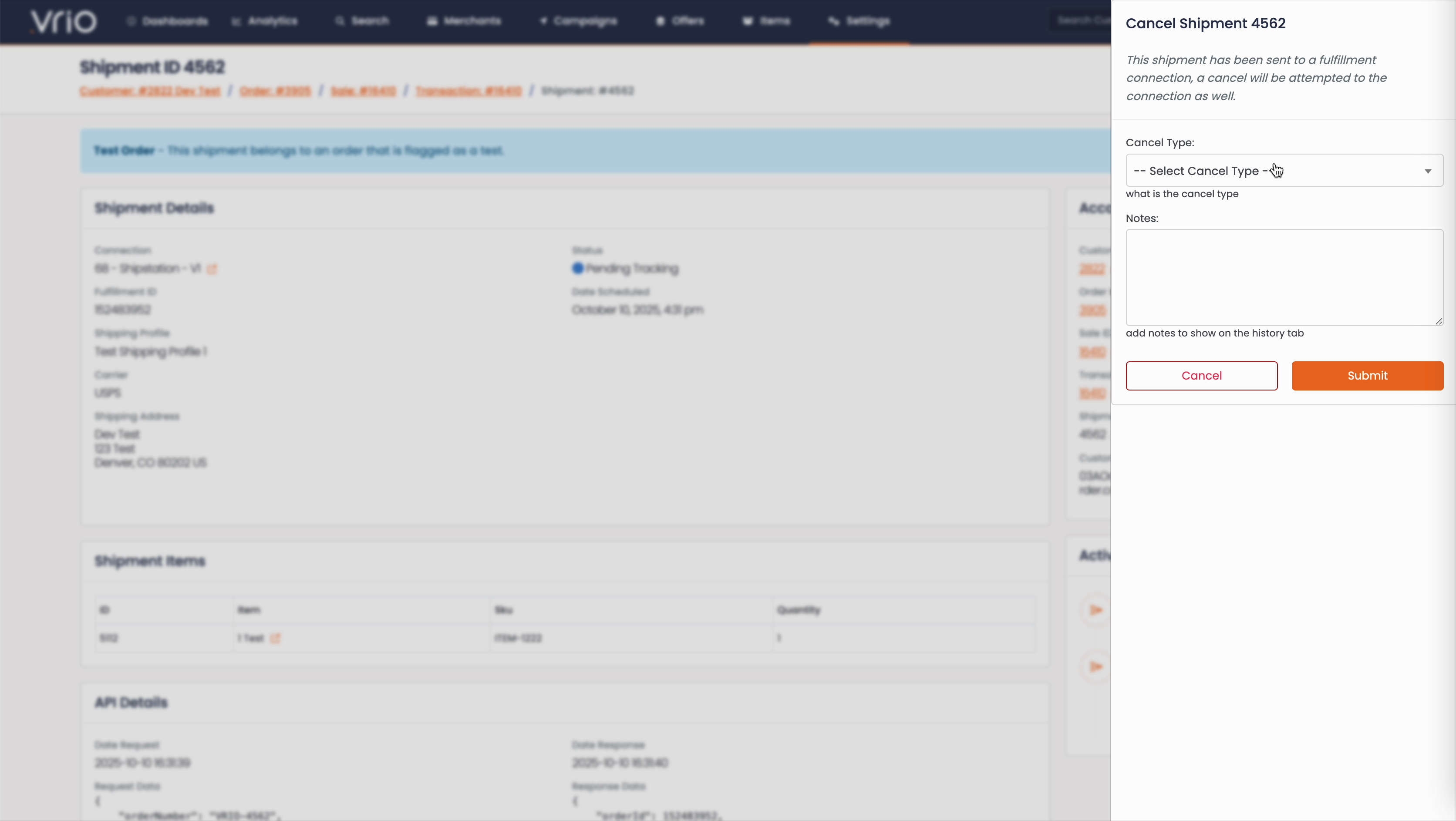
If the shipment has been sent to a fulfillment connection, you'll see a message indicating that Vrio will attempt to cancel it with the fulfillment provider as well.
- Cancel Type (required) — Select a cancellation reason from the dropdown. These reasons are configurable in your Reason Codes settings.
- Notes (optional) — Add any additional notes about the cancellation.
- Click Submit to cancel the shipment.
Potential ErrorsYou may receive an error message like "ERROR: Unable To Cancel Shipment" if the shipment cannot be cancelled (e.g., already shipped or delivered, or if there was an error communicating with the fulfillment connection).
What Happens After Submitting
When a shipment is cancelled:
-
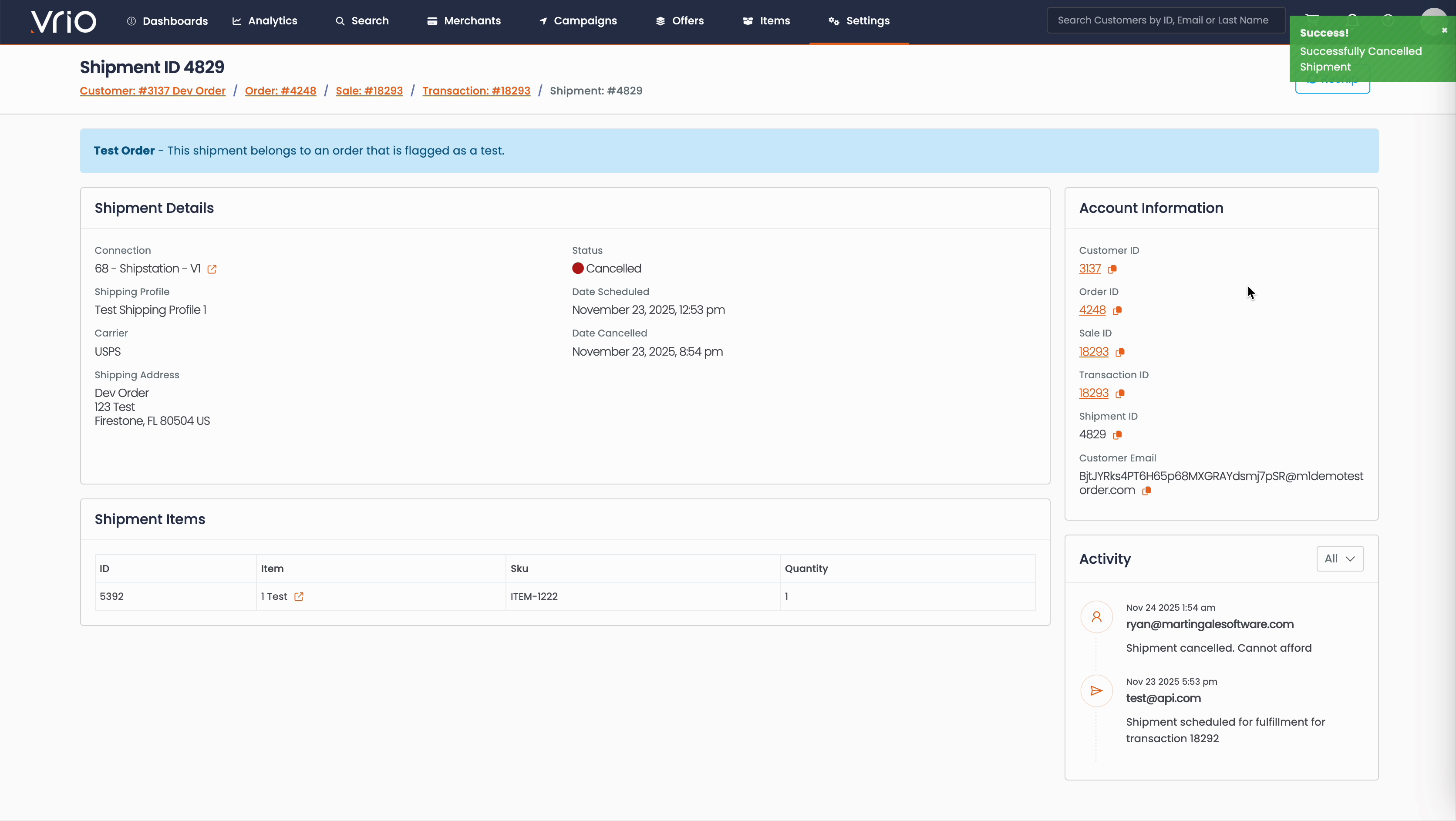
Status updates to Cancelled — The shipment status changes to Cancelled and the cancellation date is recorded
-
Fulfillment connection notified — If the shipment was posted to fulfillment, Vrio sends a cancellation request to the fulfillment provider. The earlier you cancel, the more likely the fulfillment center can stop it before it ships.
-
Grouped shipments are handled — If the shipment is part of a group, all grouped shipments are cancelled at the fulfillment connection. Non-cancelled grouped shipments are then reset to Pending Post so they can re-post individually.
-
Webhook event fires — A
shipment_cancelledevent is sent to any connected systems -
Activity logged — The cancellation is recorded in the shipment's Activity section with the cancel type
Grouped Shipments ExampleA customer places 2 orders creating Shipment A and Shipment B, which are grouped for combined fulfillment. If you cancel Shipment A:
- Both shipments are cancelled at the fulfillment connection
- Shipment A remains cancelled
- Shipment B is reset to Pending Post and will re-post as a separate shipment
Cancel via Refund or Void
You can also cancel shipments as part of refunding or voiding a transaction. Learn more about refunding or voiding a charge.
- Refund — You have the option to check "Cancel pending shipments"
- Void — Shipments are automatically cancelled
Other Ways to Cancel
- API — POST /shipments/{id}/cancel to cancel a shipment programmatically
FAQ
Q: Can I cancel a shipment that has already shipped?
A: No. Once a shipment has a tracking number and is marked as Shipped, it cannot be cancelled through Vrio. You may need to work directly with the fulfillment provider or arrange a return instead.
Q: Will the customer receive a notification when a shipment is cancelled?
A: No. Cancellation does not trigger a customer-facing responder. A shipment_cancelled webhook event is fired to connected systems only.
Q: What happens to grouped shipments when I cancel one?
A: All grouped shipments are cancelled at the fulfillment connection. The ones not being cancelled are reset to Pending Post and re-sent to fulfillment individually.
Updated 7 months ago