
Cancel Subscriptions
Cancel active subscriptions for multiple customers at once.
Cancel multiple subscriptions at once using the bulk action feature. This is useful when you need to cancel subscriptions for multiple customers simultaneously.
Key Takeaways
- Cancelling does not automatically refund previous transactions
- Cancelling does not cancel shipments already in fulfillment (Pending Post, Pending Tracking, Shipped, Delivered)
- Cancelling will cancel shipments in Pending Transaction status
- Responders will be sent if configured
To Bulk Cancel Subscriptions
- Navigate to Search from the top navigation
- Click on the Order Offers tab
- Click Filters to open the query builder
- Set the Status filter to Active (or your desired filters)
- Click Apply to filter the list
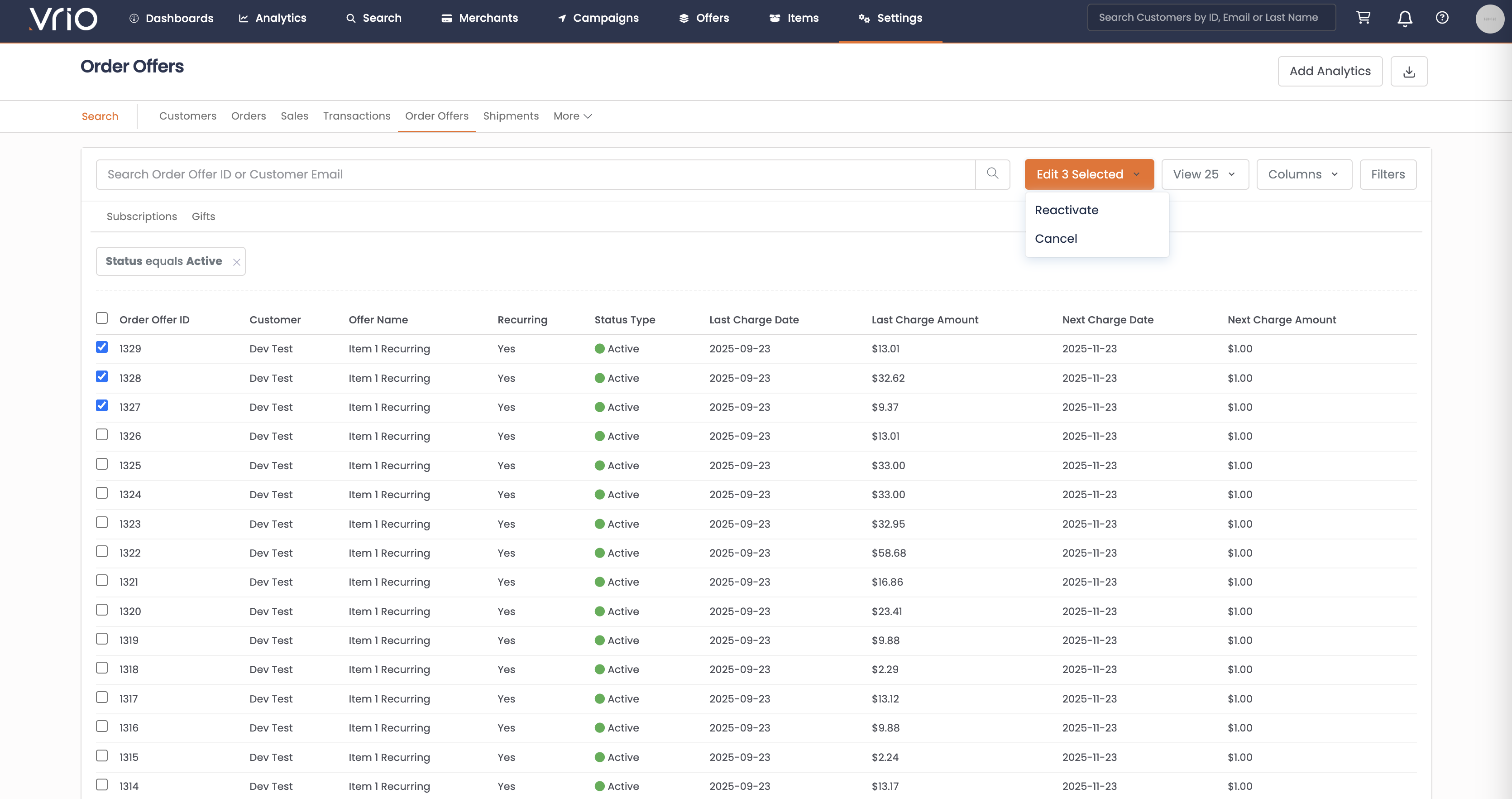
- Select the checkboxes next to the order offers you want to cancel
- Click the Edit X Selected dropdown button
- Select Cancel
- In the modal that appears:
- Choose a Cancel Reason from the dropdown
- Type Cancel Now in the confirmation field
- Optionally add notes
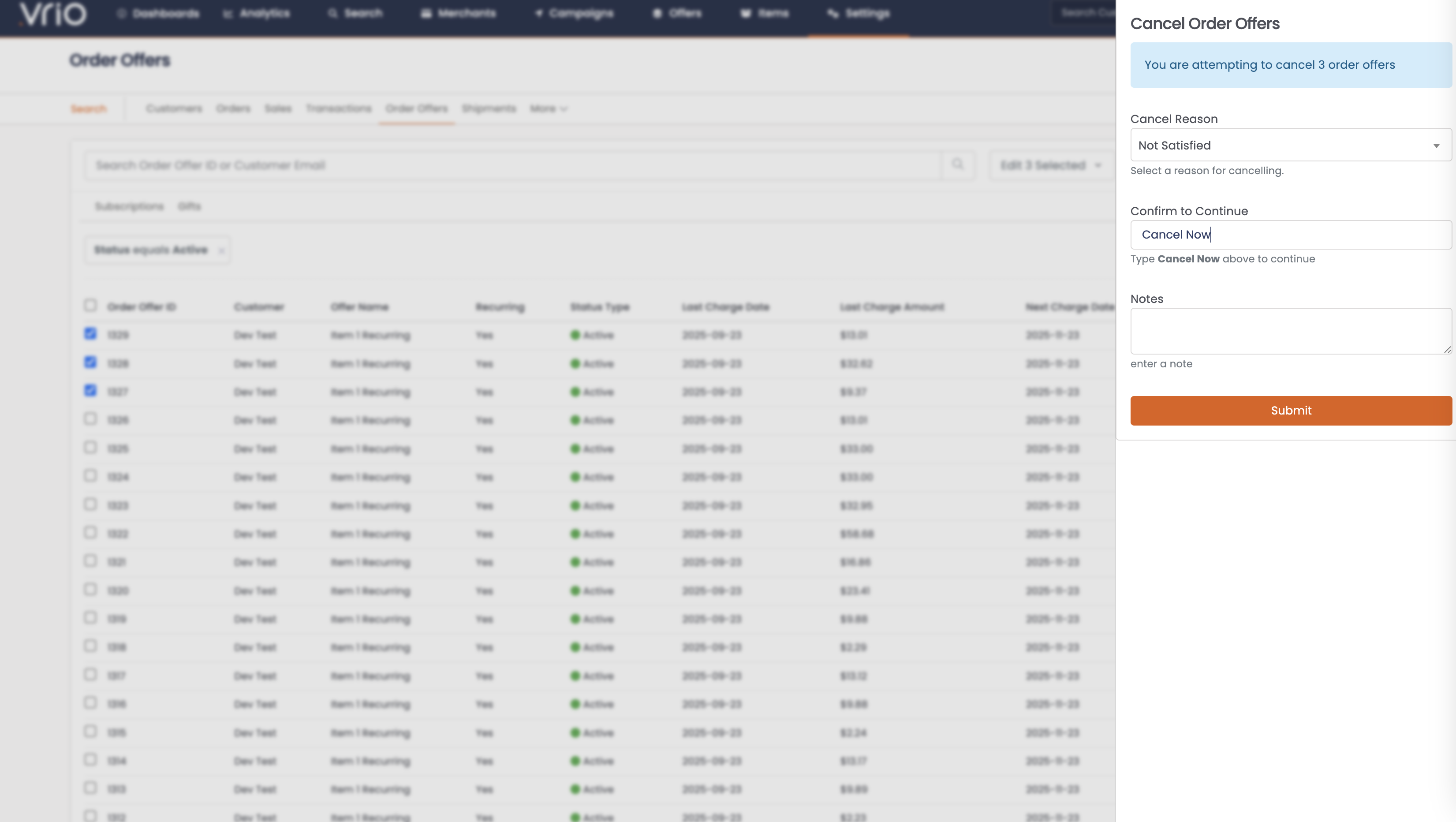
- Click Submit
Customer CommunicationIf you have cancellation responders configured, they will automatically be sent to each customer whose subscription is cancelled through the bulk action.
FAQ
Q: Will customers be charged again after cancellation?
A: No, once cancelled, no future charges will occur for that subscription.
Q: What happens to pending shipments?
A: Shipments in "Pending Transaction" status will be cancelled. Shipments already in fulfillment (Pending Post, Pending Tracking, Shipped, Delivered) will still be sent.
Q: Can I cancel and refund at the same time?
A: Not through bulk cancel. To refund and cancel, process refunds individually from the customer record with the "Cancel Active Offers" option checked.
Q: How do I cancel a single subscription?
A: See Cancel a Subscription for cancelling individual subscriptions from the customer record.
Updated 8 months ago