
Dunning Profiles
Configure dunning schedules to reattempt declined recurring payments with customizable strategies, discounts, and communication workflows for revenue recovery.
What is Dunning?
There are a wide range of dunning strategies that may be implemented. Dunning allows you as a business to reattempt a declined renewal transaction in order to keep recover revenue that would have otherwise been lost through a failed payment.
Dunning scheduled give you the ability to communicate to the customer their failed payment. For example, if a card declines due to an expiration, the consumer can update to an active card. Thus retaining that customer.
Key Takeaways:
- Dunning is applied on subscription renewals only.
- Dunning Schedules are set on Recurring Offers.
Creating a Dunning Schedule
You can create a single or multiple dunning schedules. This will allow you to test different reattempt strategies to see which improves overall recovery.
To create a Dunning Schedule:
-
Navigate to Settings
-
Select Dunning Profile under Payment Workflows
-
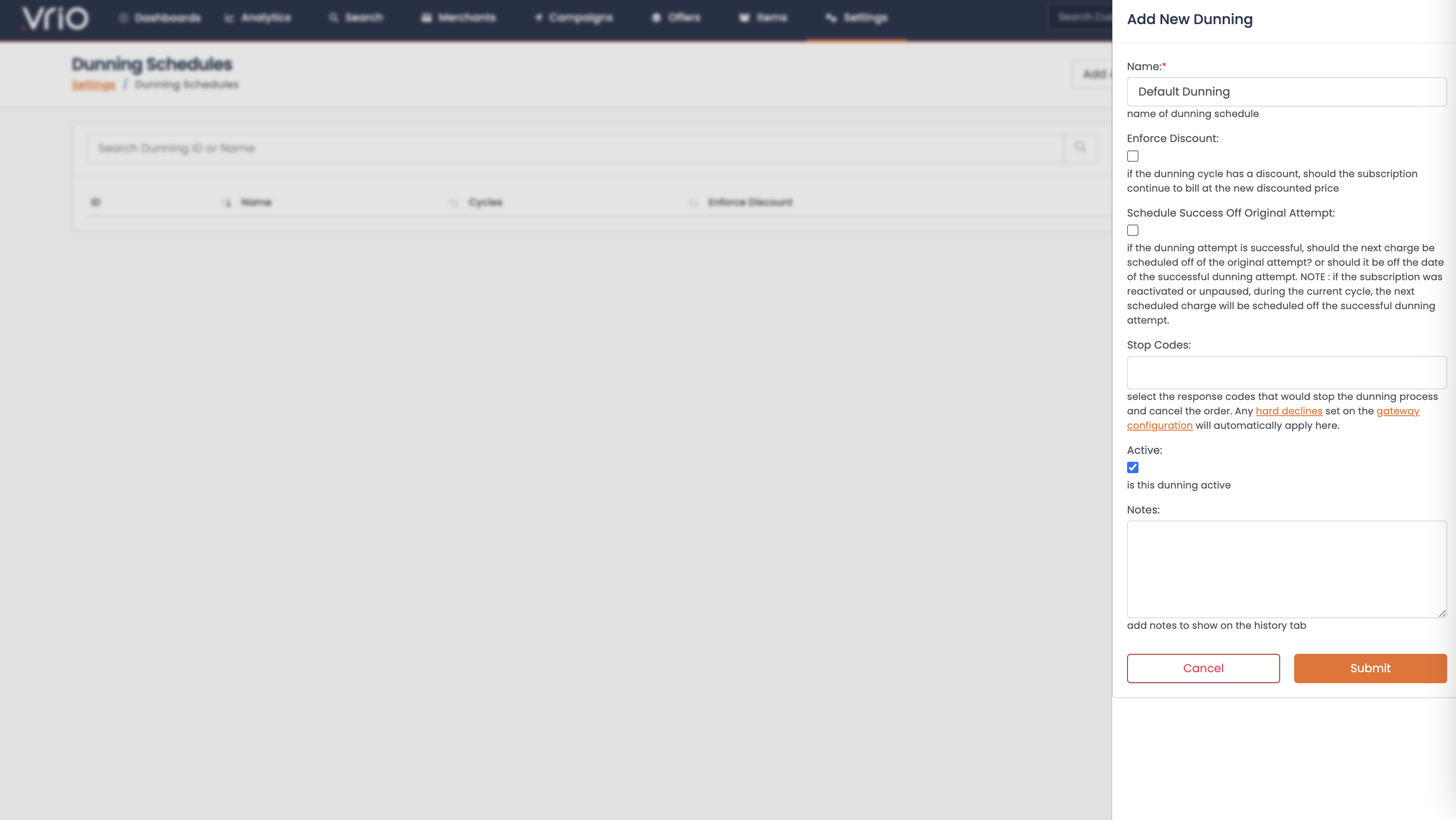
Select Add Dunning Schedule or select an existing schedule to edit
-
Name the schedule
-
Add additional setup details, if applicable:
- Enforce Discount:
- if checked, and a dunning discount is applied, that discounted rate will remain the new renewal price moving forward for all subsequent renewals.
- If left unchecked, the discount will be applied one time only. All subsequent renewals will go back to the original price.
- Schedule Success Off Original Attempt:
- If checked, once a reattempt is successful, the next scheduled transaction will go off of the original declined renewal attempt date.
- If left unchecked, it will schedule the next transaction based on the date the renewal was successful.
- Enforce Discount:
-
Stop Codes: Define specific decline response codes that should not be reattempted. When a transaction declines with one of these codes, dunning will stop and no further retry attempts will be made. Alternatively, you can configure hard declines at the merchant account level. Hard declines configured at the merchant level will apply across all dunning schedules.
-
Active: Check this box to make the dunning schedule active and available for use.
-
Notes: Add internal notes for documentation purposes (visible on the history tab).
-
Hit Submit
Pay Attention
Make note of the Schedule Success logic. If you have a 30 day subscription do you want the subscription always billed the same date regardless of when the transaction was successful or not.
Configuring Dunning Attempts
After creating your dunning schedule, you need to configure the specific retry attempts (cycles) that will be made when a renewal fails. This is where you define when and how each retry attempt should occur.
Adding Dunning Cycles
-
After submitting your initial dunning schedule details, you'll be taken to the Edit Dunning Schedule page
-
Navigate to the Configuration tab (in the left sidebar)
-
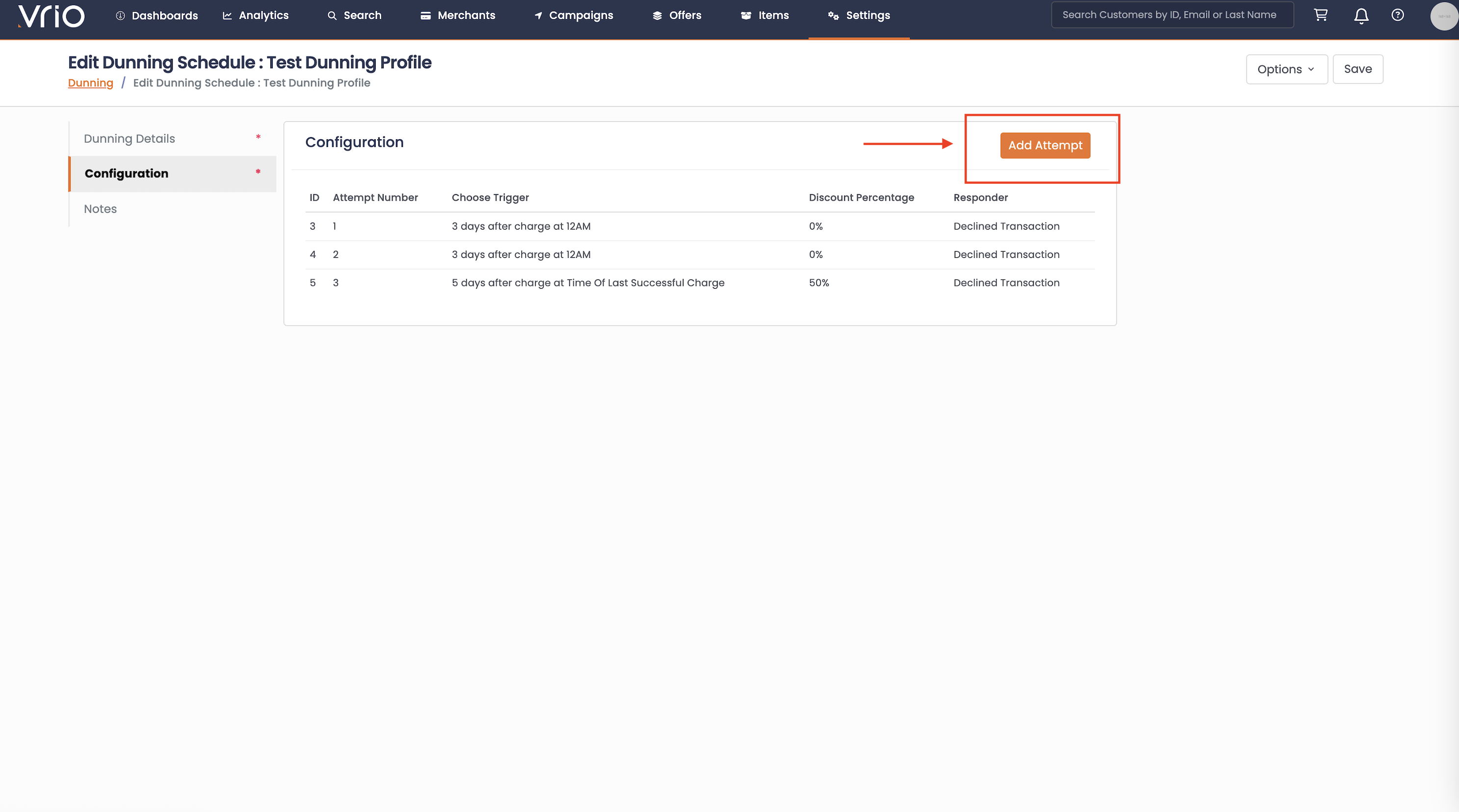
Click Add Attempt to create a new retry cycle
-
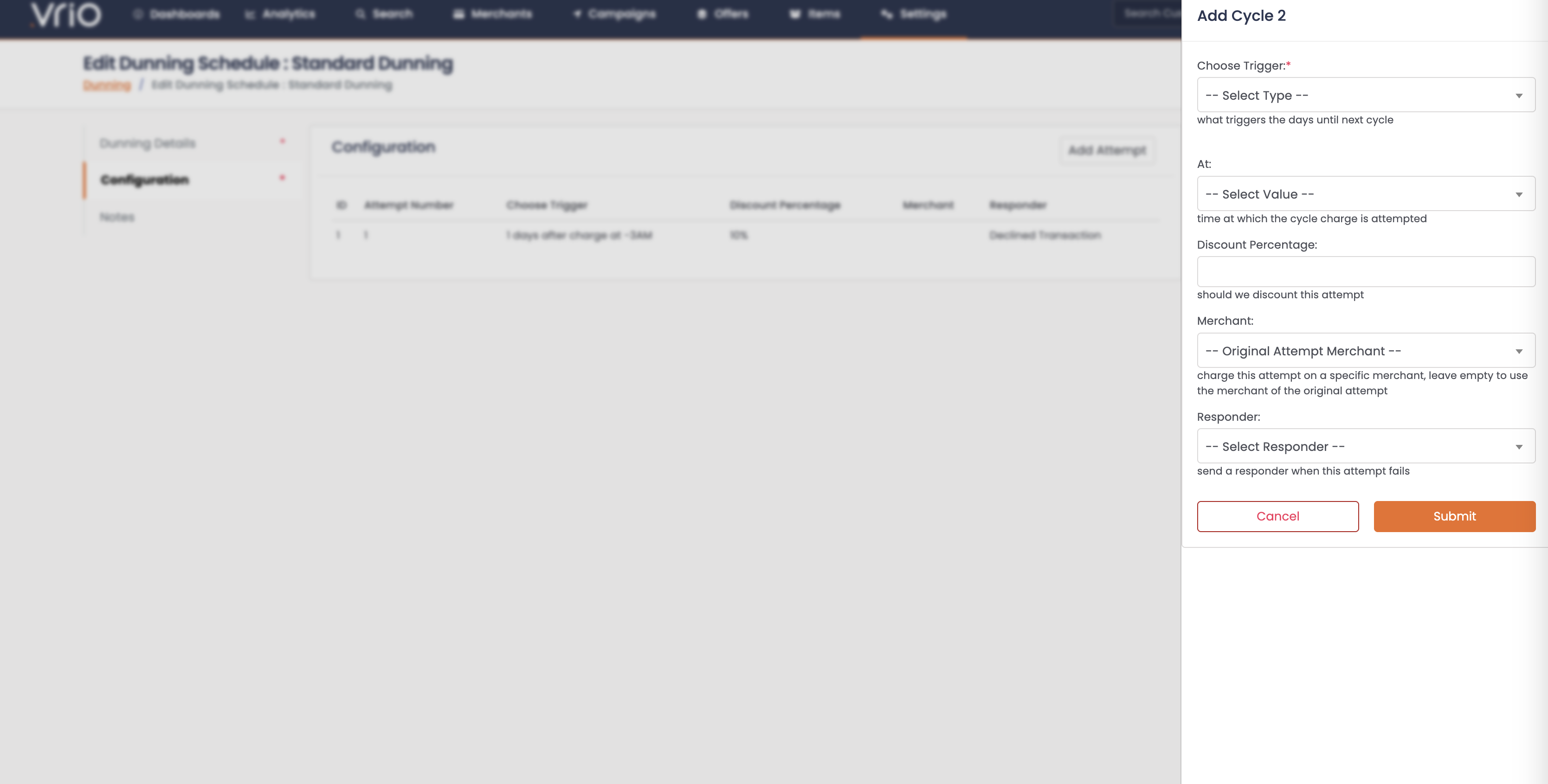
For each cycle/attempt, configure the following:
Choose Trigger
This determines how the timing of the retry attempt is calculated. There are two trigger types:
- Days Since Previous Charge:
- Calculates the retry timing based on the original scheduled renewal date
- Example: If the renewal was due on Jan 1st and this is set to 5 days, it will attempt on Jan 6th
- When selected, enter the number of days in the Days Since Last Attempt field
- Timeframe:
- Schedules the retry on a specific calendar frequency rather than a fixed number of days
- When selected, choose a frequency from the Timeframe dropdown
Timeframe Frequencies
When you choose the Timeframe trigger, select a frequency from the dropdown. If none of the stock frequencies fit, click create next to the dropdown to build a custom one. Custom frequencies support:
- Decline Day Plus — a set number of Days, Weeks, or Months after the decline (e.g. 1 Week, 1 Month)
- Specific Day of Week — e.g. every Wednesday
- Specific Day of Month — e.g. the 1st, the 15th, or the Last day of the month
Custom frequencies you create are saved and reused, so building an identical frequency won't create a duplicate.
Note: The create link only appears for users with permission to create timeframes.
At (Time Selection)
Select the specific time when the retry attempt should be processed. You have two types of options:
Static Times:
- 12am, 1am, 2am... through 11pm
- Use these to process attempts at a specific hour each day
Dynamic Times (relative to customer's billing):
- Time Of Original Charge - Processes at the same time the original charge was scheduled
- Time Of Last Successful Charge - Processes at the same time the last successful payment occurred
- 1-5 Hours After The Declined Attempt - Processes a set number of hours after the attempt that just declined
Dynamic times are useful for catching customers when they're most likely to have funds available, based on their historical payment patterns.
1-5 Hours After The Declined Attempt is the option to use when you want to retry quickly rather than at a set time of day. Pair it with a Days Since Previous Charge of 0 and the retry runs that many hours after the decline, instead of waiting until midnight. This is how you send a decline straight to a recovery merchant while the card is still likely to be good.
Discount Percentage
Optionally offer a discount on this retry attempt to motivate customers to update their payment method. Enter a percentage (e.g., 10 for 10% off).
Remember: The Enforce Discount setting from your Dunning Details tab controls whether this discount becomes permanent or is one-time only.
Merchant
Optionally send this attempt to a specific merchant account instead of the one the previous attempt used. This is how you route a retry to a recovery gateway, or simply to a different processor that may perform better on reattempts.
Leave it set to Original Attempt Merchant and the attempt uses the merchant that took the first charge of that billing cycle. This is what returns a subscription to its normal merchant after it has been salvaged elsewhere — without it, a subscription recovered on a specialty merchant would keep billing there indefinitely.
An inactive or deleted merchant is guarded against at two separate points.
When the next attempt is scheduled, if the merchant selected here is inactive or has been deleted, the charge is left on the merchant it was already using rather than moved onto one that cannot accept it.
If instead the merchant is deactivated later, after the attempt has already been scheduled onto it, the attempt is skipped when its turn comes rather than rerouted.
Nothing is charged on an inactive merchant, but nothing is recovered either — so if a dunning attempt never appears to fire, check whether its merchant was deactivated after the schedule was built.
Credit card subscriptions only
This only works when the subscription's payment method is a credit card.
On PayPal, Apple Pay, ACH, and the rest, the attempt stays on the merchant it was already using and these settings are ignored.
Keep Merchant On Success
Only applies when a Merchant is selected above.
Check this box and, once this attempt succeeds, all following renewals stay on that merchant. Leave it unchecked and the subscription goes back to the merchant of the original attempt.
Note: This option is not available for recovery gateways such as SecondSwype and FlexFactor. Those gateways only work on transactions that have already declined, so a subscription can never be left billing on them.
Responder
Select which email or SMS responder should be sent when this attempt fails. Only responders configured with the Declined Transaction trigger will appear in this dropdown.
Responders with the Declined Transaction trigger must be configured separately before they'll be available for selection here. See the Responder Triggers guide for more information on setting up responders.
Note: When a dunning schedule is applied to an offer, dunning responders take priority over any Declined Transaction responders configured at the offer level.
Example Configuration
Here's a common three-attempt dunning strategy:
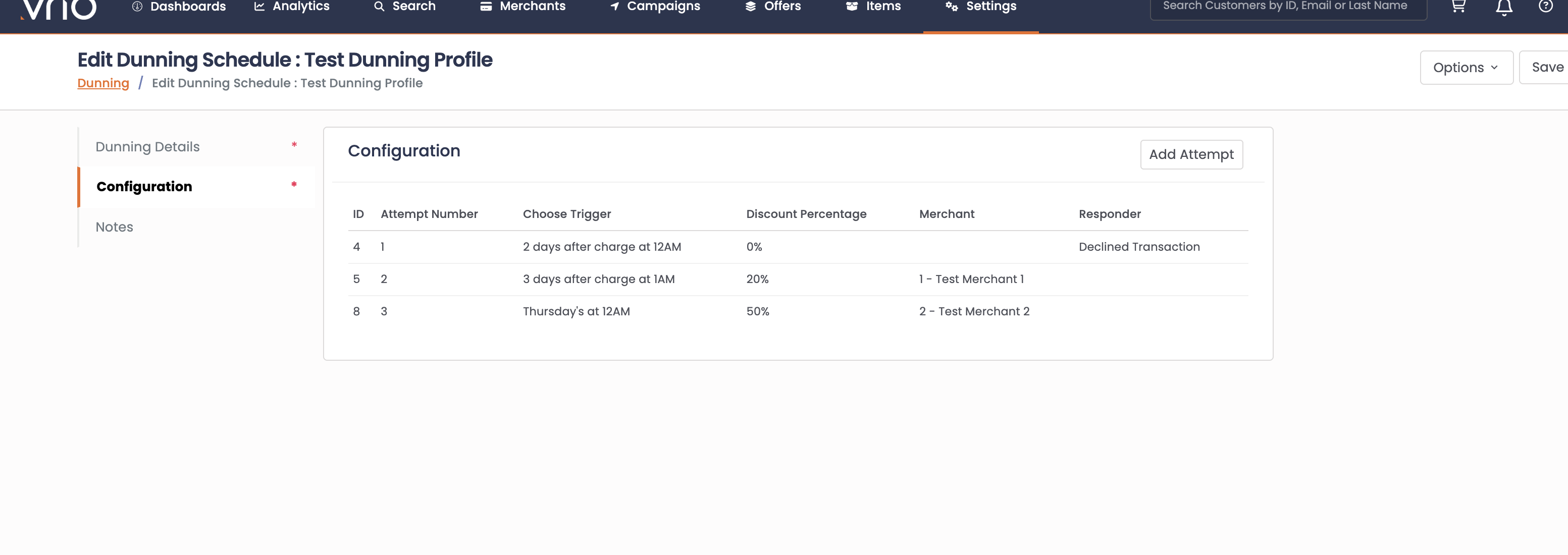
This configuration:
- Attempt 1 runs 2 days after the declined renewal at 12AM, at full price, on the same merchant the renewal was charged on, with an email sent to the customer
- Attempt 2 runs 3 days after attempt 1 at 1AM with 20% off, moved to Test Merchant 1
- Attempt 3 runs the following Thursday at 12AM with 50% off, moved to Test Merchant 2
If attempt 3 declines the subscription cancels, since no further attempts are configured.
Attempt 1 leaves Merchant empty, so it retries on whichever merchant took the original charge. Attempts 2 and 3 then escalate to different merchants alongside a deeper discount, which lets you test whether another processor recovers the payment where the original one could not.
Neither attempt has Keep Merchant On Success checked, so a subscription that recovers on Test Merchant 1 or Test Merchant 2 returns to the merchant of the original attempt for its next renewal. Whether the discount carries forward is controlled separately by Enforce Discount on the Dunning Details tab.
Reactivating a Cancelled Subscription
When every attempt in a schedule has declined, the subscription cancels. If you reactivate it, the new charge picks the schedule back up on the last attempt that was configured, inheriting that attempt's merchant and discount.
So with a two attempt schedule where attempt 2 sends to a recovery merchant at 20% off, a reactivated subscription is charged on that recovery merchant at 20% off. From there it behaves like any other attempt — if it succeeds, the Keep Merchant On Success setting on that attempt decides whether following renewals stay on the recovery merchant or return to the original one.
Implementing a Dunning Schedule
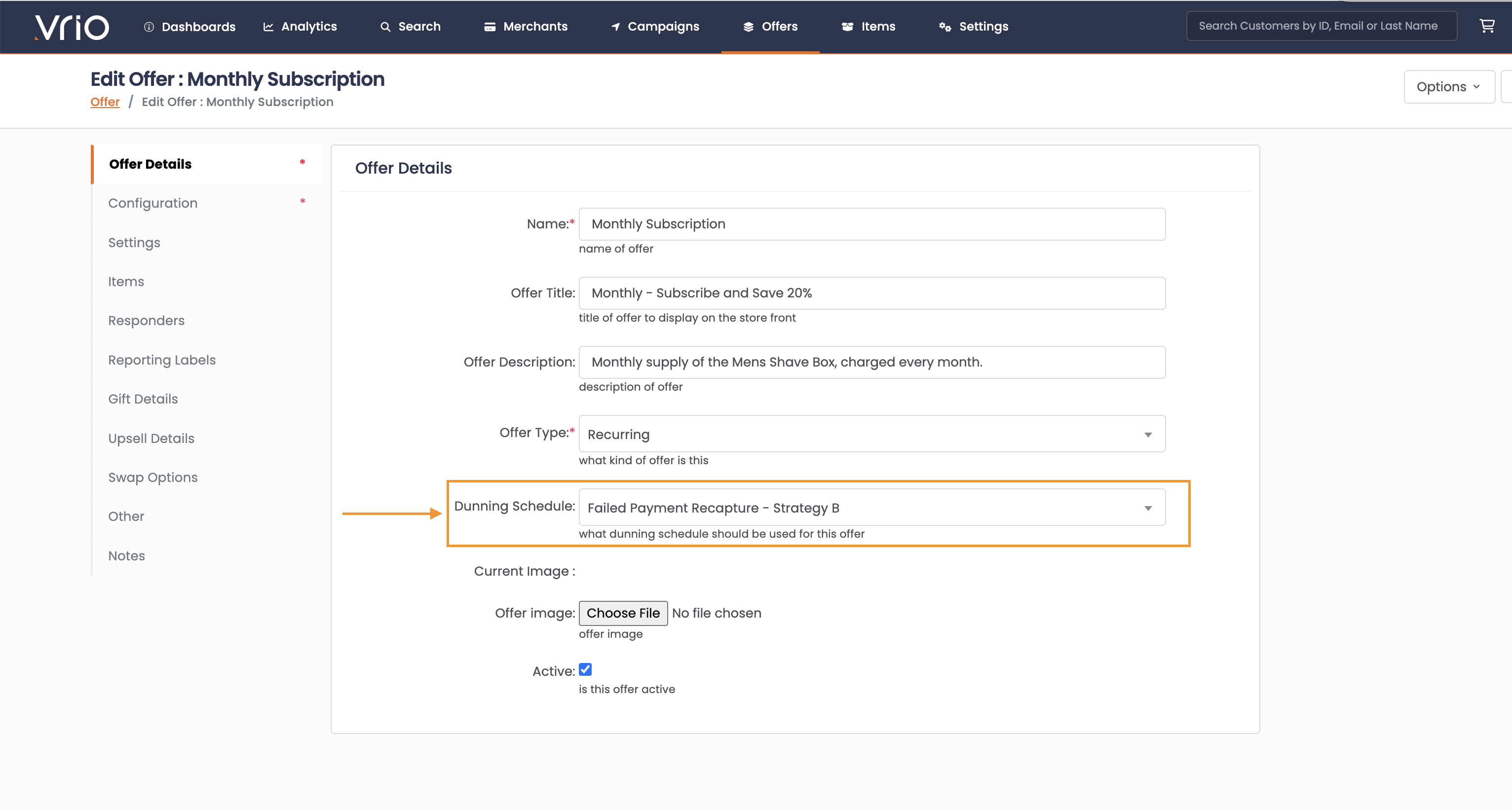
After creating the Dunning Schedule, you have the flexibility to apply it to any desired Offer. You can utilize the same dunning schedule for multiple Offers or experiment with different dunning strategies.
Once your Dunning is setup and live, monitor performance by utilizing the Vrio Dunning Report.
Dunning is setup on the Offer Details page of a Recurring Offer.
Testing Dunning Schedules
In order to test dunning without having to use real credit cards you can place a test order making sure you use a merchant that is associated with the Test Gateway. Then follow the steps below.
-
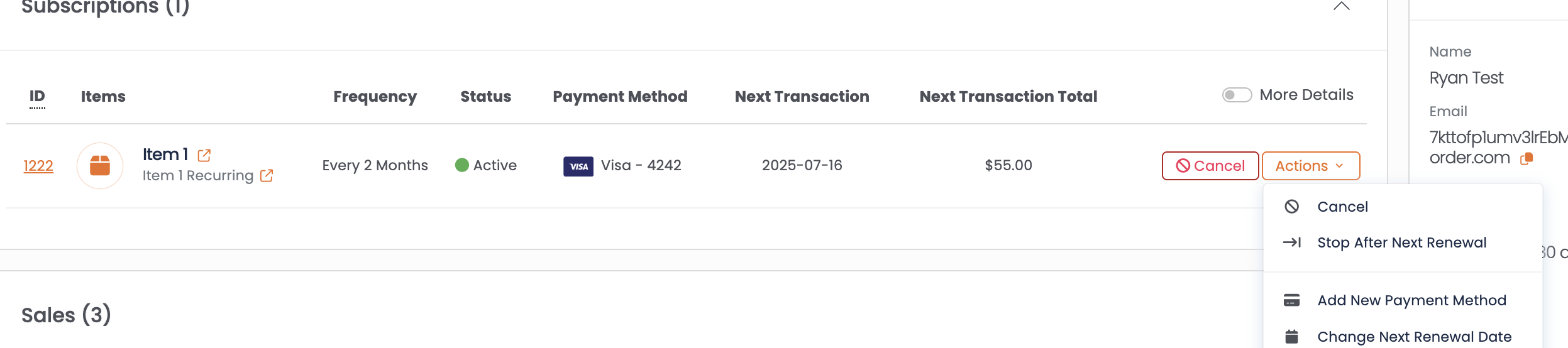
Place a test order for a recurring offer with a merchant that has the test gateway using any test card number ( either 4111222233334444, 4111222233336666 ( prepay ) or any test card configured from the test card section).
-
Update the card by clicking on the Add New Payment Method on the order offer to be a Vrio decline card number that works with the test gateway. (4111222233335555).
<img
src="https://files.readme.io/51e649b95a9cdab771836f7ca3a0fcbe6141cca716e6ac4a730214774c8b8f44-Screenshot_2025-05-28_at_2.47.52_PM.png"
alt="Adding a new payment method to an order offer"
style={{
margin: '10px auto',
display -
All renewals will decline until card is changed back to a non declined card.
Updated 24 days ago