
Moving Orders to Another Customer
Bulk move orders from one customer to another in Vrio. Useful for consolidating duplicate customer accounts or correcting order assignments.
Bulk move orders from one customer to another by following the below steps.
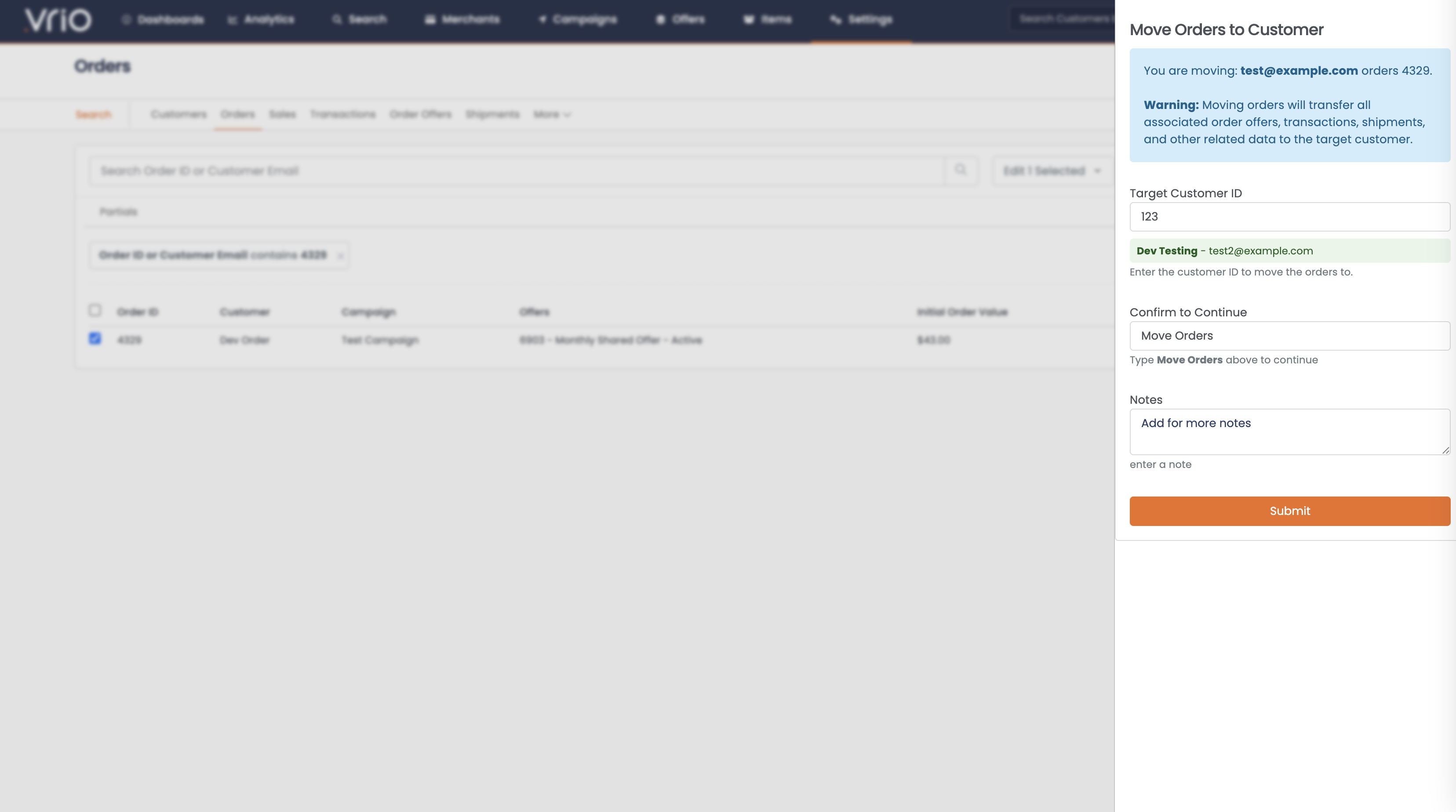
ImportantMoving orders will transfer all associated order offers, transactions, shipments, and other related data to the target customer. Verify you are moving to the correct customer before confirming.
To Move Orders
- Navigate to Search
- Select Orders
- Select Filters
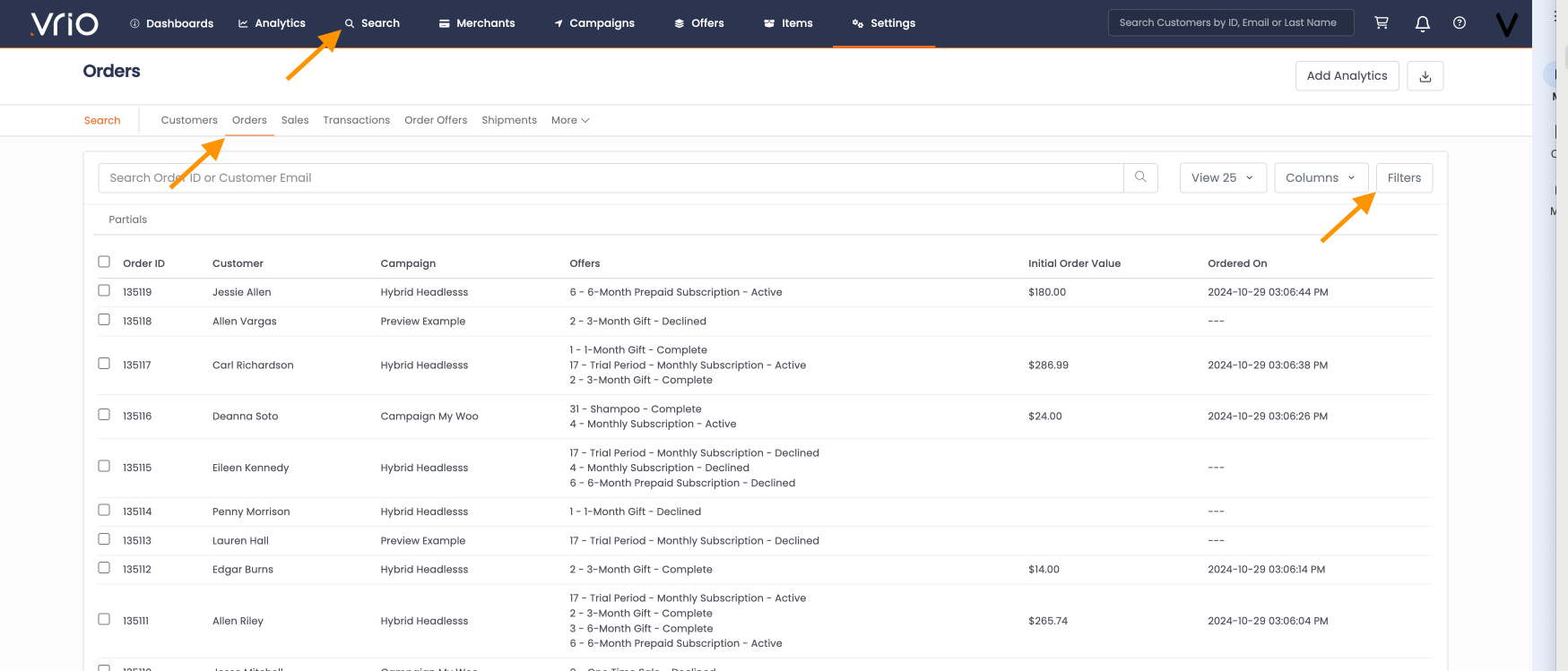
- Add the filters to limit the orders returned to those you want to move
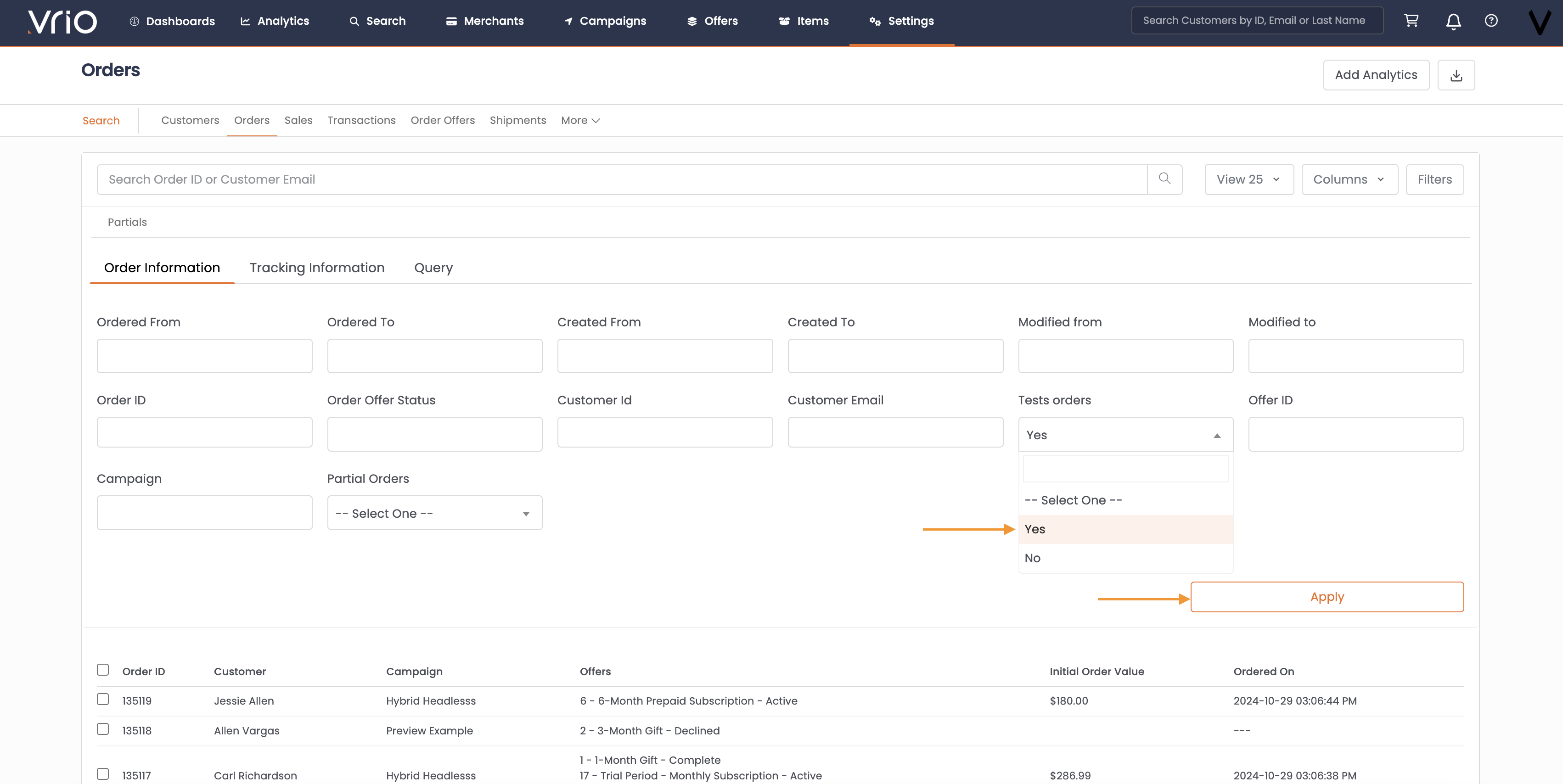
- Hit Apply
- Choose the Select All box at the top, or select your individual Orders to be moved
- Navigate to Edit Selected
- Select Move to Customer
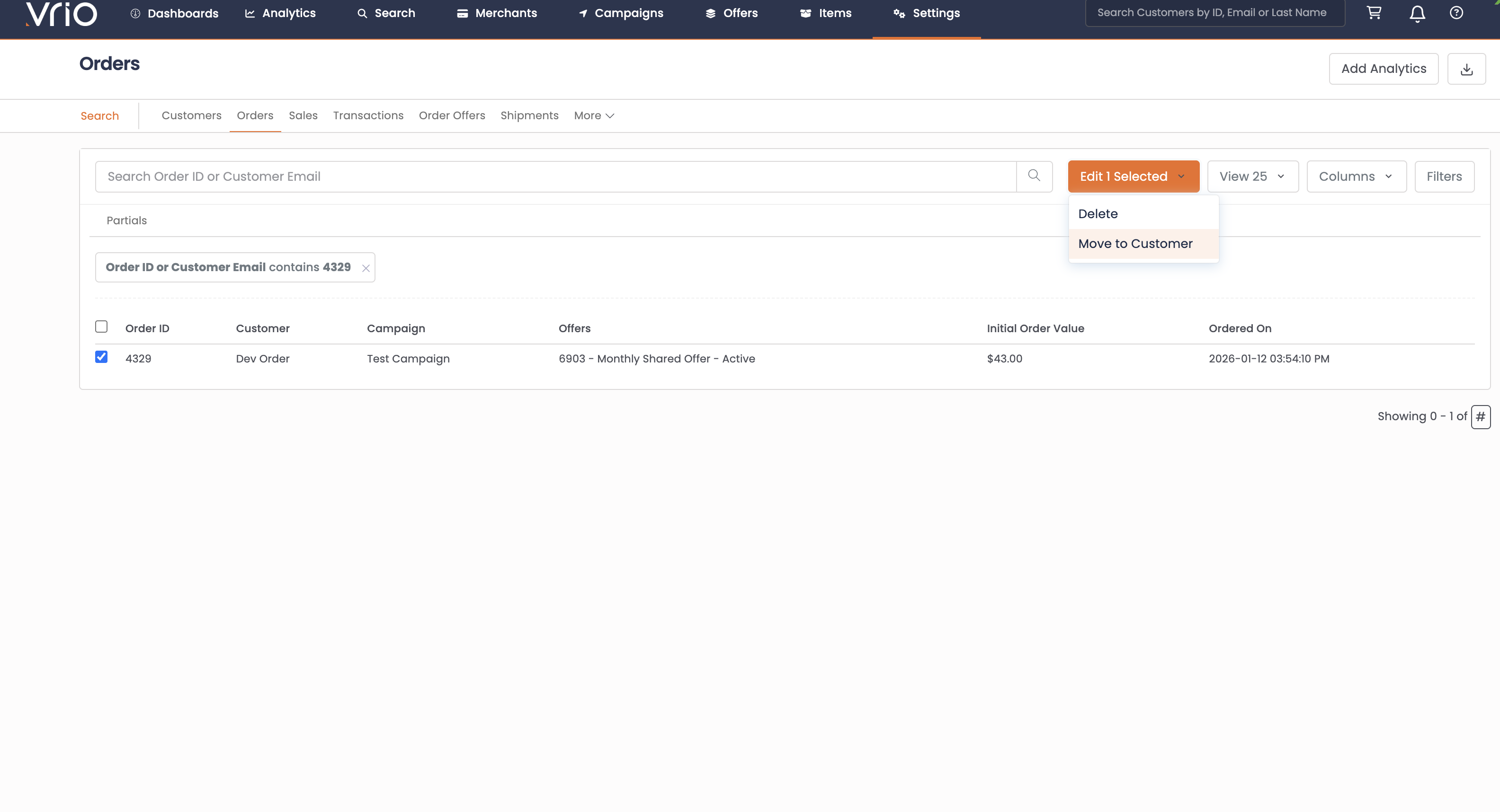
View ByBy default, View is of 25 records. This may be expanded to up to 200. Any bulk updates will update whatever is on the view by. If you have more you will need to run the list again.
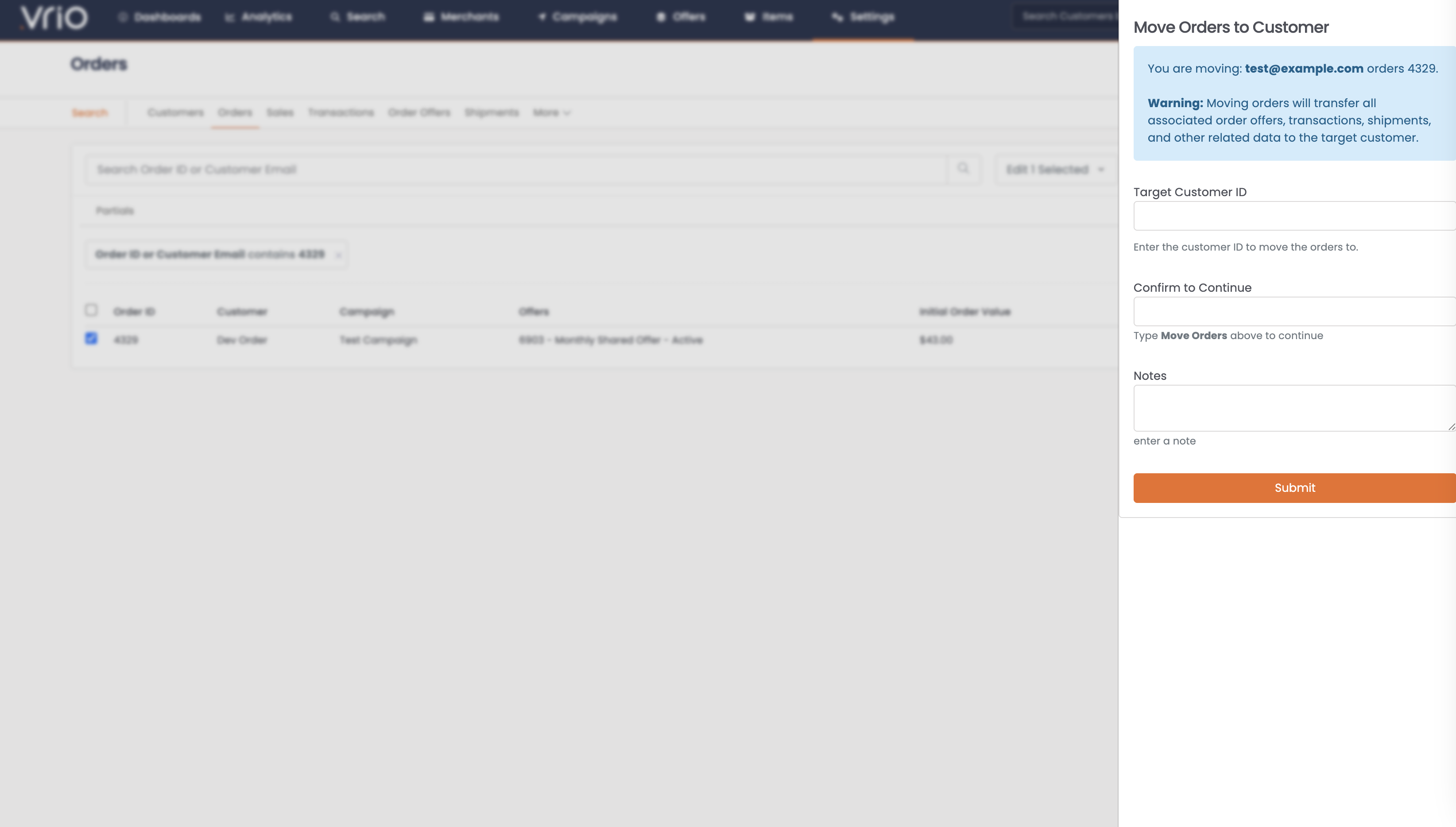
- Review the summary showing which orders from which customers will be moved
-
Enter the Target Customer ID - the customer you want to move the orders to. After entering the ID, the system will display the customer's name and email for verification
-
Type "Move Orders" to confirm the move, Add any optional notes, Hit Submit
FAQ
Q: What happens to the original customer after moving orders?
A: The original customer record remains but will no longer have those orders associated with it.
Q: Can I move orders back to the original customer?
A: Yes, you can use the same process to move orders to any customer, including back to the original.
Q: What data is moved with the order?
A: All associated data including order offers, transactions, shipments, addresses and cards related to the order are moved to the target customer.
Q: How do I find the Target Customer ID?
A: Navigate to the customer record you want to move orders to. The Customer ID is displayed on the customer view page and in search results.
Updated 8 months ago