
Skip & Unskip a Shipment
Skip the next upcoming shipment for a subscription, or reverse a skip to restore it.
Skipping a shipment allows you to defer the next upcoming shipment for a subscription without cancelling it. This is commonly used when a customer wants to pause a delivery cycle. Unskipping reverses a skip and restores the shipment for processing.
Key Takeaways
- Skip is only available on the next upcoming shipment for a subscription
- All items in the shipment must belong to offers with skippable enabled on the offer cycle
- Unskip can only be applied to the most recently skipped shipment
- Neither action triggers customer notifications or webhook events
- Future shipment and transaction dates may be adjusted depending on configuration
Skip a Shipment
Prerequisites
The Skip action is available when all of the following conditions are met:
| Condition | Details |
|---|---|
| Next upcoming shipment | Must be the next shipment scheduled for the subscription (based on scheduled date) |
| Shipment is pending | Not yet posted, fetched, completed, skipped, or cancelled |
| Offer cycle allows skipping | All items on the shipment must belong to offers that have offer_cycle_shipment_skippable enabled |
How to Skip a Shipment
Step 1: Navigate to the Shipment
Find the shipment you want to skip. The most common methods are:
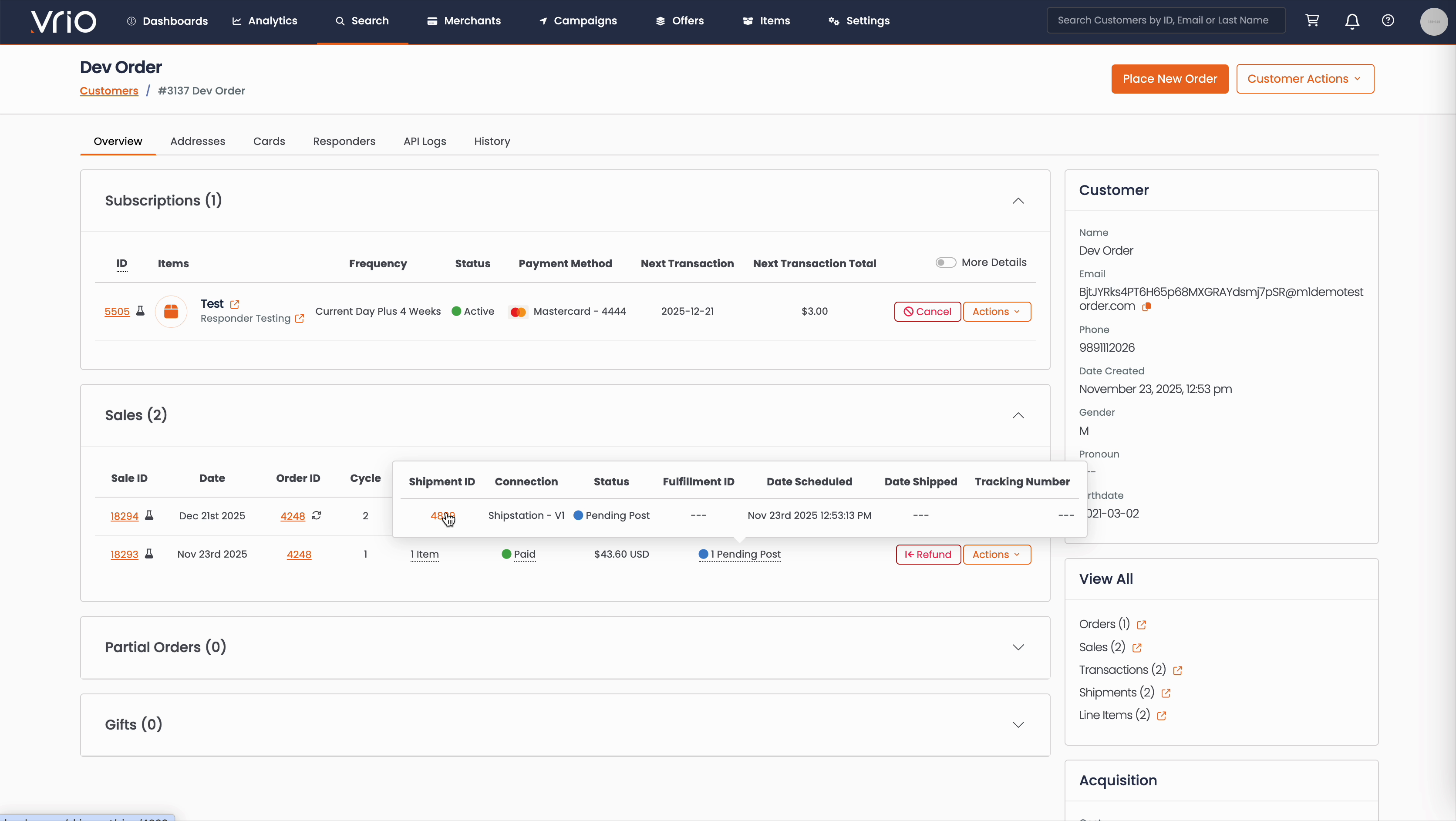
From the Customer Page:
- Navigate to Search → Customers tab and find the customer record
- On the customer detail page, scroll to the Sales section
- Hover over the Shipment Status to expand and show shipment details
- Click on the Shipment ID
From the Shipments List:
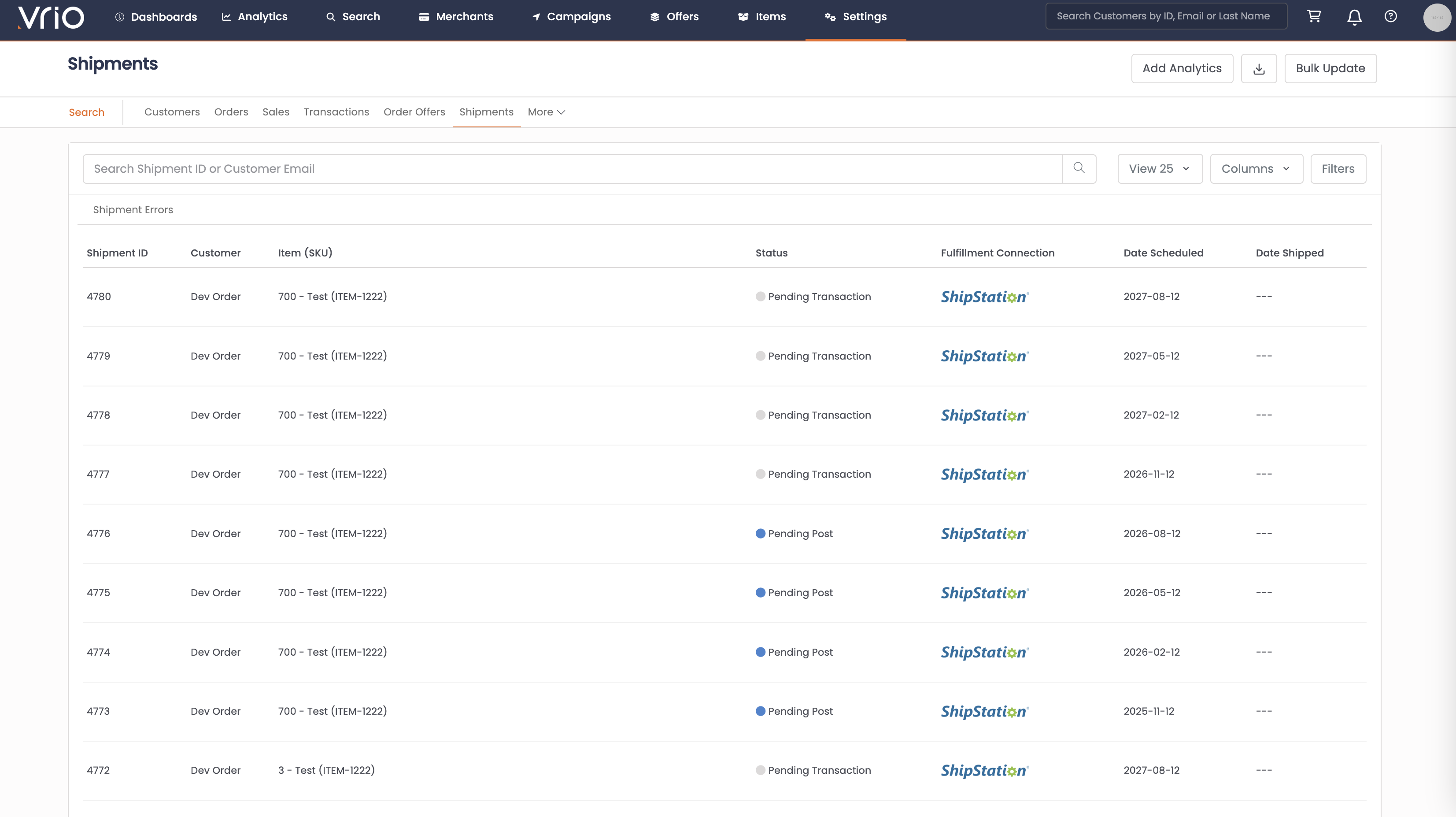
- Navigate to Search → Shipments tab
- Use filters or browse to find the shipment
- Click on the Shipment to open the shipment detail page
Step 2: Open the Skip Form
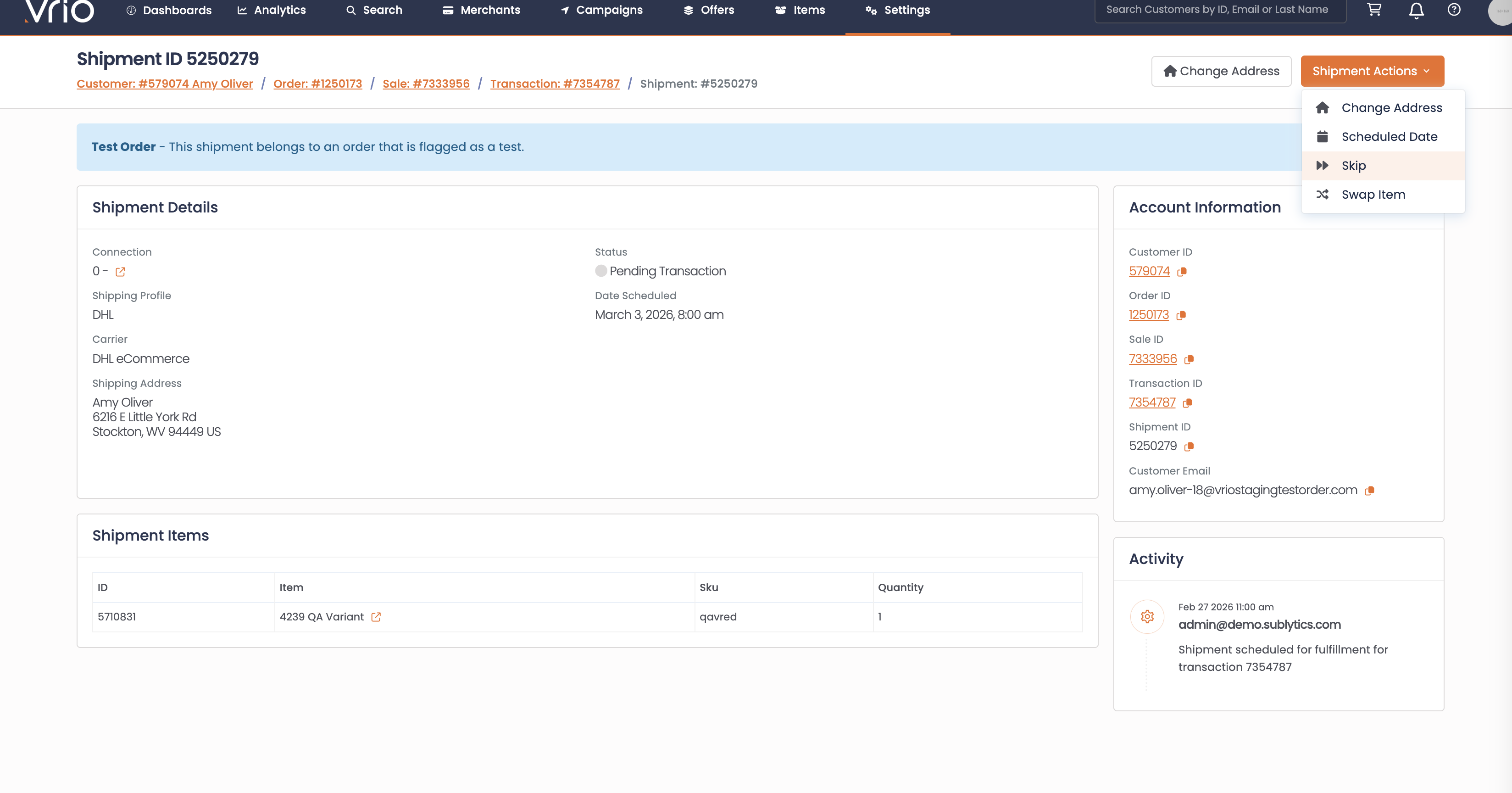
On the shipment detail page, click Skip from the Shipment Actions.
Step 3: Complete the Skip Form
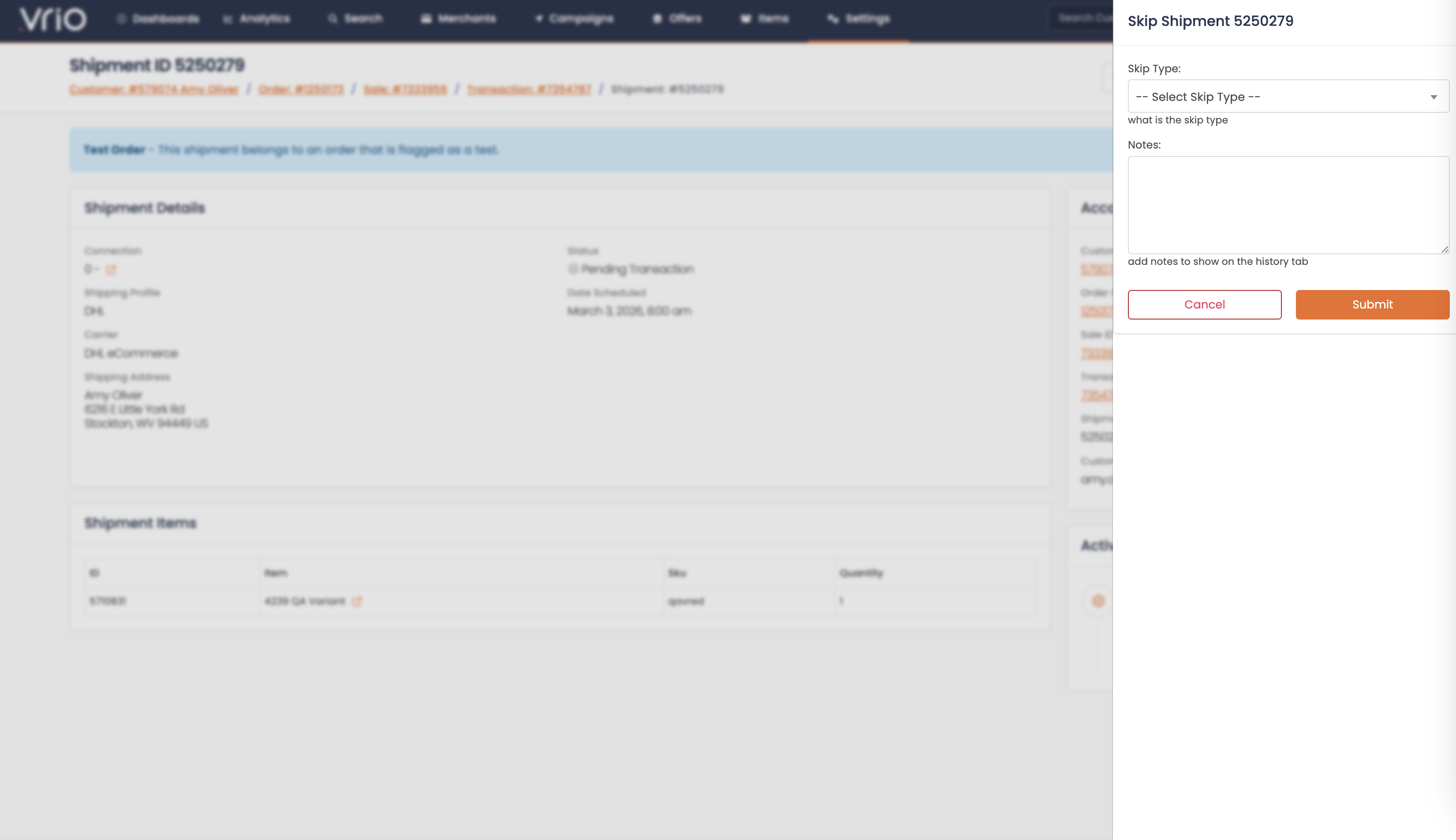
-
Skip Type (required) — Select a reason for skipping from the dropdown
-
Click Submit
What Happens After Submitting
- Status updates to Skipped — The shipment status changes to Skipped and the skip date is recorded
- Future dates may adjust — Depending on configuration, future shipment and transaction scheduled dates may be rescheduled
Unskip a Shipment
Prerequisites
The Unskip action is available when all of the following conditions are met:
| Condition | Details |
|---|---|
| Most recently skipped shipment | Must be the last skipped shipment for the subscription |
| Shipment is not completed, cancelled, posted, or fetched | The shipment must still be in a reversible state |
How to Unskip a Shipment
Step 1: Navigate to the Shipment
Navigate to the skipped shipment using the same methods described above.
Step 2: Unskip
On the shipment detail page, click Unskip from the Shipment Actions and confirm.
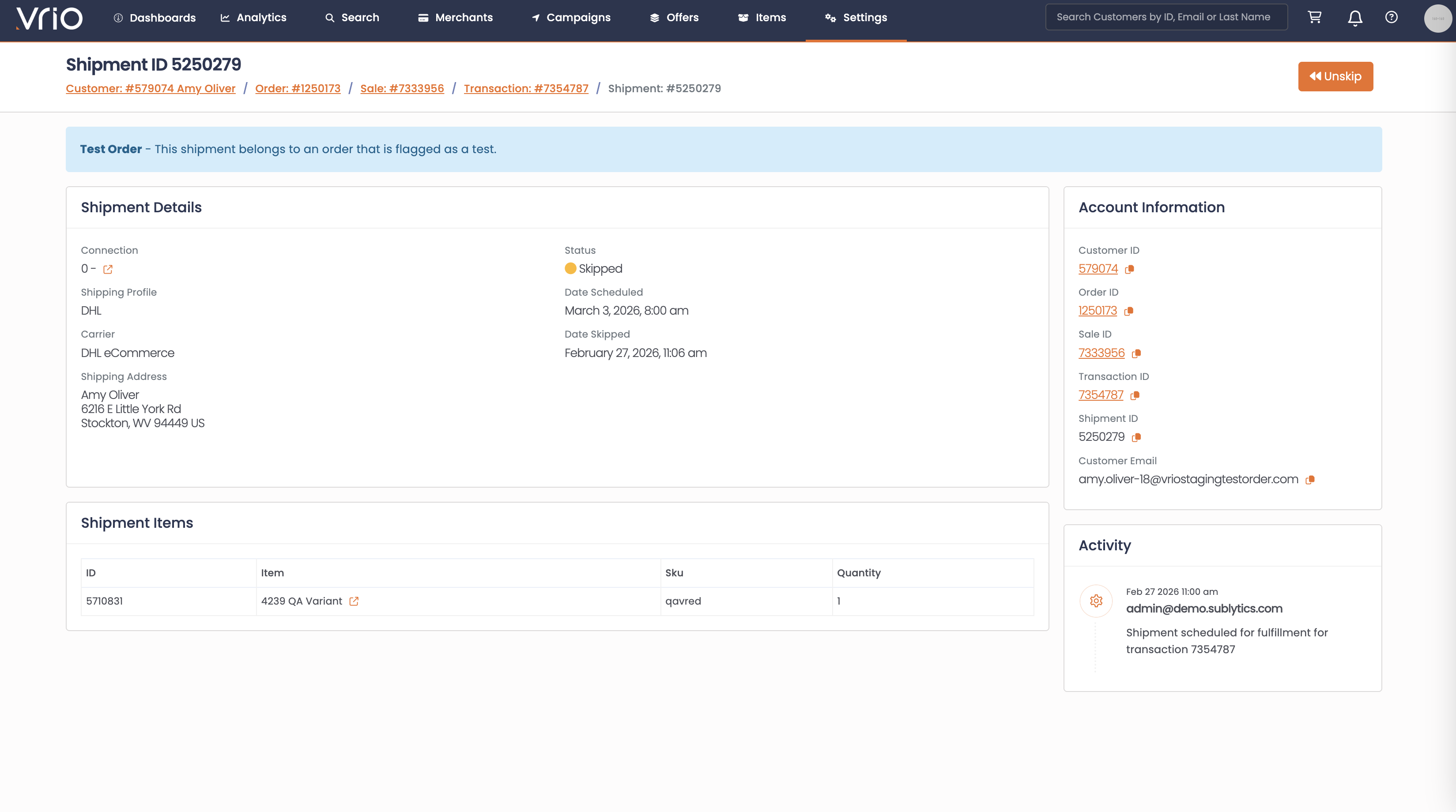
What Happens After Submitting
- Skip cleared — The skip date is removed and the shipment status reverts to its previous state
- Future dates may readjust — Scheduled dates for future shipments and transactions may be adjusted back
Other Ways to Skip/Unskip
- Skip via API — POST /shipments/{id}/skip to skip a shipment programmatically
- Unskip via API — POST /shipments/{id}/unskip to unskip a shipment programmatically
FAQ
Q: Why don't I see the Skip option on a shipment?
A: Skip requires the offer cycle to have offer_cycle_shipment_skippable enabled. Check your offer cycle configuration. It's also only available on the next upcoming shipment — you can't skip shipments further in the future.
Q: Can I skip multiple shipments in a row?
A: You can only skip the next upcoming shipment. After it's skipped, the following shipment becomes the next upcoming one and could then be skipped if eligible.
Q: Will the customer be notified when a shipment is skipped or unskipped?
A: No. Neither action triggers responders or webhook events.
Updated 8 months ago