
Fulfillment Routers
Route shipments to different fulfillment providers based on the customer shipping address country and state.
Key Takeaways
- Fulfillment Routers automatically route shipments to different fulfillment connections based on the customer's shipping address country and state
- Fulfillment Routers are the highest priority in the fulfillment hierarchy — they override both campaign-level and item-level fulfillment connections
- Routers are created in Settings > Shipment Workflows > Fulfillment Routers and then applied to individual campaigns
- Each router contains configuration records that map a Country + State combination to a specific Fulfillment Connection
What is a Fulfillment Router?
A Fulfillment Router allows you to automatically route shipments to different fulfillment providers based on where the customer is located. Instead of sending all shipments from a campaign or item to a single fulfillment connection, a router evaluates the customer's shipping address and selects the appropriate fulfillment connection based on the country and state.
This is useful when you work with multiple warehouses or 3PL providers across different regions and want orders to be fulfilled from the location closest to the customer.
Fulfillment Priority Hierarchy
When determining which fulfillment connection to use for a shipment, Vrio follows this priority order:
- Fulfillment Router (Highest Priority) — If a fulfillment router is set on the campaign and has a matching configuration record for the customer's country and state, that connection is used.
- Campaign-Level Fulfillment Connection — If no router is set (or no matching record exists), the campaign-level fulfillment connection is used.
- Item-Level Fulfillment Connection — If neither a router nor a campaign-level connection is configured, the fulfillment connection set on the individual item is used.
Router Overrides EverythingWhen a fulfillment router is set on a campaign, it overrides both campaign-level and item-level fulfillment connections for any shipment where the customer's address matches a configuration record in the router.
Creating a Fulfillment Router
-
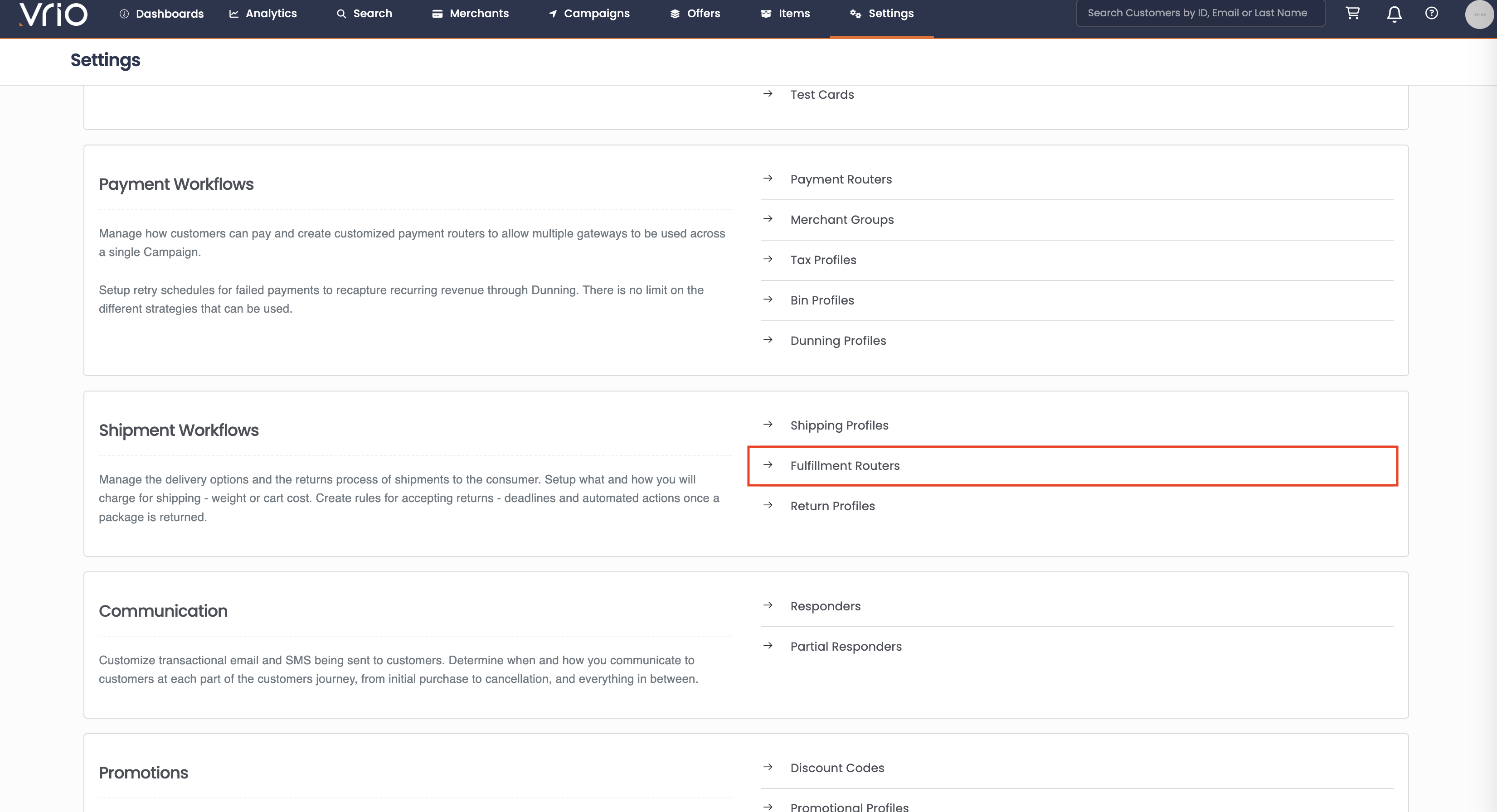
Navigate to Settings > Shipment Workflows > Fulfillment Routers
-
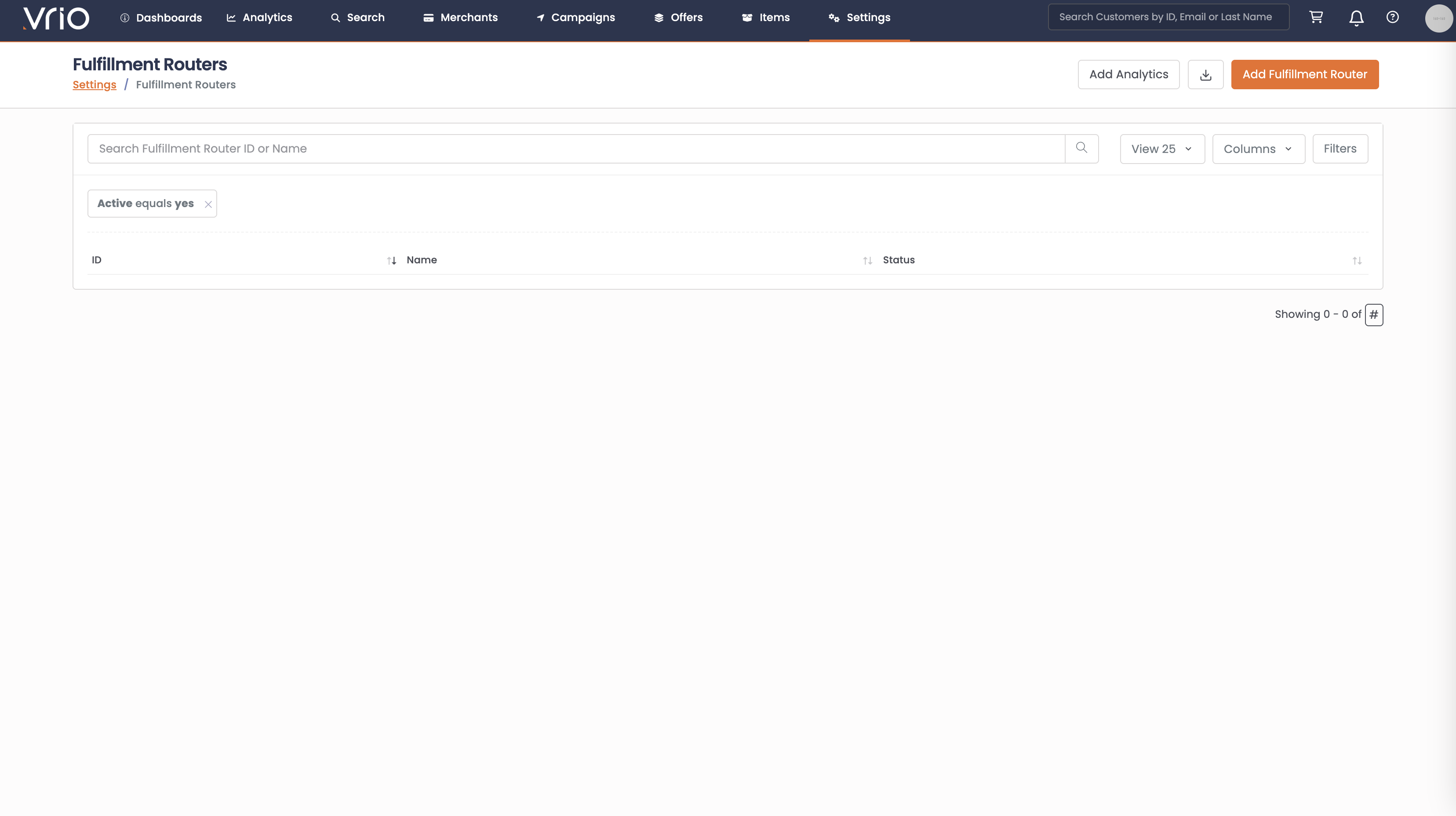
Click Add Fulfillment Router
-
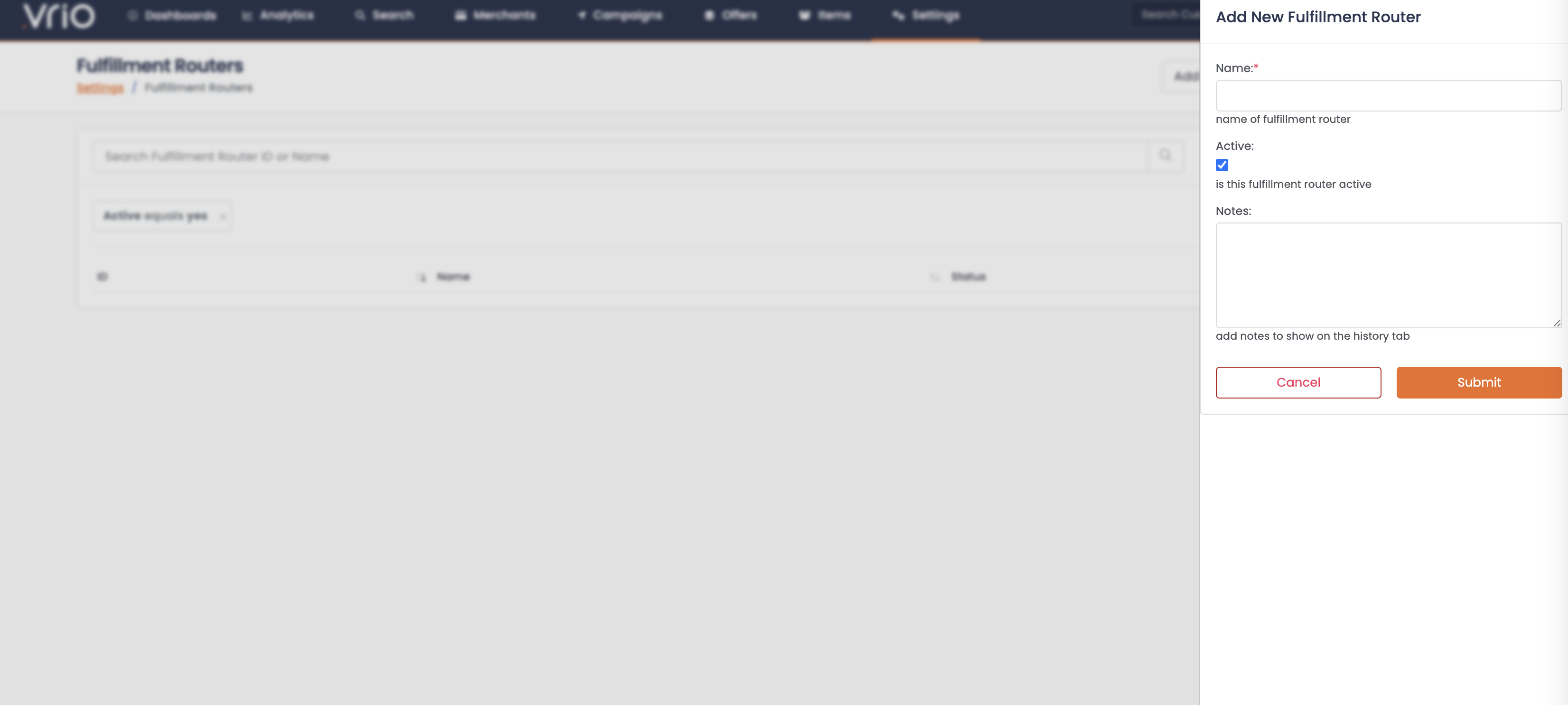
Fill in the details:
- Name (required) — A descriptive name for the router (e.g., "US Regional Routing" or "International Fulfillment")
- Active — Checkbox to enable or disable the router
- Notes — Optional notes that will appear on the History tab
-
Click Submit
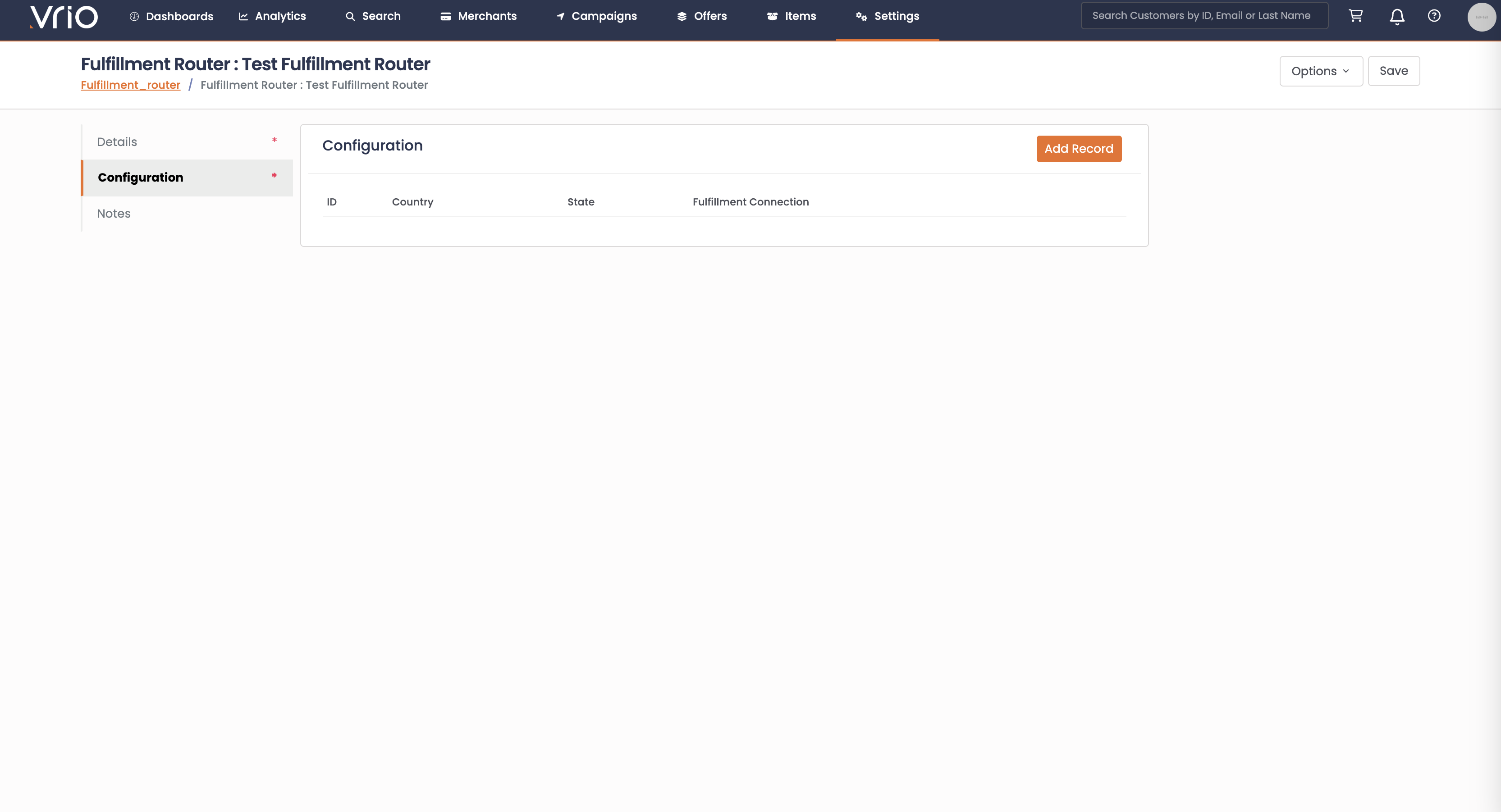
Once created, you will be taken to the router detail page with three tabs: Details, Configuration, and Notes.
Adding Configuration Records
The Configuration tab is where you define the routing rules. Each record maps a specific country and state to a fulfillment connection.
-
Navigate to the Configuration tab on your fulfillment router
-
Click Add Record
-
Fill in the fields:
- Country (required) — Select the country (e.g., United States, Canada, United Kingdom)
- State (optional) — Select a specific state or province. The available options update based on the selected country. If left blank, the record applies to the entire country.
- Fulfillment Connection (required) — Select the fulfillment connection that should handle shipments to this location
-
Click Submit
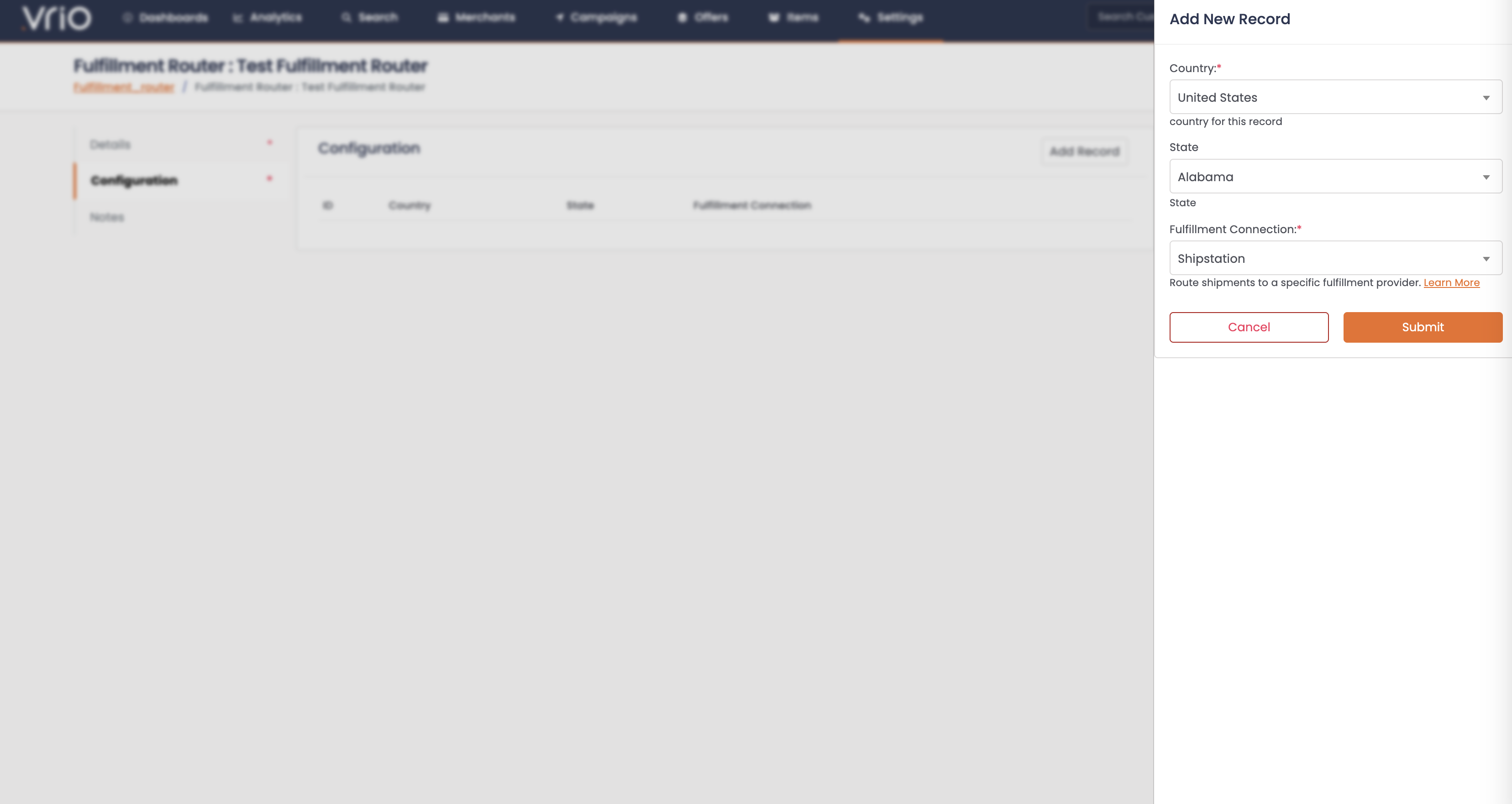
You can add multiple records to a single router to cover different regions. You can mix country-wide and state-specific records. For example:
| Country | State | Fulfillment Connection |
|---|---|---|
| US | CA | West Coast Warehouse |
| US | VA | East Coast Warehouse |
| US | US Default Warehouse | |
| CA | Canada Fulfillment | |
| GB | UK Fulfillment |
How matching works: When a shipment is created, the router first looks for a record matching the customer's exact country + state. If no country + state match is found, it then looks for a country-only record (no state specified). This allows you to set state-specific routing where needed while using a country-only record as a catch-all for the remaining states.
In the example above, a US order from California matches the US/CA record and routes to the West Coast Warehouse. A US order from Texas has no state-specific record, so it falls back to the country-only US record and routes to the US Default Warehouse.
Country-Only Catch-AllA record with only a country (no state) acts as a fallback for any state in that country that does not have its own specific record. This is a convenient way to handle the majority of orders while routing specific states differently.
Applying a Fulfillment Router to a Campaign
Once a fulfillment router is created and configured, it must be applied to a campaign for it to take effect.
-
Navigate to Campaigns and select the campaign
-
Go to the Fulfillment tab
-
Select the desired router from the Fulfillment Router dropdown
-
Click Save
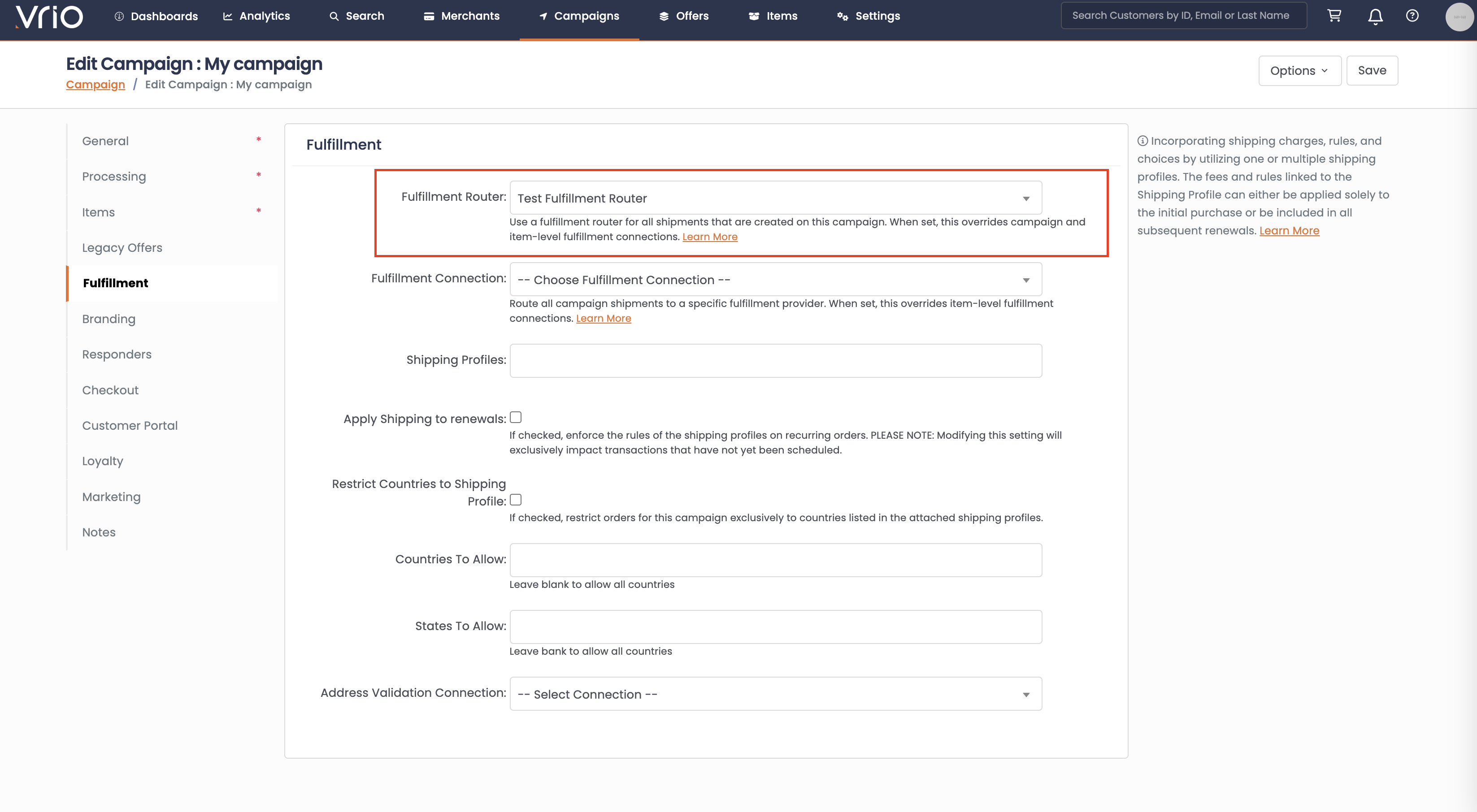
Common Use Cases
- Regional Fulfillment — Route orders to the nearest warehouse based on customer location to reduce shipping costs and delivery times
- International Fulfillment — Use domestic fulfillment providers for local orders and international providers for overseas shipments
- State-Specific Requirements — Route orders from specific states to fulfillment centers that handle state-specific compliance or packaging requirements
- Multi-Warehouse Operations — Distribute orders across multiple warehouses based on geographic zones
Updated 8 months ago