
Mark as Error
Flag a shipment with an error status for review and manual intervention.
Marking a shipment as error changes the status to Error and adds it to the error queue for review. This is used when a shipment needs manual attention — for example, if there's an issue with the shipment that requires investigation before fulfillment continues.
Key Takeaways
- The shipment must not already be delivered, cancelled, or skipped
- A
shipment_updatedwebhook event is fired with the error type- No customer notification is sent
Prerequisites
The Mark as Error action is available when all of the following conditions are met:
| Condition | Details |
|---|---|
| Shipment is not Pending Transaction | The shipment must not be in Pending Transaction status |
| Shipment is not delivered | The shipment has not been delivered |
| Shipment is not cancelled | The shipment has not been cancelled |
| Shipment is not skipped | The shipment has not been skipped |
How to Mark as Error
Step 1: Navigate to the Shipment
Find the shipment you want to flag. The most common methods are:
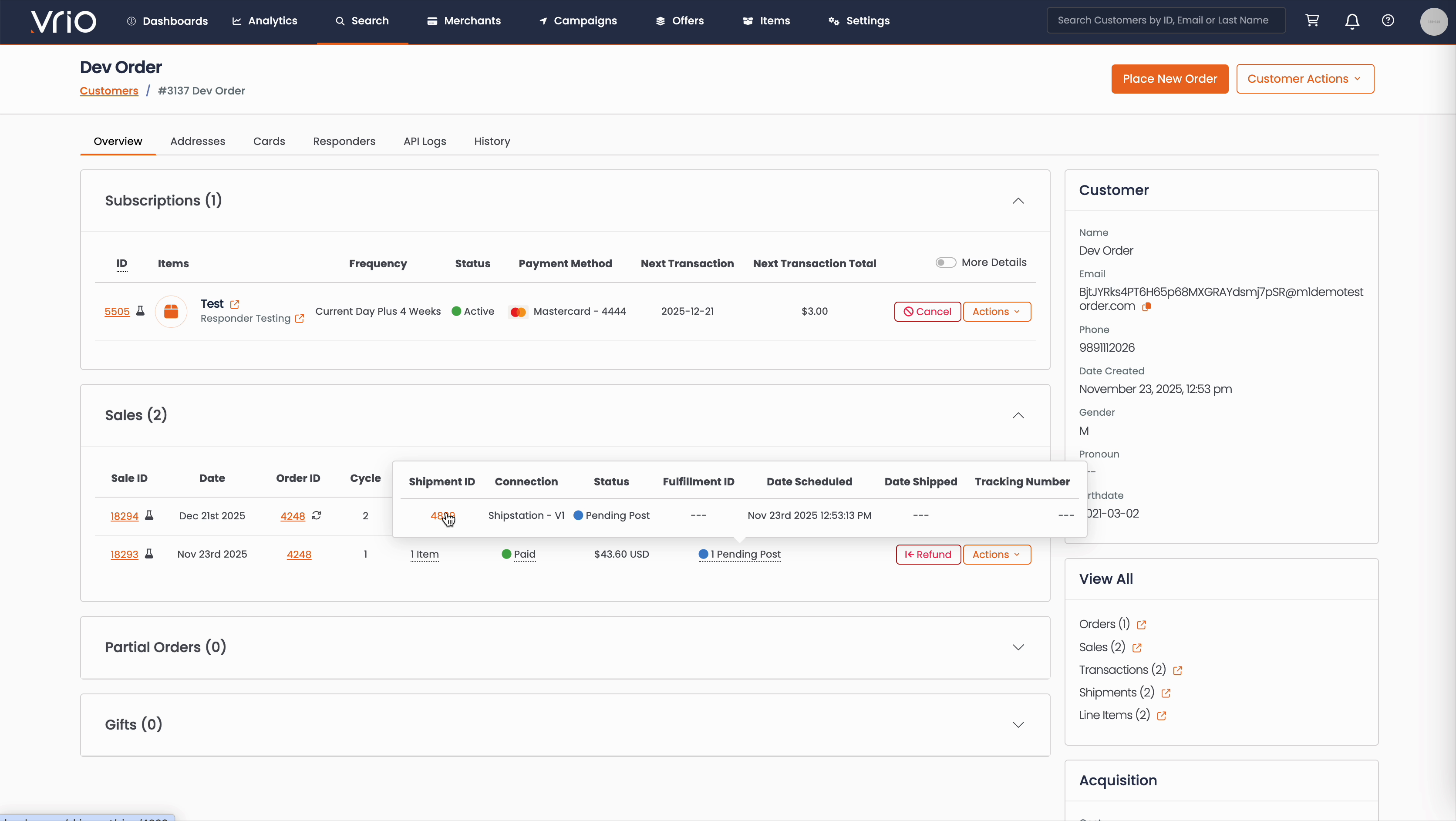
From the Customer Page:
- Navigate to Search → Customers tab and find the customer record
- On the customer detail page, scroll to the Sales section
- Hover over the Shipment Status to expand and show shipment details
- Click on the Shipment ID
From the Shipments List:
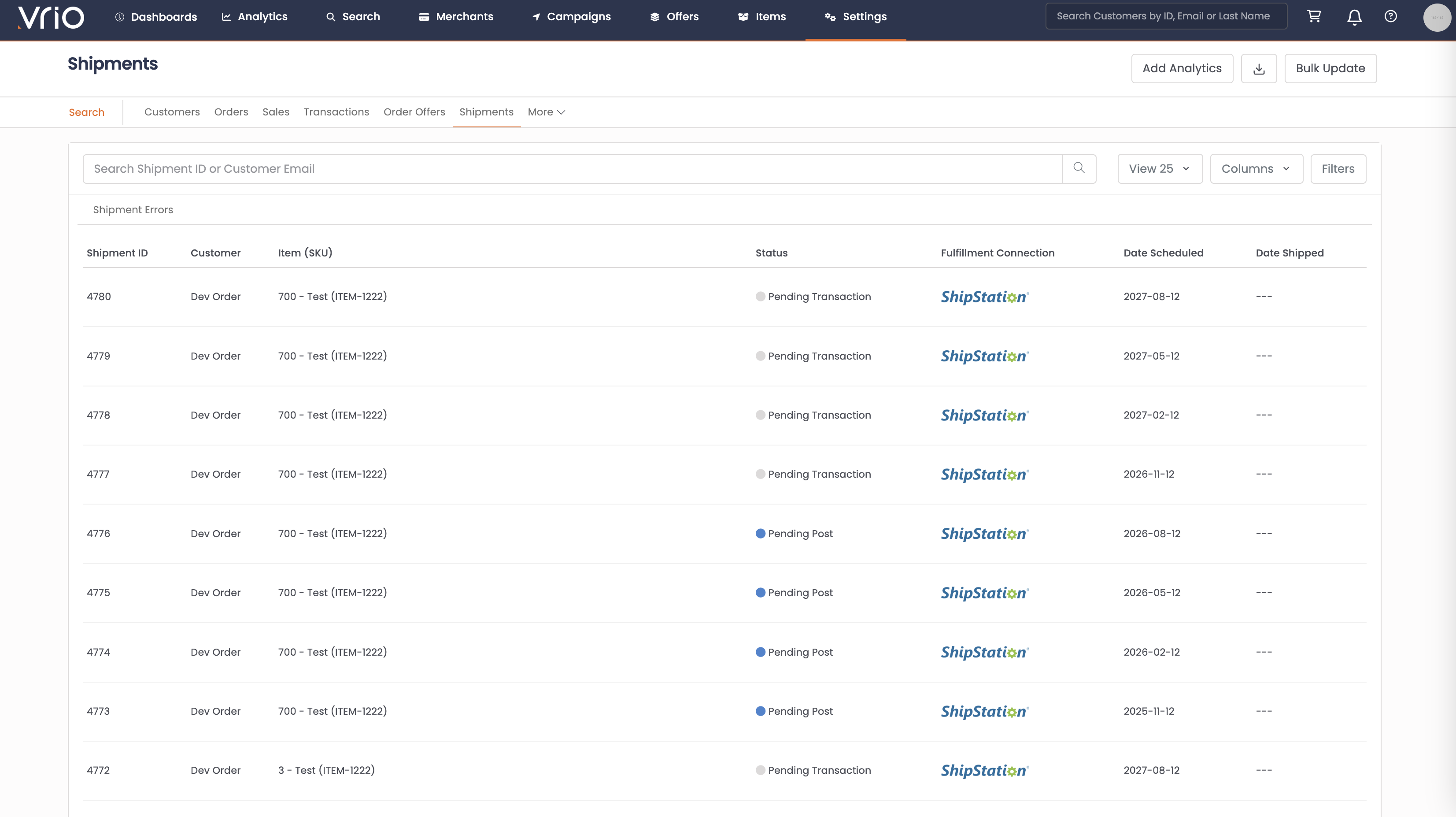
- Navigate to Search → Shipments tab
- Use filters or browse to find the shipment
- Click on the Shipment to open the shipment detail page
Step 2: Open the Error Form
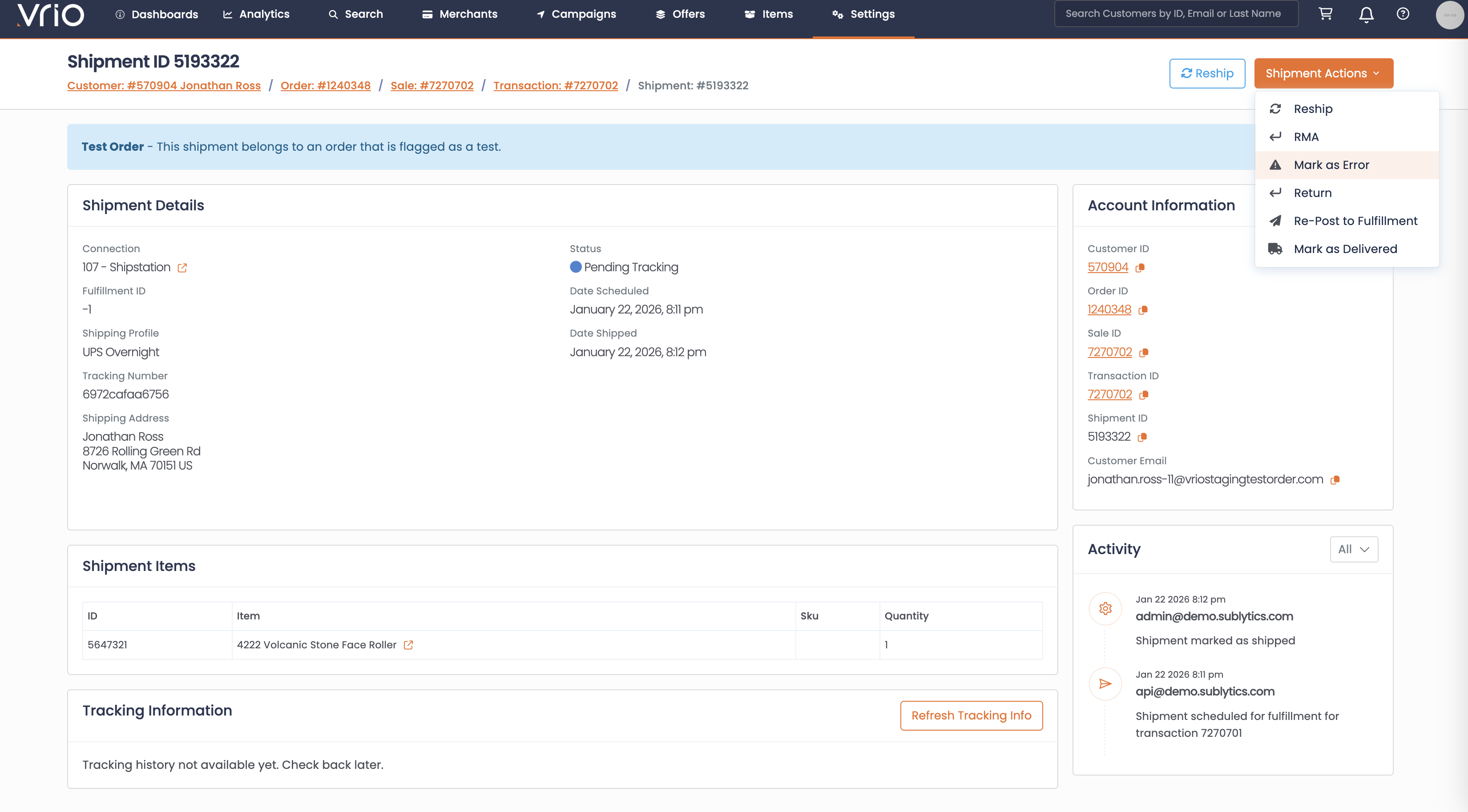
On the shipment detail page, click Mark as Error from the Shipment Actions.
Step 3: Complete the Error Form
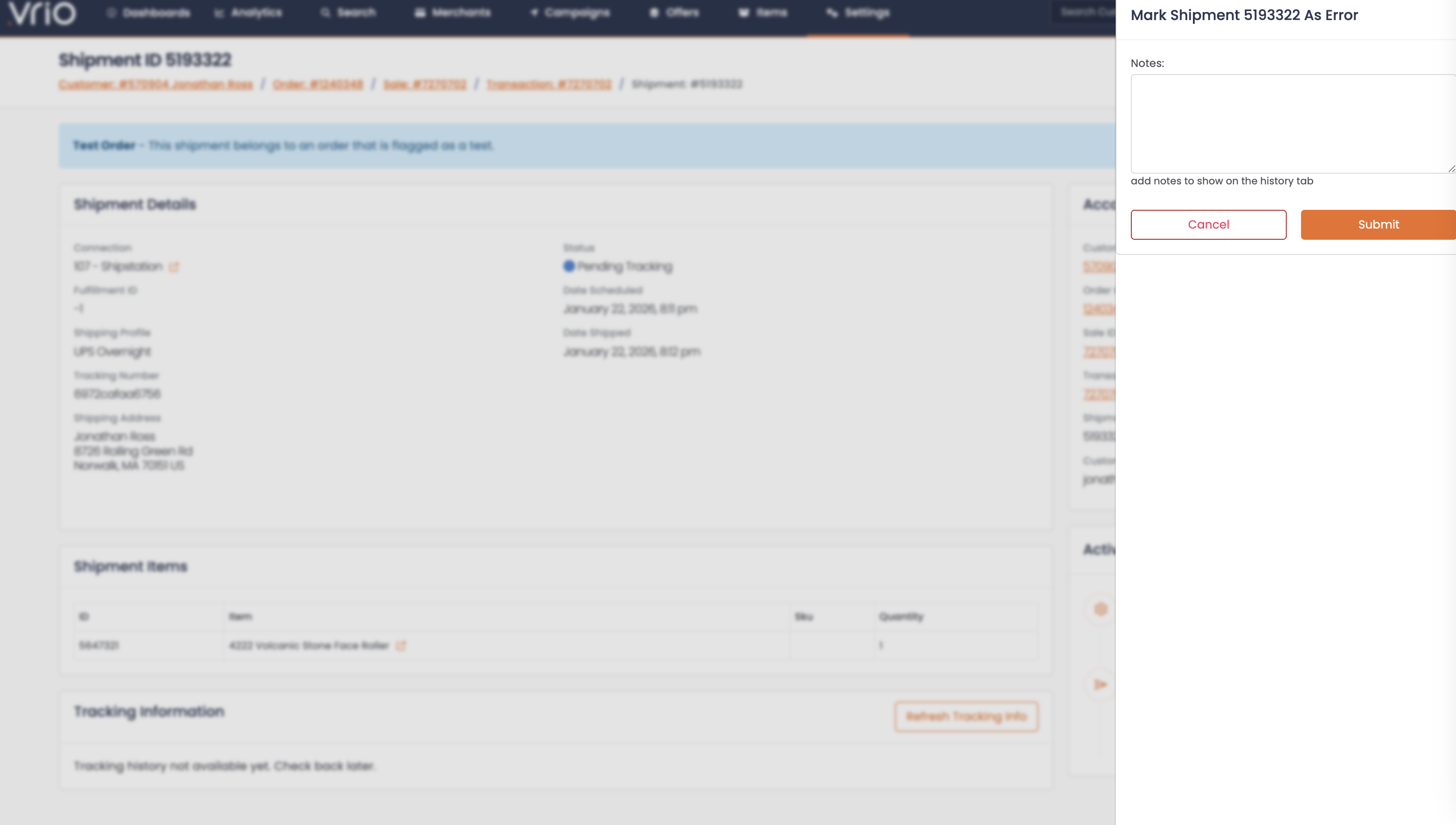
- Notes (required) — Enter the reason for marking the shipment as an error
- Click Submit
What Happens After Submitting
When a shipment is marked as error:
- Status updates to Error — The shipment status changes to Error and the notes are logged
- Webhook event fires — A
shipment_updatedevent with typeerroris sent to any connected systems
Other Ways to Mark as Error
- API — POST /shipments/{id}/error to mark a shipment as error programmatically
FAQ
Q: Will the customer receive a notification?
A: No. Marking as error does not trigger any customer-facing responders.
Q: How do I resolve an errored shipment?
A: After investigating the issue, you can use Post to Fulfillment to re-send the shipment, Cancel it, or Add Tracking if it was already fulfilled outside of Vrio.
Updated 8 months ago