
Card Insight
Connect Vrio with Card Insight for intelligent BIN-based merchant routing that optimizes approval rates by analyzing card characteristics and recommending the best merchant for each transaction.
Card Insight is your intelligent routing advisor that analyzes card BINs (Bank Identification Numbers) and recommends which merchant account is most likely to approve each transaction. Instead of relying solely on Round Robin or Weighted routing, Card Insight uses real-time data and machine learning to make smarter merchant selection decisions.
Think of it as a knowledgeable guide that knows which payment processors work best with different types of cards, banks, and card issuers—maximizing your approval rates while minimizing declines.
How VRIO + Card Insight Works Together
The Smart Routing Flow
- Customer enters card details → VRIO extracts the card BIN (first 6 digits)
- Payment router evaluates rules → Normal routing logic runs (merchant groups, BIN blocks, item routing, caps, priorities)
- Card Insight analyzes the BIN → Sends BIN to Card Insight API for intelligent merchant recommendation
- Card Insight responds with priority list → Returns recommended merchant + optional cascade merchants
- Router selects best available merchant:
- If Card Insight's recommended merchant is available → Use it
- If not available → Try cascade merchants in order
- If none available → Fall back to normal routing method (Round Robin/Weighted/Volume)
- Transaction processes → Payment goes to the optimal merchant for that specific card
Where Card Insight Fits in Router Logic
Card Insight sits between BIN Priorities and Routing Method Selection in the payment router decision flow. This means:
- All exclusion rules still apply (reattempt restrictions, BIN blocks, item routing, caps)
- All inclusion rules are honored (merchant groups, priorities)
- Card Insight only selects from merchants that passed all other routing rules
- If Card Insight fails or returns no available merchants, routing continues normally
Learn more about Payment Router Logic →
What Makes Card Insight Different
Traditional Routing
- Round Robin: Takes turns, no intelligence
- Weighted: Based on percentages you set manually
- Volume: Based on remaining capacity
Card Insight Routing
- BIN Analysis: Looks at card bank, type, issuing country
- Real-time Recommendations: Uses current approval data
- Cascade Support: Provides backup options if first choice isn't available
- Learns Over Time: Improves recommendations based on results
Getting Started
What You'll Need
- Active Card Insight account
- BIN map API URL from your Card Insight provider (one unique URL per router)
- At least one Payment Router configured in VRIO
Note: Card Insight calls their routing configurations "BIN maps." Each payment router requires its own dedicated BIN map with a unique API URL.
If you don't have a Card Insight BIN map URL, contact your Card Insight account representative.
Quick Setup Guide
-
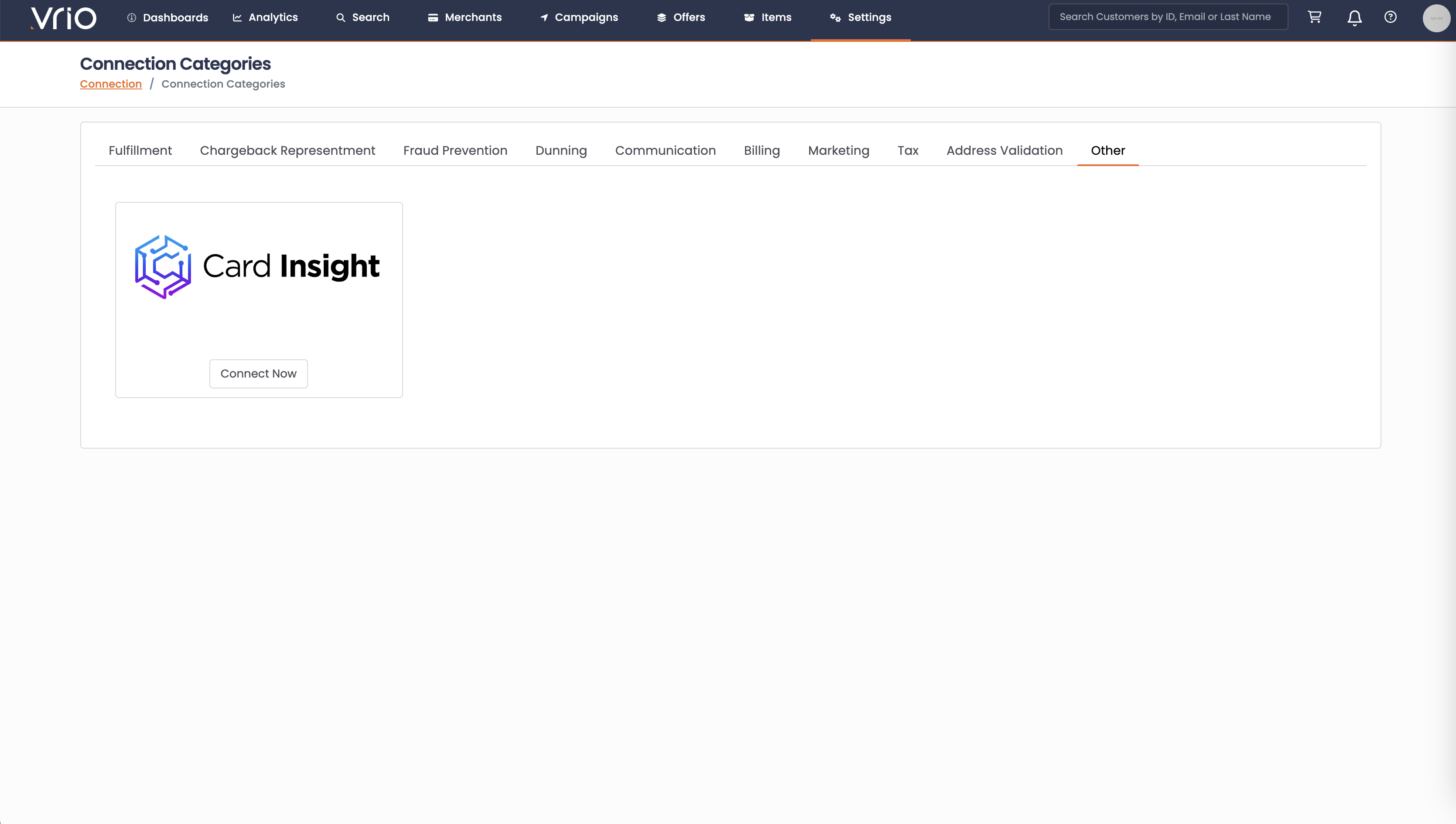
Navigate to Connection Categories
- Go to Settings > Connections
- Find "Connection Categories" in the left navigation
- Select the "Other" category
-
Create the Connection
- Click to add a new connection or look for the Card Insight option
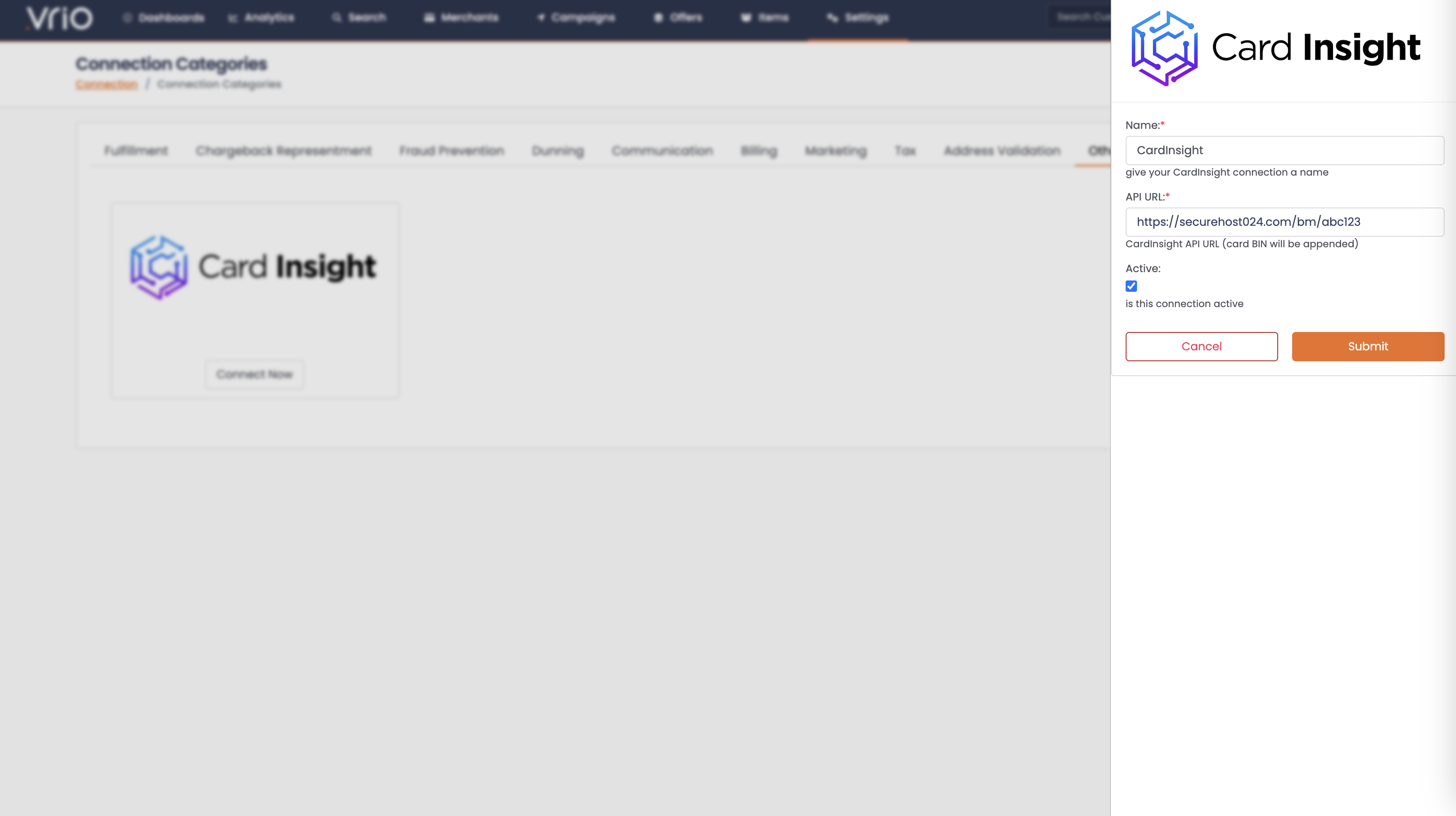
- You'll see a setup panel on the right side
- Fill in the required fields:
Connection Name:
- Give your connection a descriptive name (e.g., "CardInsight" or "CardInsight - Production")
- This helps you identify it when adding to routers
API URL:
- Enter the BIN map API URL provided by your Card Insight account representative
- This URL is unique to this specific payment router
- Note: The card BIN will be automatically appended to this URL when making requests
- Example format:
https://securehost024.com/bm/abc123
Active:
- ✓ Check this box to enable the connection
- ✗ Uncheck to temporarily disable without deleting
-
Save the Connection
- Click "Submit" to create the connection
- The connection will now appear in your connections list
Activating Card Insight on a Payment Router
After creating the connection, you need to enable it on your payment router(s):
-
Navigate to Your Payment Router
- Go to Settings > Payment Routers
- Select the router you want to enable Card Insight on
-
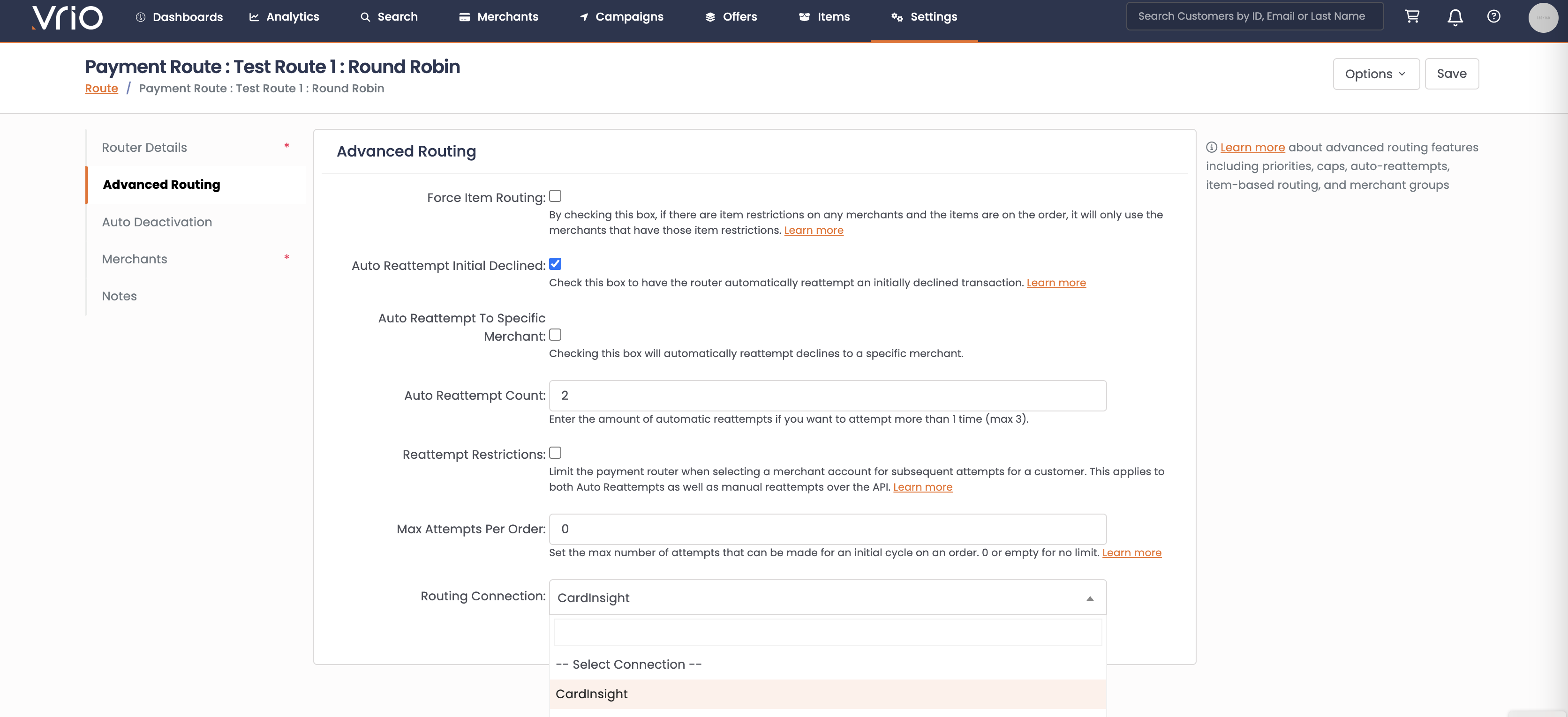
Enable Advanced Routing
- Click on the "Advanced Routing" tab in the left sidebar
- Scroll to the "Routing Connection" section
-
Select Your Card Insight Connection
- From the "Routing Connection" dropdown, select your Card Insight connection
- This tells the router to use Card Insight for intelligent merchant selection
-
Save Your Router
- Click "Save" to activate Card Insight on this router
- You should see a success message confirming the update
Card Insight is now active! All transactions on this router will use Card Insight recommendations when selecting merchants.
Understanding How It Works
The API Request
When a transaction comes through, VRIO automatically:
- Extracts the card BIN (first 6 digits of the card number)
- Appends it to your API URL:
https://your-api-url.com/bm/abc123/411111 - Sends a GET request to Card Insight
- Receives a JSON response with merchant recommendations
The API Response
Card Insight returns a JSON response with:
{
  "result": "123",
  "cascades": [
    {
      "id": "cascade-456",
      "merchantId": "789"
    },
    {
      "id": "cascade-457",
      "merchantId": "456"
    }
  ],
  "id": "a8b45ecc-98c3-4aa6-8865-32e9d9230518"
}
Fields Explained:
result: Primary recommended merchant IDcascades: Backup merchants to try if primary isn't available (optional)id: Unique Card Insight request ID (appears in route logs)
Merchant Selection Priority
VRIO tries merchants in this order:
-
Primary Merchant (from
resultfield)- If available in router → Use it immediately
-
Cascade Merchants (from
cascadesarray)- Tried in order if primary isn't available
- Each cascade has its own tracking ID
-
Fallback to Normal Routing
- If no Card Insight merchants are available
- Uses your router's configured method (Round Robin/Weighted/Volume)
Viewing Card Insight Results
Route Logs
Every transaction shows Card Insight's decision in the Route Logs tab:
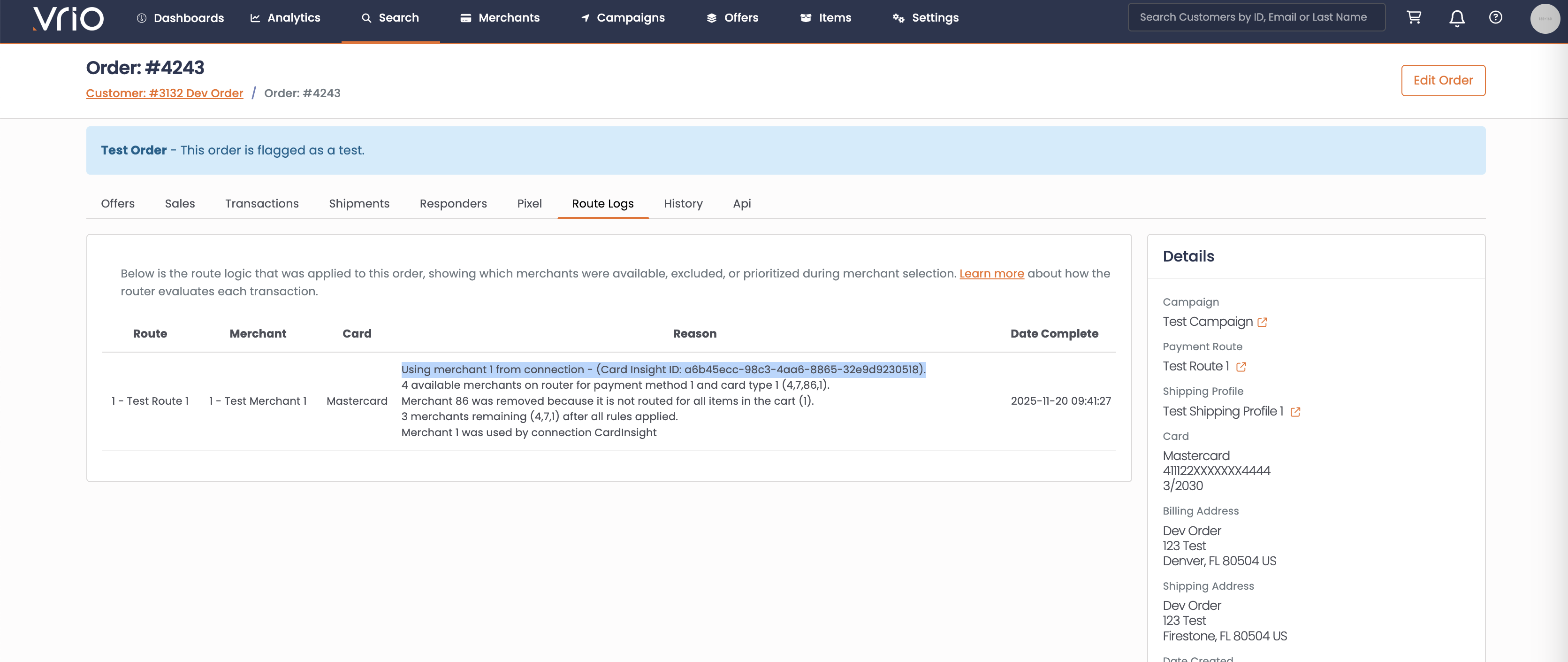
Screenshot: Route Logs showing detailed Card Insight routing decision with merchant selection reason
Learn how to read Route Logs in detail →
Configuration Options
BIN Maps and Router Configuration
Important: Card Insight calls their routing configurations "BIN maps." Each BIN map has a unique API URL.
Best Practice - One Connection Per Router:
- Each payment router should have its own dedicated Card Insight connection
- Each connection uses a unique BIN map URL provided by Card Insight
- This ensures each router receives merchant recommendations for its specific merchant group
Critical: BIN map URLs from Card Insight cannot be shared between routers. Using the wrong BIN map URL may result in merchant recommendations that don't exist in your router, causing routing to fall back to your default method. Always ensure one unique BIN map URL per router.
Disabling Card Insight Temporarily
To temporarily disable Card Insight without deleting the connection:
Option 1: Disable the Connection
- Go to the Card Insight connection
- Uncheck "Active"
- Save
Option 2: Remove from Router
- Go to your Payment Router
- Advanced Routing tab
- Set "Routing Connection" to none
- Save
Both options preserve your configuration for easy re-enablement.
Troubleshooting Common Issues
🔴 Card Insight Not Making Selections
Check These:
- ✓ Connection is marked "Active"
- ✓ Connection is selected in router's Advanced Routing tab
- ✓ API URL is correct (check with Card Insight support)
- ✓ At least one merchant from Card Insight response is available in router
- ✓ Card has a valid BIN (6 digits)
How to Debug:
- Check Route Logs for error messages
- Look for "Connection returned no valid merchants"
🔴 "Connection Returned No Valid Merchants"
The Problem: Card Insight returned merchant IDs that don't exist in your router
The Fix:
- Check the Route Log for the merchant IDs Card Insight returned
- Verify those merchants exist in VRIO (Settings > Merchants)
- Verify those merchants are added to your router
- Verify those merchants are active on the router
- Contact Card Insight if they're recommending invalid merchant IDs
🔴 API Timeout Errors
The Problem: Card Insight API taking too long to respond
What Happens:
- VRIO waits up to 2 seconds for a response
- If timeout occurs, routing falls back to normal method
- Transaction still processes (not blocked)
The Fix:
- Check Card Insight API status with your provider
- Review your network connectivity
- Consider if API endpoint is correct
🔴 Route Logs Show Error Messages
Card Insight errors appear in route logs with details:
"Card Insight Error: [error message]"
- API returned an error response
- Check error message for details
- Contact Card Insight support with the request ID
"Card Insight Response: [response]"
- Shows what Card Insight returned when something goes wrong
- Helpful for debugging API integration issues
What Data Gets Shared?
VRIO sends minimal data to Card Insight for routing recommendations:
Data Sent to Card Insight
- Card BIN only (first 6 digits of card number)
- No customer information
- No order details
- No full card numbers
Data Received from Card Insight
- Merchant ID recommendations
- Card Insight request ID (for tracking)
- Cascade merchant options (optional)
🔒 Privacy Note: Only the card BIN is transmitted. Full card numbers, customer information, and order details are never sent to Card Insight.
Best Practices
Monitoring Performance
Track these metrics to measure Card Insight impact:
-
Approval Rates Before/After
- Compare overall approval rates
- Look at specific BIN ranges or card types
-
Route Log Frequency
- How often Card Insight makes selections
- How often it falls back to normal routing
-
Merchant Distribution
- Are Card Insight recommendations balanced?
- Are certain merchants getting more traffic?
Combining with Other Routing Features
Card Insight works alongside all other routing features:
- Use with Priorities: Priority merchants still get transactions first
- Use with Caps: Card Insight respects merchant caps
- Use with BIN Priorities: BIN priorities override Card Insight
- Use with Merchant Groups: Merchant groups filter available merchants first
- Use with Item Routing: Item routing excludes merchants before Card Insight runs
Need Help?
Support Resources
- Check Route Logs for detailed error messages and routing decisions
- Review Card Insight documentation from your provider
- Contact Card Insight support with request IDs from route logs
- Contact VRIO support for integration assistance
Common Questions
Q: Does Card Insight work with all payment methods?
A: Card Insight only works with credit card transactions where a BIN is available. It doesn't apply to PayPal, ACH, or other non-card payment methods.
Q: Can I use multiple Card Insight connections?
A: Yes, and it's recommended! Each payment router should have its own dedicated Card Insight connection with a unique BIN map URL. This ensures each router receives accurate merchant recommendations for its specific merchant group.
Q: What happens if Card Insight is down?
A: Routing automatically falls back to your configured routing method (Round Robin/Weighted/Volume). Transactions continue processing normally.
Q: Does Card Insight cost extra?
A: Card Insight is a third-party service with its own pricing. Contact Card Insight for pricing information. VRIO integration is included.
Q: Can I see Card Insight recommendations for past transactions?
A: Yes, the Card Insight request ID and routing decision are permanently stored in the Route Logs for every transaction.
Updated 8 months ago