
Swap Shipment Item
Replace the item on an upcoming shipment with a different variant or swap item.
Swapping an item allows you to replace the product on an upcoming shipment with a different variant (e.g., a different color or size) or a pre-configured swap item. This is commonly used when a customer wants to change their selection before the next shipment processes.
Key Takeaways
- Swap is only available on single-item shipments
- Must be the next upcoming shipment for the subscription
- The item must have variants (item options) or swap items configured
- Swap must be enabled on the offer (swap permission level)
- This action does not trigger any customer notifications or webhook events
Prerequisites
The Swap Item action is available when all of the following conditions are met:
| Condition | Details |
|---|---|
| Single-item shipment | The shipment must contain exactly 1 item |
| Next upcoming shipment | Must be the next shipment scheduled for the subscription (pending, not posted/fetched/completed/skipped/cancelled) |
| Swap enabled on offer | The offer must have swap permission enabled |
| Item has variants or swap items | The item must have either item options (variants) configured, or swap items defined |
How to Swap an Item
Step 1: Navigate to the Shipment
Find the shipment you want to swap an item on. The most common methods are:
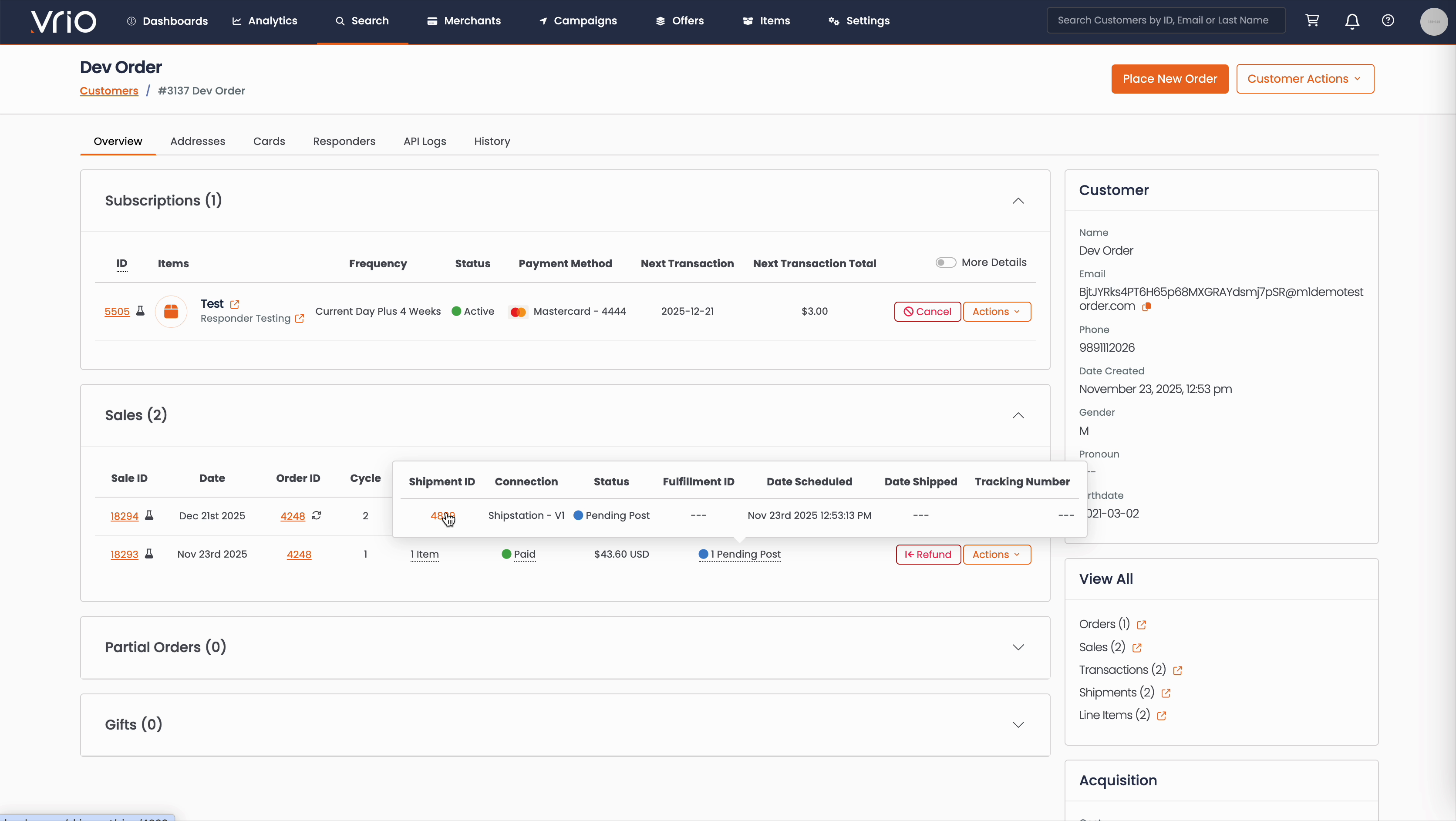
From the Customer Page:
- Navigate to Search → Customers tab and find the customer record
- On the customer detail page, scroll to the Sales section
- Hover over the Shipment Status to expand and show shipment details
- Click on the Shipment ID
From the Shipments List:
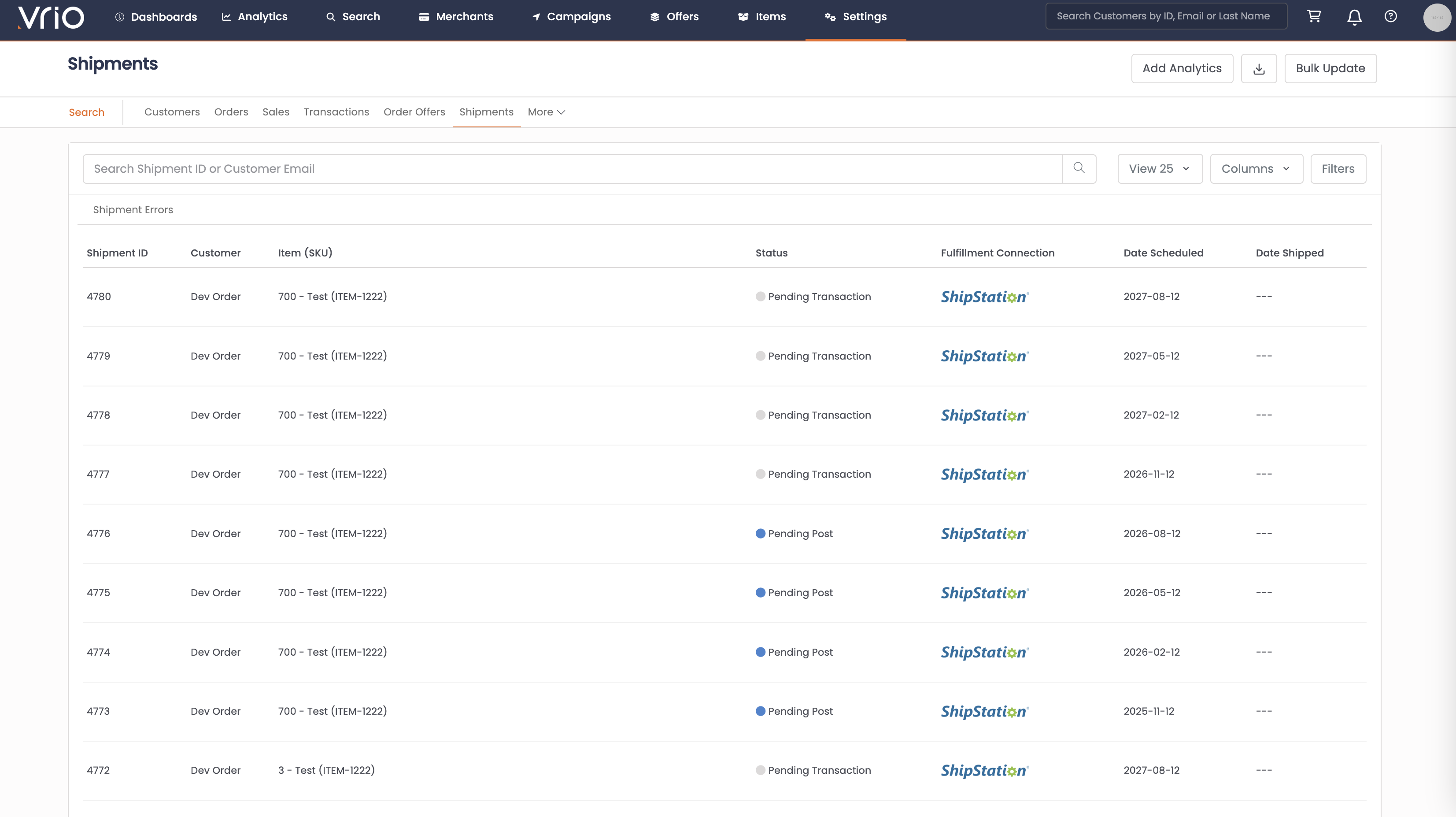
- Navigate to Search → Shipments tab
- Use filters or browse to find the shipment
- Click on the Shipment to open the shipment detail page
Step 2: Open the Swap Form
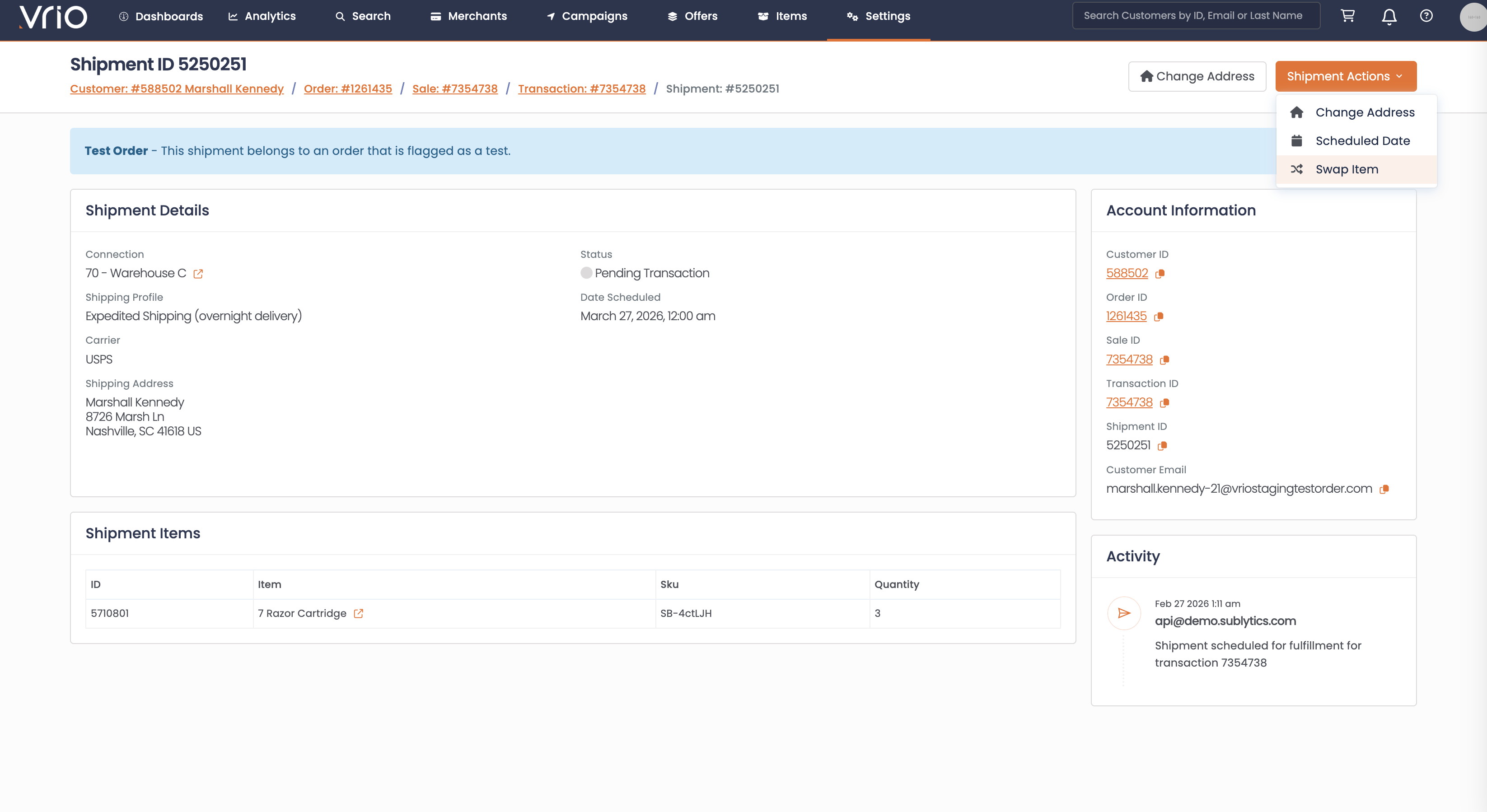
On the shipment detail page, click Swap Item from the Shipment Actions.
Step 3: Complete the Swap Form
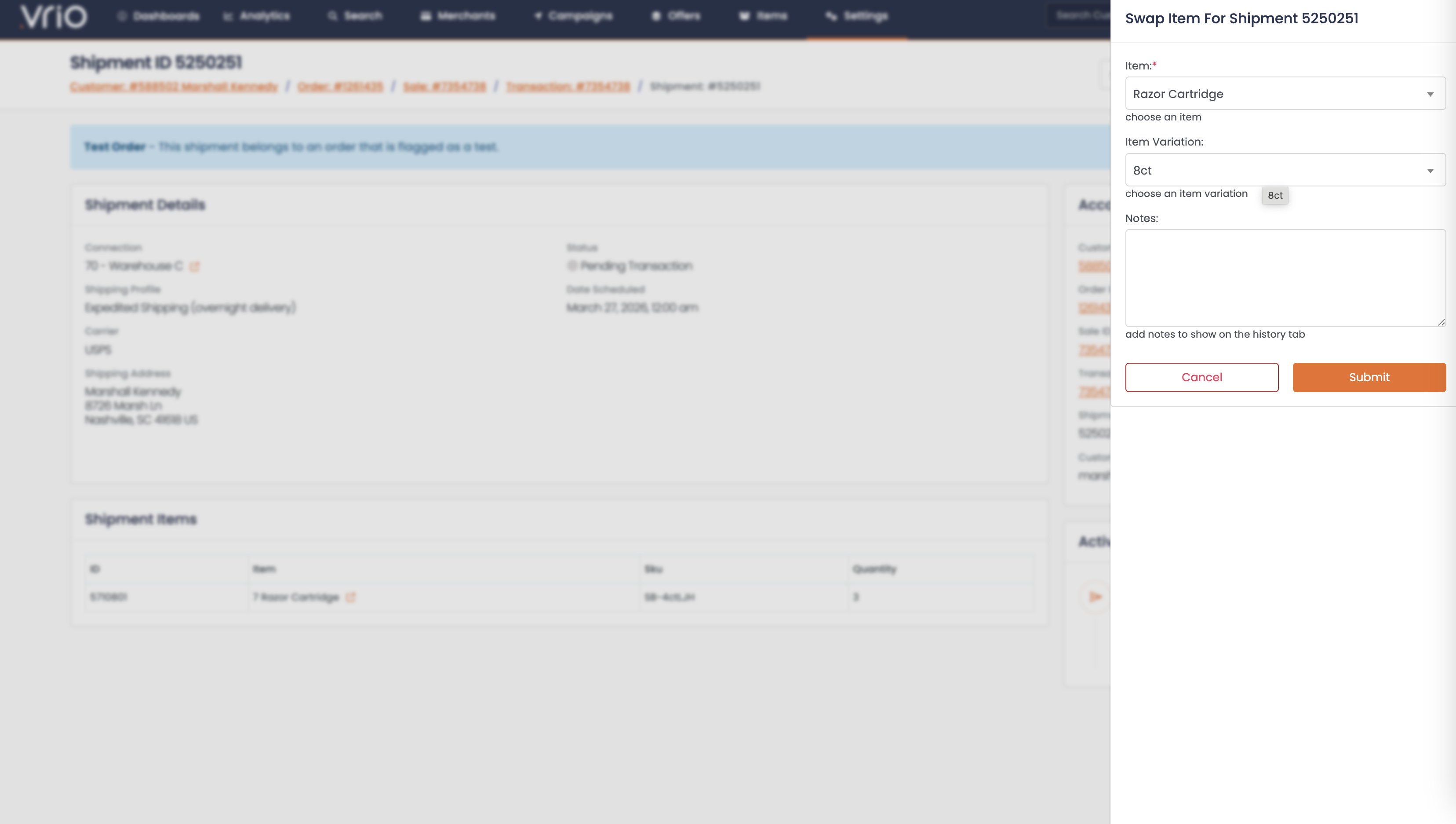
- Item (required) — Select the new item from the available swap items or variants
- Variant (if applicable) — If the item has option variations, select the specific variant
- Click Submit
What Happens After Submitting
When an item is swapped:
- Shipment item replaced — The existing item on the shipment is replaced with the new item or variant
- Swap logged — The swap is recorded in the shipment notes for audit purposes
Other Ways to Swap
- API — POST /shipments/{id}/swap to swap a shipment item programmatically
FAQ
Q: Can I swap items on a multi-item shipment?
A: No. Swap is only available on shipments with exactly one item.
Q: Why don't I see the Swap Item option?
A: Check that the shipment is the next upcoming one, has only one item, the item has variants or swap items configured, and swap is enabled on the offer.
Q: Does swapping change the price?
A: No. Swapping only changes the item on the shipment — it does not affect the subscription or any billing.
Q: Will the customer be notified when an item is swapped?
A: No. Swapping does not trigger any responders or webhook events.
Updated 8 months ago