
Bulk Update Import
Use the Bulk Update Import tool to update records in bulk using CSV files. Supports updating merchants, campaigns, offers, items, transactions, shipments, and more.
The Bulk Update Import tool allows you to update existing records in bulk using CSV file uploads. This is ideal for large-scale data operations.
Key Takeaways
- Requires Full Access for the specific data type
- Always use Preview mode first to verify changes before committing
- Download the CSV template from the documentation to ensure correct formatting
- Large imports (50+ records) will send an email notification when complete
Supported Data Types
The following data types can be updated via bulk import:
Configuration Data
Order Data
| Data Type | Use Case |
|---|---|
| Transaction | Update pending transaction fields like merchant, amounts, dates |
| Shipment | Add tracking numbers, update shipment dates |
General Workflow
-
Navigate to the data type you want to update (e.g., Merchants, Campaigns, Items)
-
Click the Bulk Update button in the toolbar

-
Download the template and prepare your CSV file with the required ID field and columns you want to update
-
Upload your CSV file
-
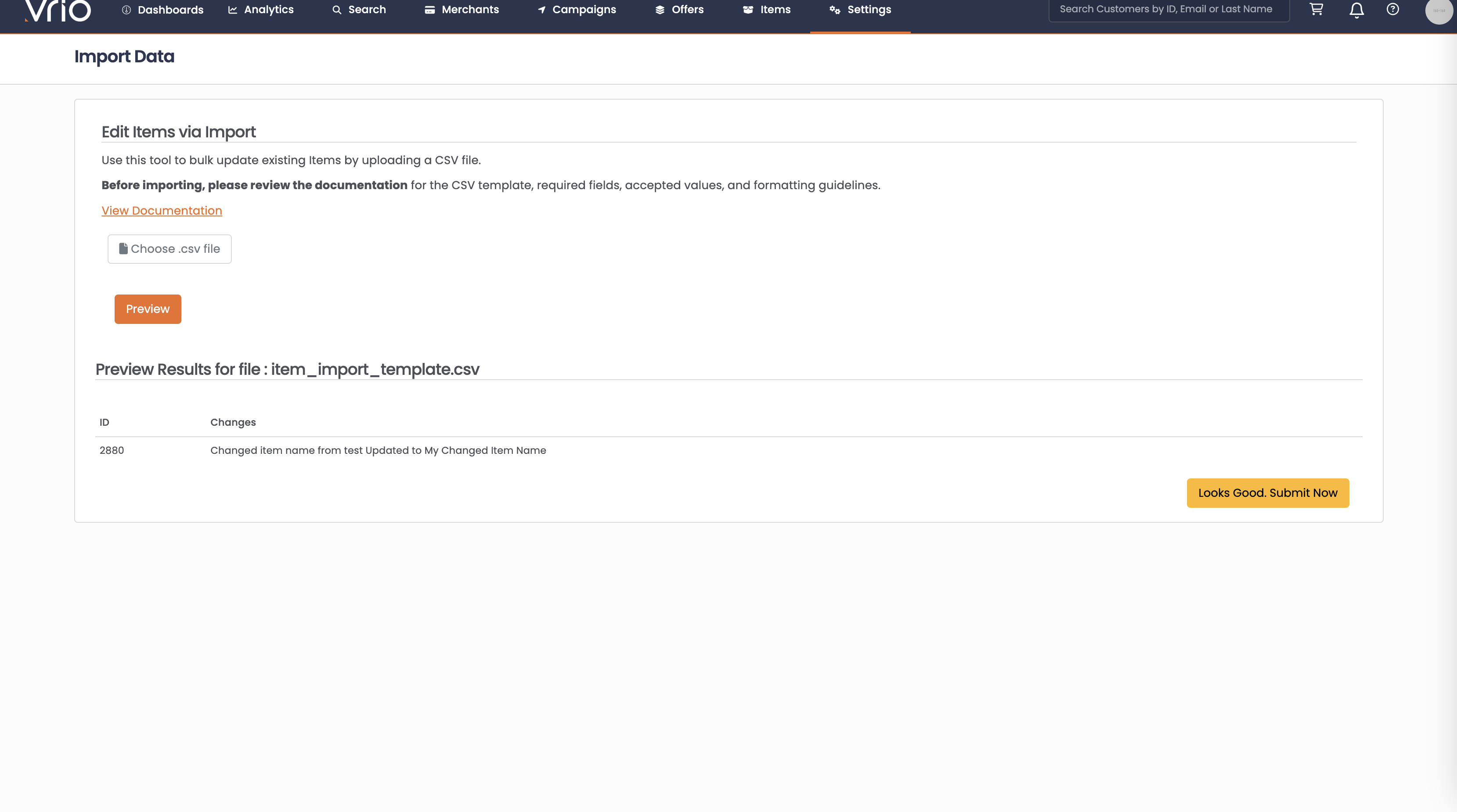
Click Preview to see what changes will be made
-
Review the preview table showing all proposed changes
-
If everything looks correct, click Looks Good Submit Now to apply the changes
-
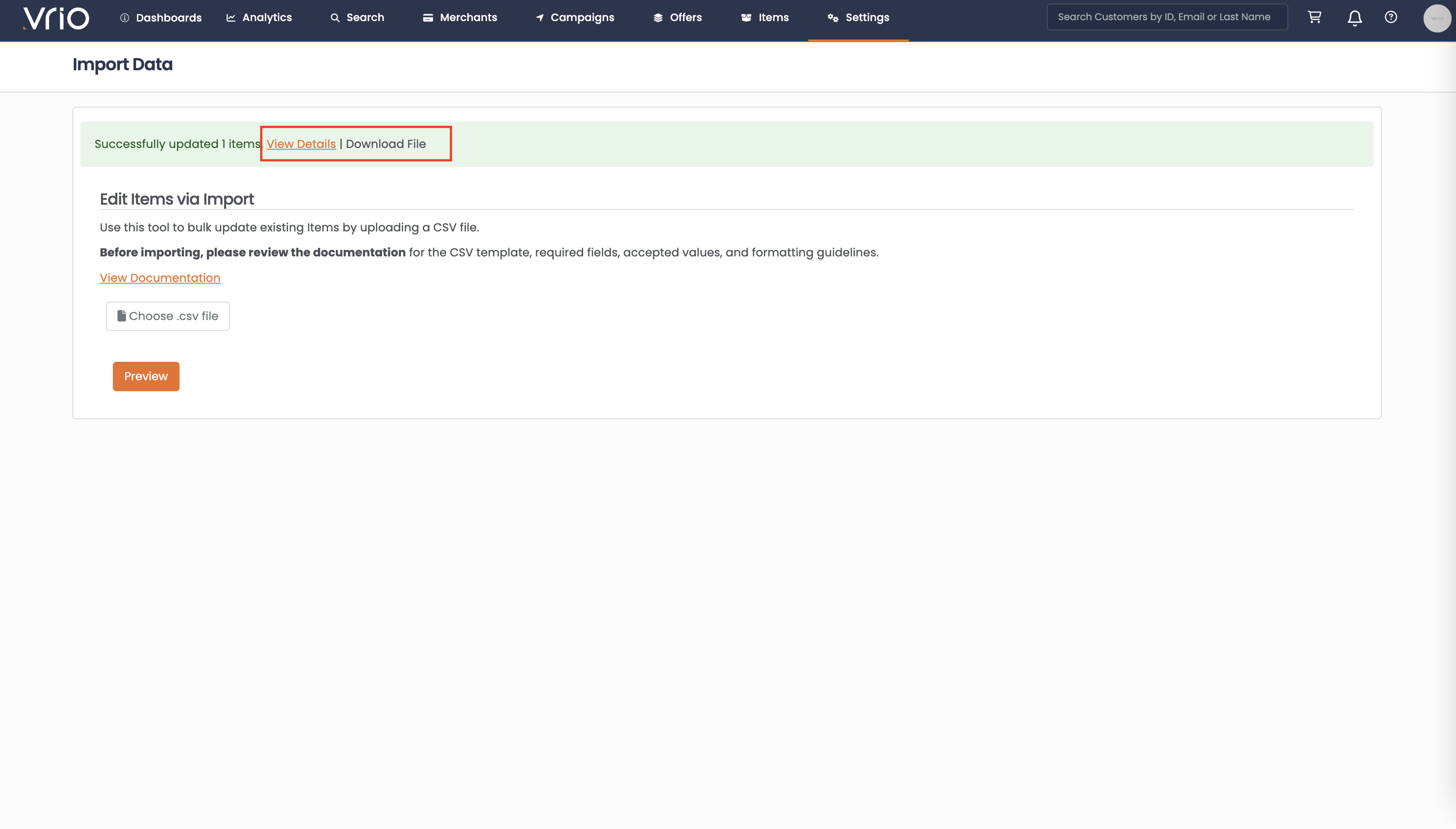
View the results - click View Details to see each record that was updated, or Download File to save a copy for your records
Preview Mode
Before any changes are committed, you can preview exactly what will happen.
ImportantAlways use Preview mode first, especially for large imports. This shows you exactly which records will be affected and what values will change.
The preview displays:
- Which records will be updated
- The specific field changes for each record
- Any validation errors or warnings
Once you've verified the preview, click Submit to apply the changes.
Results
After an import completes, you'll see a success message with two options:
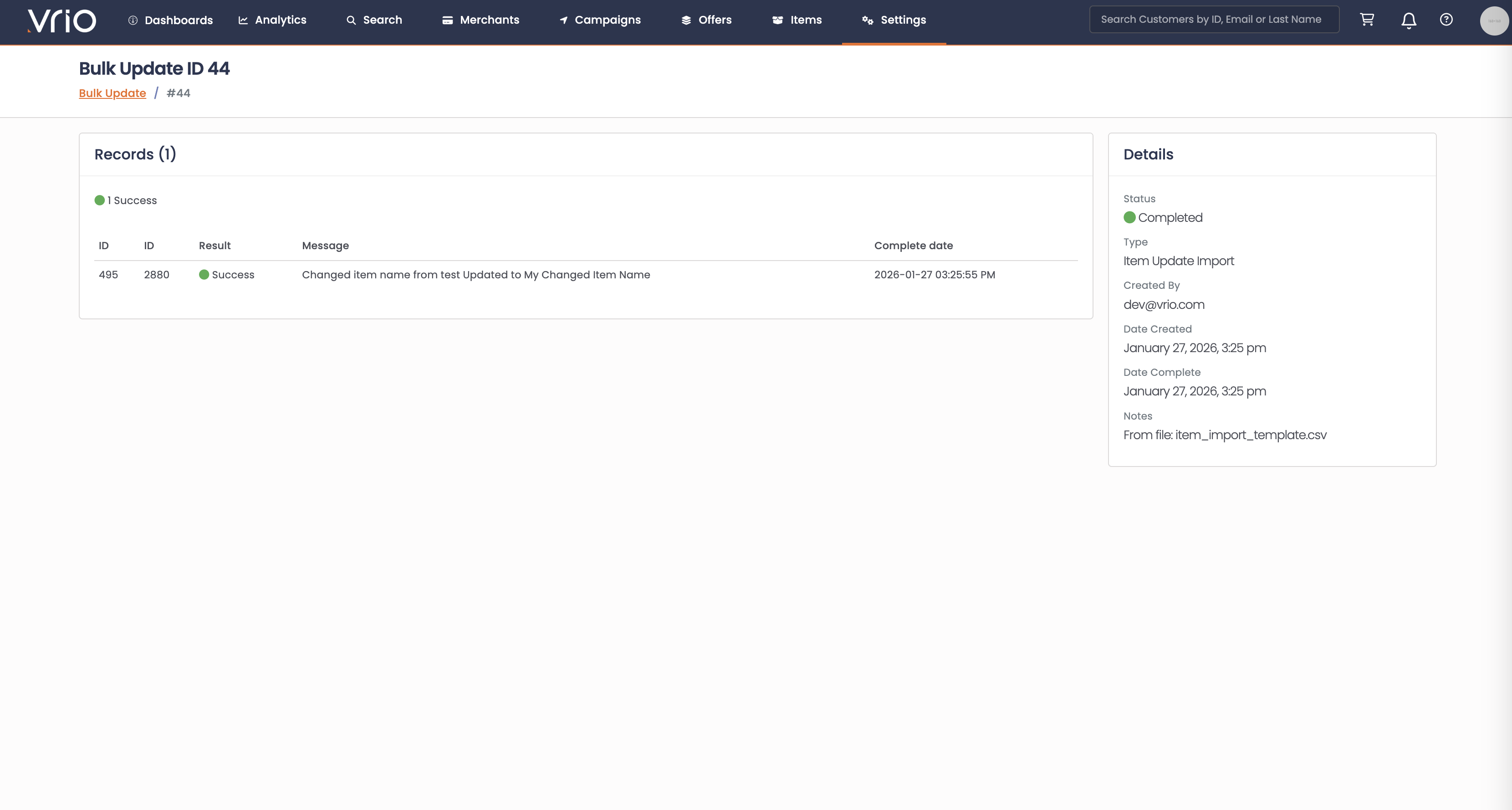
- View Details - Opens the Bulk Update record showing each item that was changed
- Download File - Downloads a CSV with all rows and an "Updates" column showing what changed
The Bulk Update record is useful for:
- Seeing exactly what was changed on each record
- Clicking through to individual records to verify changes
- Keeping an audit trail of bulk changes
Large Imports
For imports with more than 50 records:
- The import will take longer to process - please be patient
- When complete, you'll receive an email notification with links to view the results page and the View Details page showing each record that was updated
- Results are stored for 24 hours so you can return to view them later
Required Fields
For all imports, the record ID field is required so the system knows which record to update:
| Data Type | Required ID Field |
|---|---|
| Merchant | Merchant ID |
| Campaign | Campaign ID |
| Offer | Offer ID |
| Item | Item ID |
| Transaction | Internal ID |
| Shipment | Internal ID |
- Only include columns for fields you want to update
- The system compares your values against the current record and only updates fields that have changed
- Changes are logged in the record's notes for audit purposes
Field Formatting
When preparing your CSV:
| Field Type | Format | Example |
|---|---|---|
| Checkbox fields | 1 or 0 | Active: 1 |
| Dates | YYYY-MM-DD HH:MM:SS or ---- for empty | 2024-01-15 14:30:00 |
| Select fields | Use the CRM ID, not the display name | Payment Type: 1 (not Router) |
| Multiple select | Comma-separated CRM IDs | Shipping Profiles: 1,2,3 |
| State | State code for US/CA | CA, NY, ON |
| Country | Country code | US, CA, GB |
Permissions
Import access is controlled by user permissions:
- Imports require Full Access for the specific data type
- Check with your administrator if you don't see the Bulk Update option
FAQ
Q: Can I undo an import?
A: No, imports cannot be automatically undone. You could prepare a new CSV with the original values to revert changes.
Q: Why don't I see the Bulk Update button?
A: You may not have the required permissions. Contact your administrator to request import access for the data type you need.
Q: What happens if a row fails during import?
A: The import continues processing remaining rows. Failed rows are logged in the results file with error messages explaining why they failed.
Q: Can I import the same file twice?
A: Yes, running the same file again will attempt to apply the same changes. If the values already match, no updates will be made.
Q: What's the maximum file size?
A: There's no strict limit, but very large files may take longer to process. For imports over 50 records, the system automatically processes in the background.
Q: My CSV has special characters and they're showing incorrectly. What should I do?
A: Ensure your CSV is saved with UTF-8 encoding. Most spreadsheet applications have this as an export option.
Q: Can I create new records via import?
A: No, the bulk update import only updates existing records. New records must be created through the normal interface.
Updated 8 months ago