
Merging Customers
Merge duplicate customer records by moving all data from one customer to another. Useful for consolidating accounts when a customer has multiple records.
Merge duplicate customer records to consolidate all data into a single account. This moves all orders, addresses, payment cards, and other associated data from one customer (source) to another (target).
Key Takeaways
- Merging moves all data from the source customer to the target customer
- You can optionally delete the source customer after the merge
- The merge operation is tracked in the Bulk Update history
- This action cannot be automatically undone
When to Merge Customers
Common scenarios for merging customers:
- A customer created multiple accounts with different email addresses
- Duplicate records were imported from an external system
- A customer's information was entered incorrectly creating a separate record
To Merge Customers
-
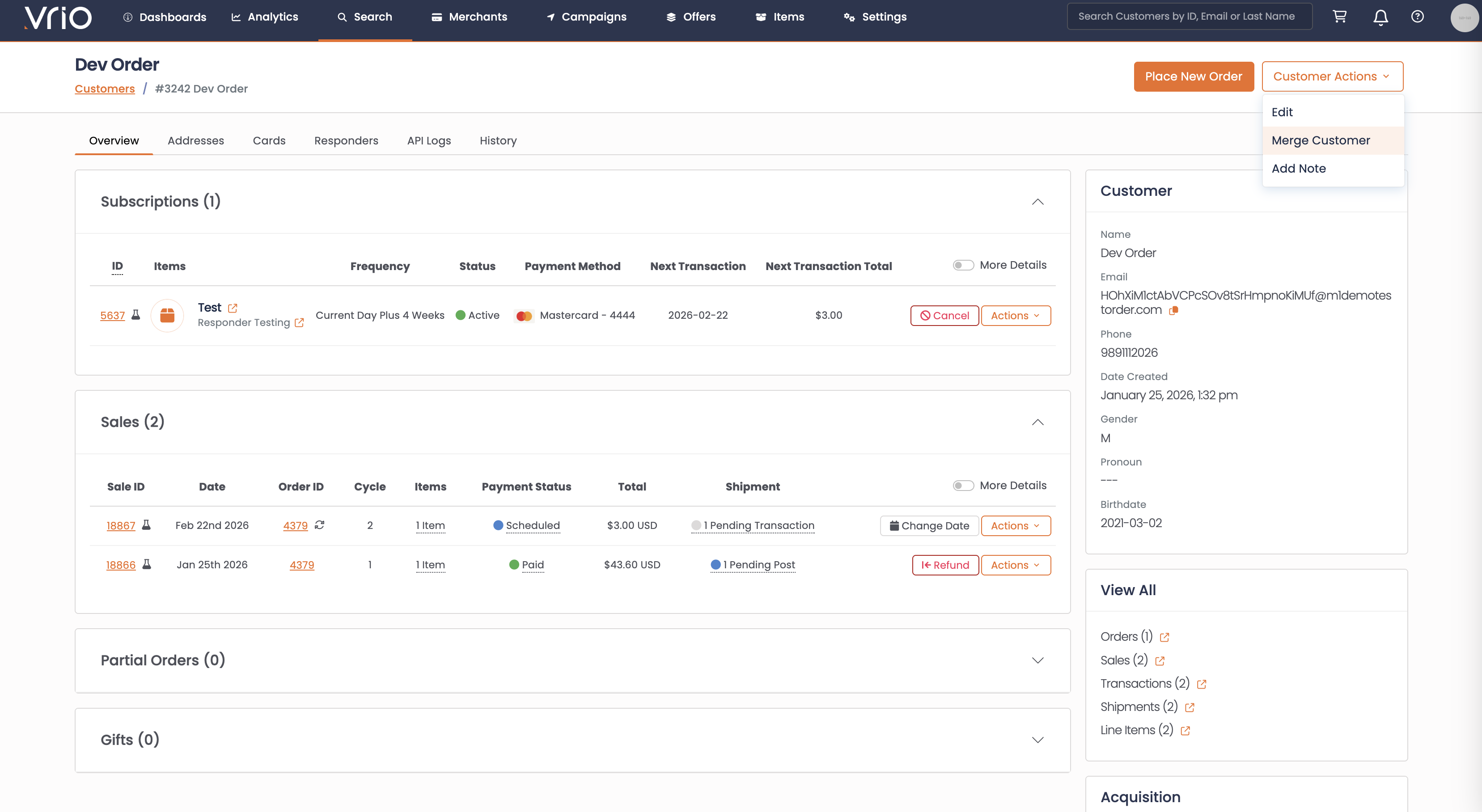
Navigate to the source customer record (the customer you want to merge FROM)
-
Click the Customer Actions dropdown in the top right
-
Select Merge Customer
-
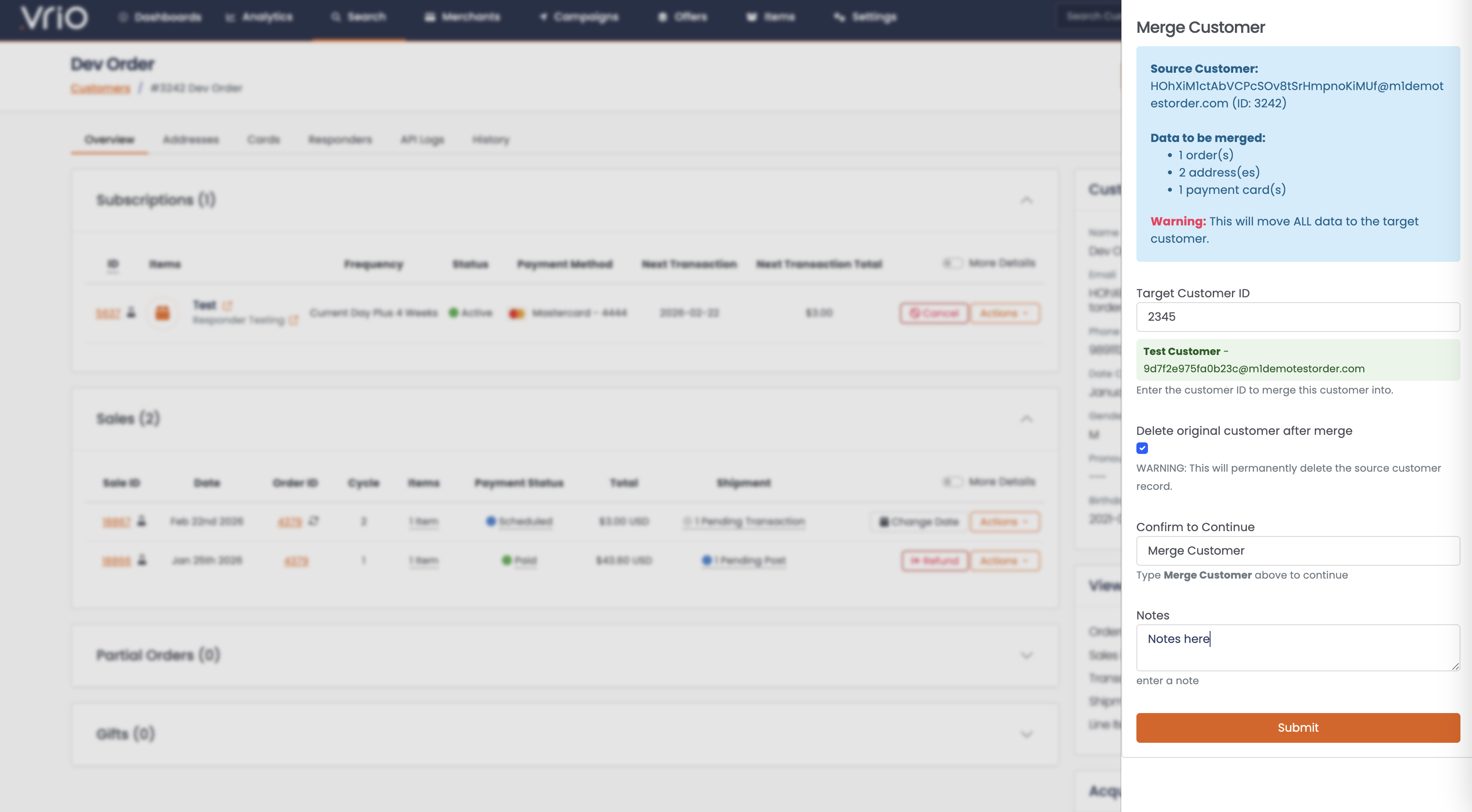
In the Merge Customer modal, review the information:
- Source Customer: Shows the customer name, email, and ID being merged
- Data to be merged: Lists the number of orders, addresses, and payment cards that will be moved
ImportantThis will move ALL data to the target customer. Verify you have selected the correct source and target customers before proceeding.
-
Enter the Target Customer ID - This is the customer you want to merge INTO
- After entering the ID, the system displays the target customer's name and email for verification
-
Optionally check Delete original customer after merge
- If checked, the source customer record will be permanently deleted after all data is moved
- If unchecked, the source customer record remains but will have no associated data
Permanent ActionIf you select "Delete original customer after merge", the source customer record will be permanently deleted and cannot be recovered.
-
Type Merge Customer in the confirmation field
-
Optionally add notes explaining the reason for the merge
-
Click Submit
After the Merge
Once submitted, the merge processes and you'll see a Bulk Update results page showing:
- Status: Completed or any errors
- Message: Confirmation of which customers were merged and how many orders were moved
- Date: When the merge was completed
Navigate to the target customer to verify all data has been consolidated correctly.
FAQ
Q: Can I undo a customer merge?
A: No, merges cannot be automatically undone. If the source customer was deleted, that record is permanently removed. Data would need to be manually moved back if needed.
Q: What happens to the source customer's subscriptions?
A: All subscriptions, including their status (active, cancelled, etc.), are moved to the target customer.
Q: Are payment methods transferred?
A: Yes, all payment cards associated with the source customer are moved to the target customer.
Q: What if the target customer already has data?
A: The merged data is added to the target customer's existing data. For example, if the target has 2 orders and the source has 3 orders, the target will have 5 orders after the merge.
Q: Is there a bulk merge option?
A: Currently, merges are performed one source customer at a time. For multiple merges, repeat the process for each duplicate customer.
Updated 8 months ago