
Gorgias Setup
Step-by-step guide to connecting your Gorgias account with VRIO for seamless customer service integration and data synchronization.
From your Vrio CRM Instance
To connect your Gorgias account, follow these steps:
- Navigate to Settings.
- Select Add New Connection.
- Choose Marketing, then select Gorgias.
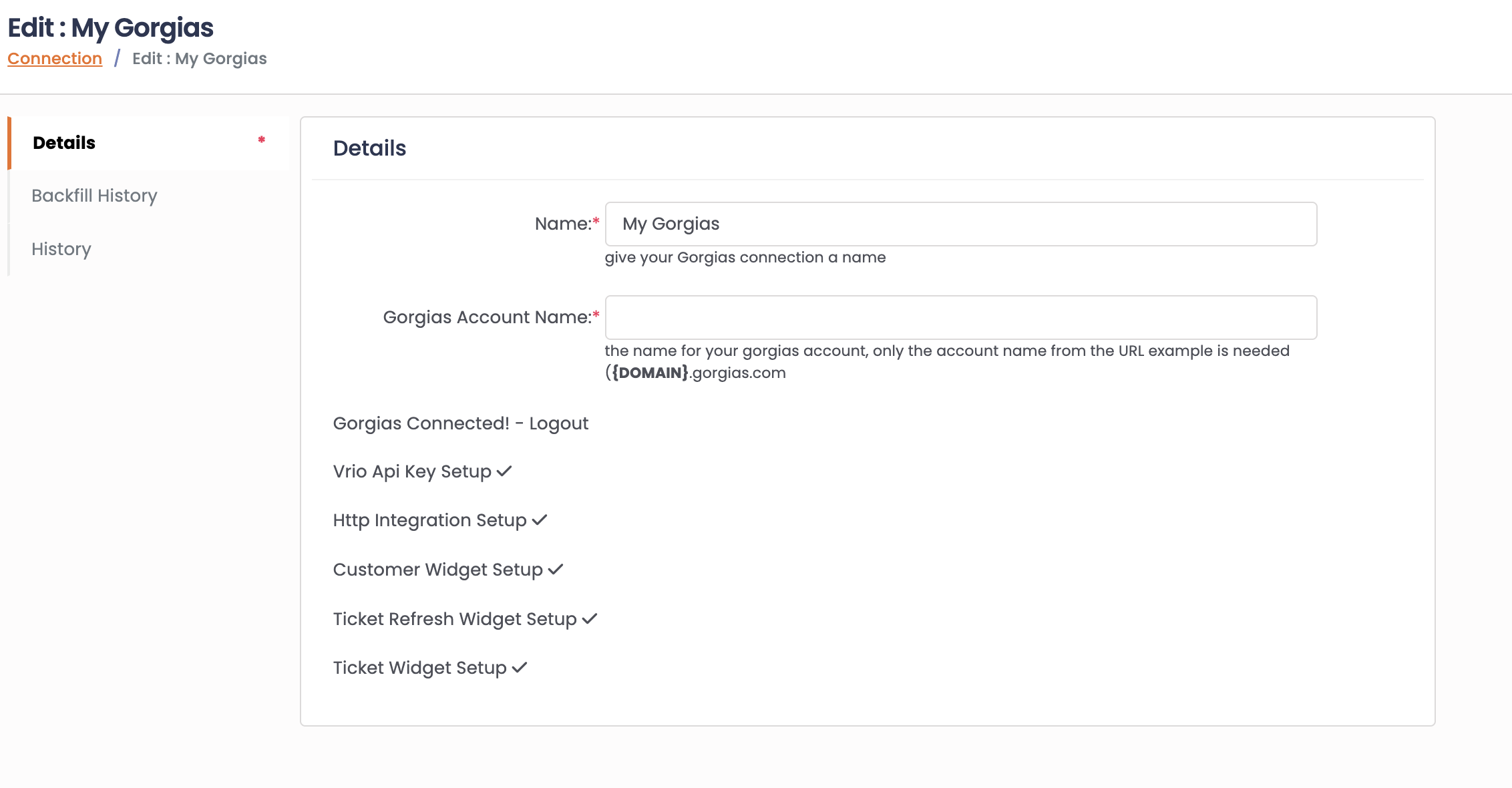
A flyout window will appear prompting you to:
- Enter a name for the connection.
- Provide your Gorgias account name, which is the subdomain part of your Gorgias URL. For example, if your Gorgias URL is example.gorgias.com, enter example as the account name.
Once entered, ensure that all required options on the newly created connection page display checkmarks, indicating proper setup.
Updated 12 months ago
Did this page help you?