
Blocked Values
Block API requests that contain a known bad value, such as an IP address, email domain or name, and review every request that was blocked.
Blocked Values stop an API request before it is processed when one of its fields matches a value you choose.
Use them to shut out a known bad actor, such as an IP address placing test orders, an email domain used for fraud, or a name used for card testing.
How a rule works
Each rule checks one request field against one value.
When an API request is sent with that field and the value matches, the request is stopped and nothing is created.
The caller receives a 400 response:
{
  "success": false,
  "message": "Unable to process request. Please try again.",
  "validation_code": "request_blocked"
}
Matching is not case sensitive, and spaces at the start and end of the value are ignored.
When a field is sent as a list of values, each value is checked.
Rules take effect on the next request after you save them.
Adding a Blocked Value
-
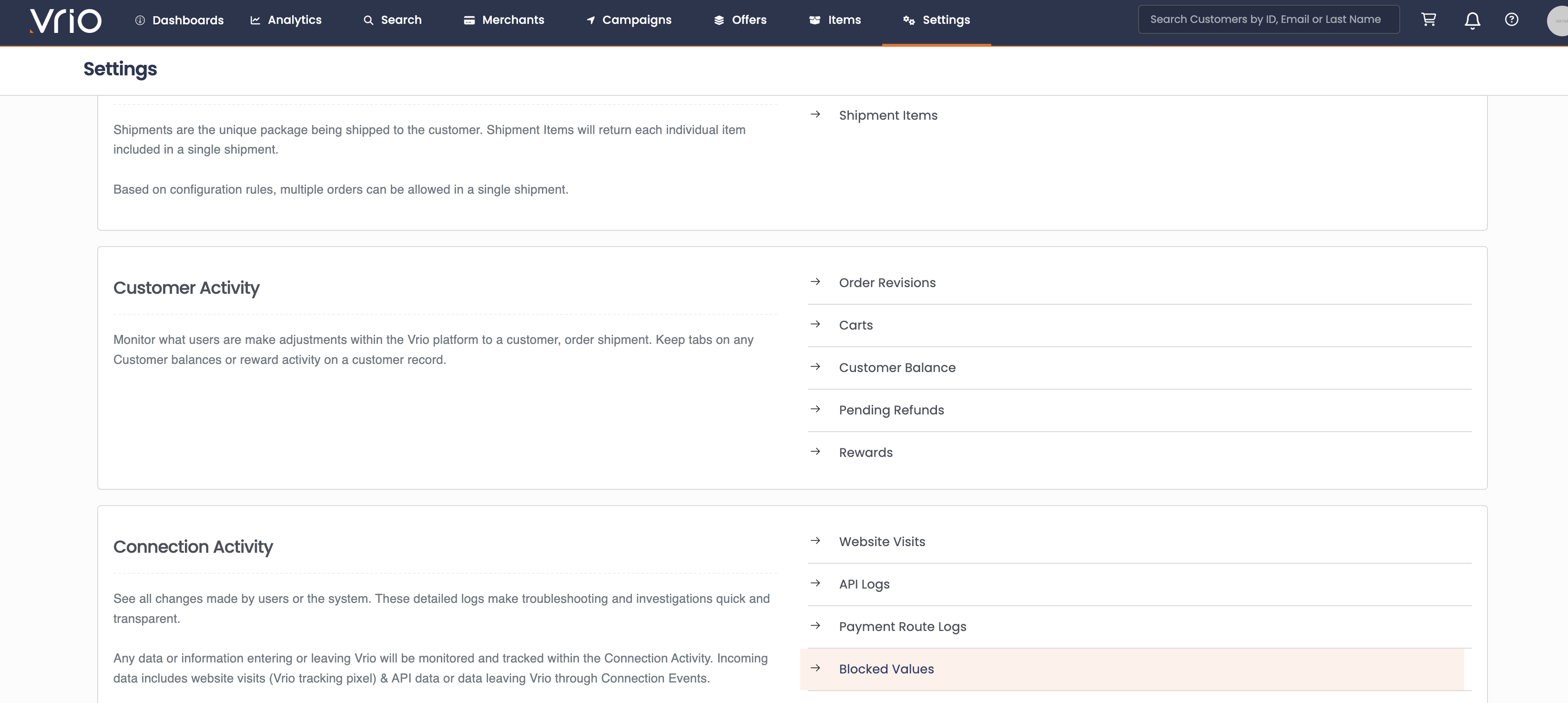
Navigate to Settings > Search > Connection Activity > Blocked Values.
-
Select Add Blocked Value.
-
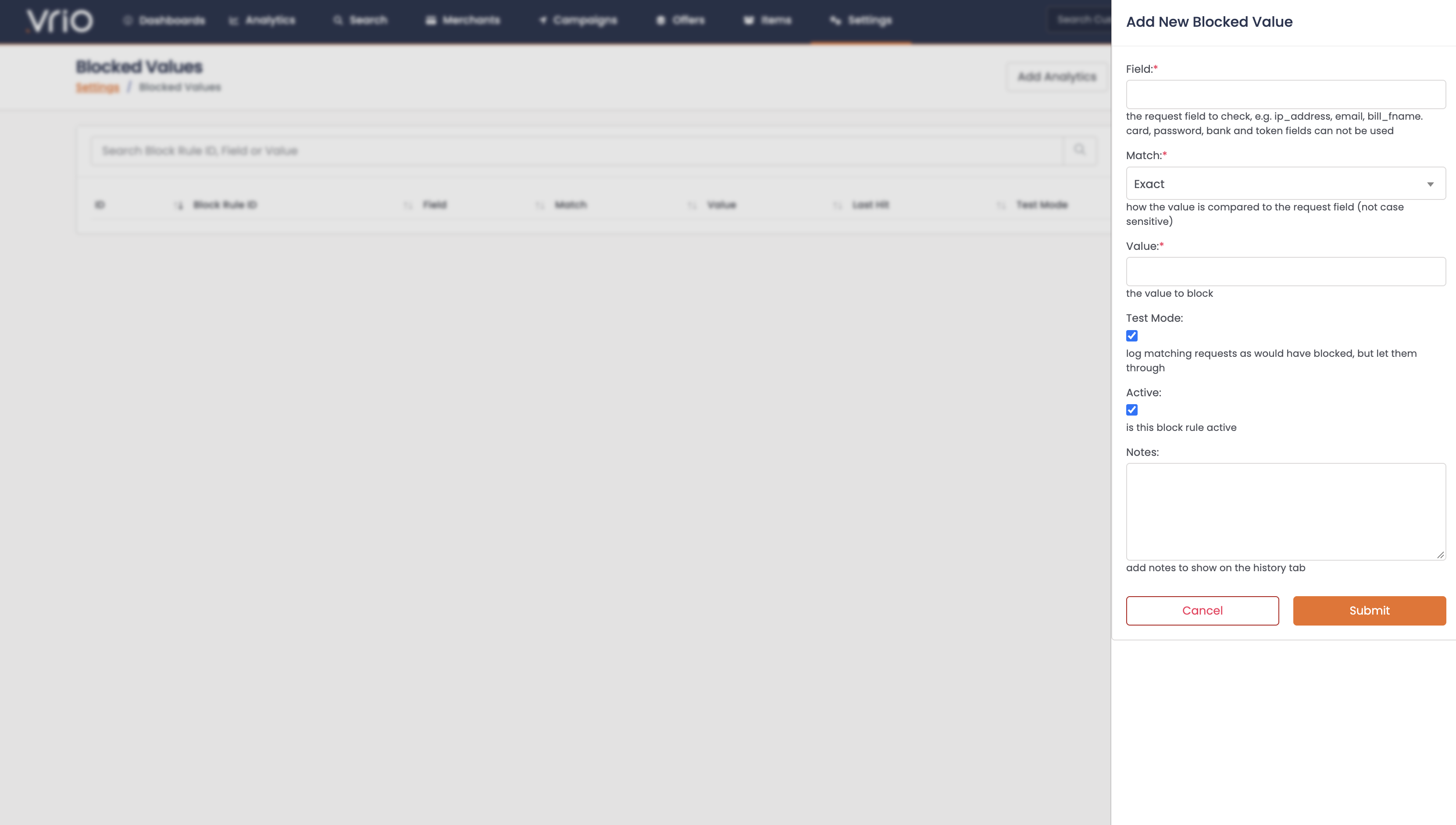
Complete the fields below and save.
| Setting | Description |
|---|---|
| Field | The request field to check, exactly as it is sent in the API request, for example ip_address, email or bill_fname. |
| Match | How the value is compared to the field: Exact, Contains, Starts With or Ends With. |
| Value | The value to block. Contains, Starts With and Ends With need at least 3 characters. |
| Test Mode | When on, matching requests are logged but not blocked. New rules start in test mode. |
| Active | Only active rules are checked. |
| Notes | Optional. Notes are kept on the rule's history. |
Examples:
| Field | Match | Value | Blocks |
|---|---|---|---|
ip_address | Exact | 203.0.113.10 | requests from that one IP address |
ip_address | Starts With | 203.0.113. | requests from that IP range |
email | Ends With | @example.com | every email address at that domain |
bill_fname | Contains | test | billing first names such as Test, TESTER or contest |
Card, password, bank and token fields can't be used in a rule.
This covers any field starting withcard_, and any field containingcvv,password,token,account_numberorrouting.
Test Mode
A rule in test mode logs every request it would have blocked and lets the request continue.
Use it to check what a new rule catches before it affects live orders.
When the results look right, edit the rule and turn Test Mode off.
If a request matches a rule in test mode and an active rule that is not in test mode, the request is blocked.
A broad Contains rule can block real customers.
Run a new rule in test mode first and review the matches in Blocked Requests.
Blocked Requests
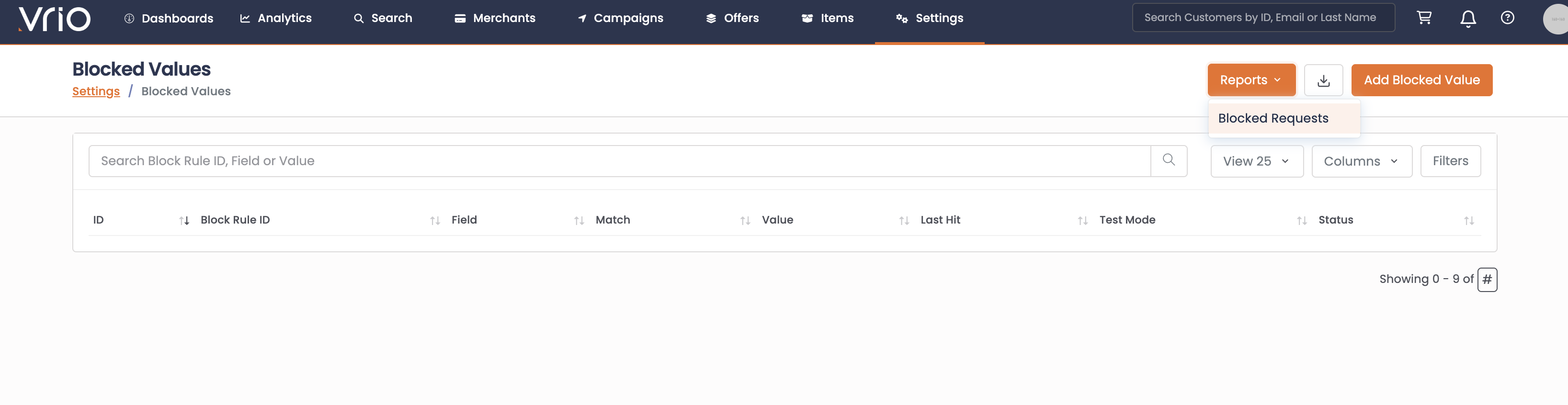
Every match is recorded in Blocked Requests. Open it from the Blocked Requests link on the Blocked Values list by clicking the Reports button on the top right, or from View blocked requests on a rule's Activity tab, which filters the log to that rule.

| Column | Description |
|---|---|
| Date | When the request was received. |
| Rule | The rule that matched. |
| Test Mode | Yes when the rule was in test mode and the request continued, No when the request was blocked. |
| Endpoint | The API endpoint that was called. |
| Field | The field that matched. |
| Value | The value that was sent in that field. |
| API User | The API user that sent the request. |
| Caller IP | The IP address the request came from. Hidden by default. |
| API Request ID | The request ID, for matching the request to your own logs. Hidden by default. |
Only the matched field and its value are recorded, not the rest of the request.
A number in the value that looks like a card number shows only its first two digits, for example 41** **** **** ****.
Blocked requests are kept for 90 days.
The Last Hit column on the Blocked Values list shows the most recent match for each rule.
Permissions
Blocked Values use the Company permission on the User Group.
| Company permission | Access |
|---|---|
| Read Only | View Blocked Values and Blocked Requests |
| Create / Edit | Add and edit rules |
| Full Access | Delete rules |
Updated 18 minutes ago