
Modify Scheduled Transactions
Bulk modify scheduled transactions by changing the merchant account or rescheduling the transaction date for multiple transactions at once.
Scheduled transaction modifications allow you to bulk update transactions that are scheduled to process in the future. You can:
- Change Scheduled Date - Reschedule when the transaction will be processed
- Change Merchant - Assign a different merchant account to process the transaction
These modifications are useful for managing upcoming subscription renewals, adjusting processing times, or routing transactions to different payment processors.
RequirementsTransactions must have a Status of Scheduled to be modified using these bulk actions.
How to Bulk Modify Scheduled Transactions
Both modification types follow the same initial steps:
-
Navigate to Search
-
Select Transactions
-
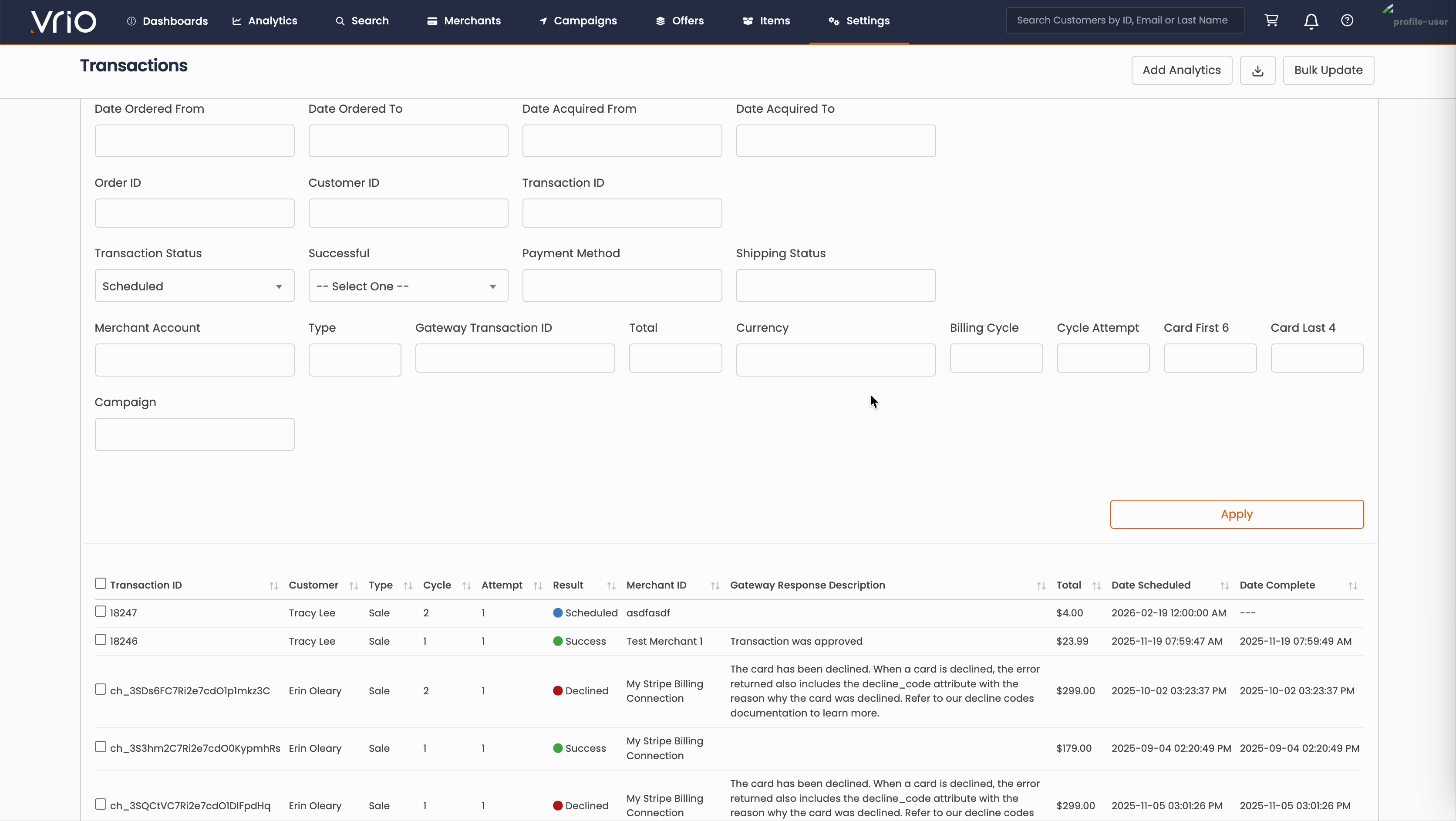
Click Filters
-
Set Transaction Status = Scheduled and any additional filters needed to find the transactions you want to update (such as date range, customer, merchant, etc.)
-
Click Apply
-
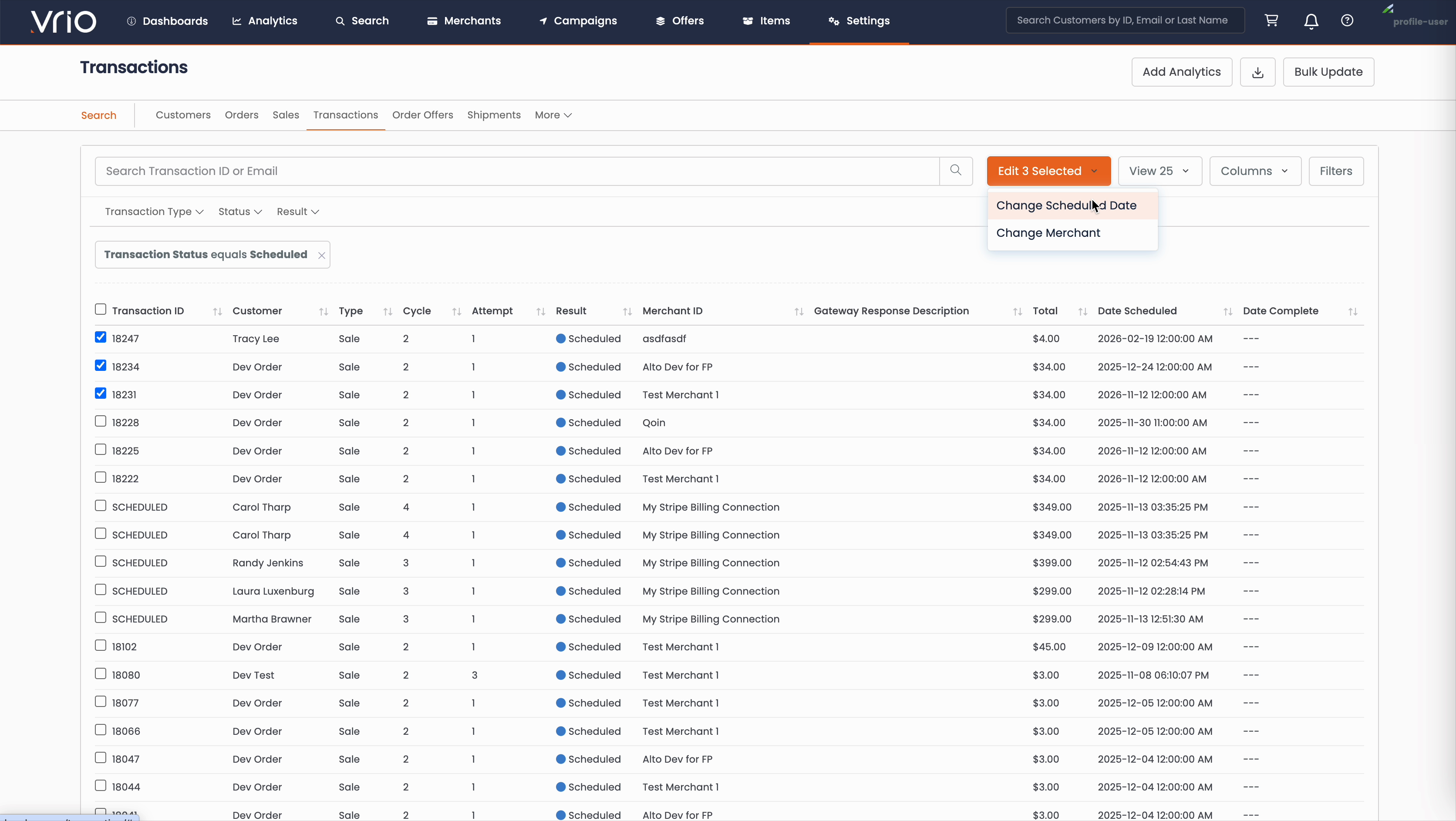
Select the transactions you wish to modify by checking the boxes, or select all using the top checkbox
-
Click the Edit X Selected dropdown
-
Choose either Change Scheduled Date or Change Merchant
Change Scheduled Date
Rescheduling allows you to change when selected transactions will be processed.
-
Follow the steps above to select your scheduled transactions
-
From the Edit Selected dropdown, choose Change Scheduled Date
-
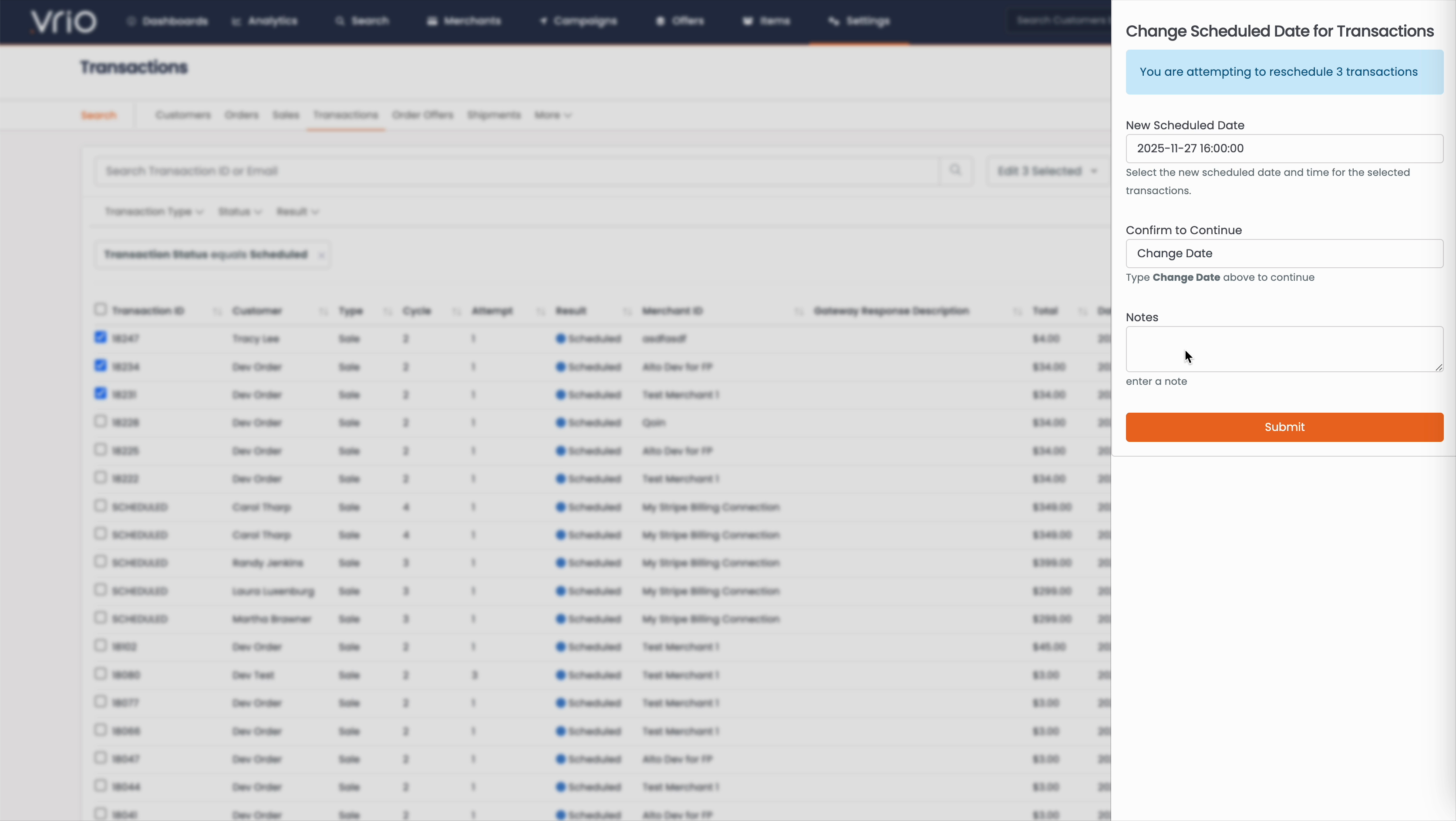
In the modal that appears:
- Select a New Scheduled Date using the calendar picker
- Set the Time for the transaction to process
- Type "Change Date" in the confirmation field
- Optionally add Notes for your records
-
Click Submit
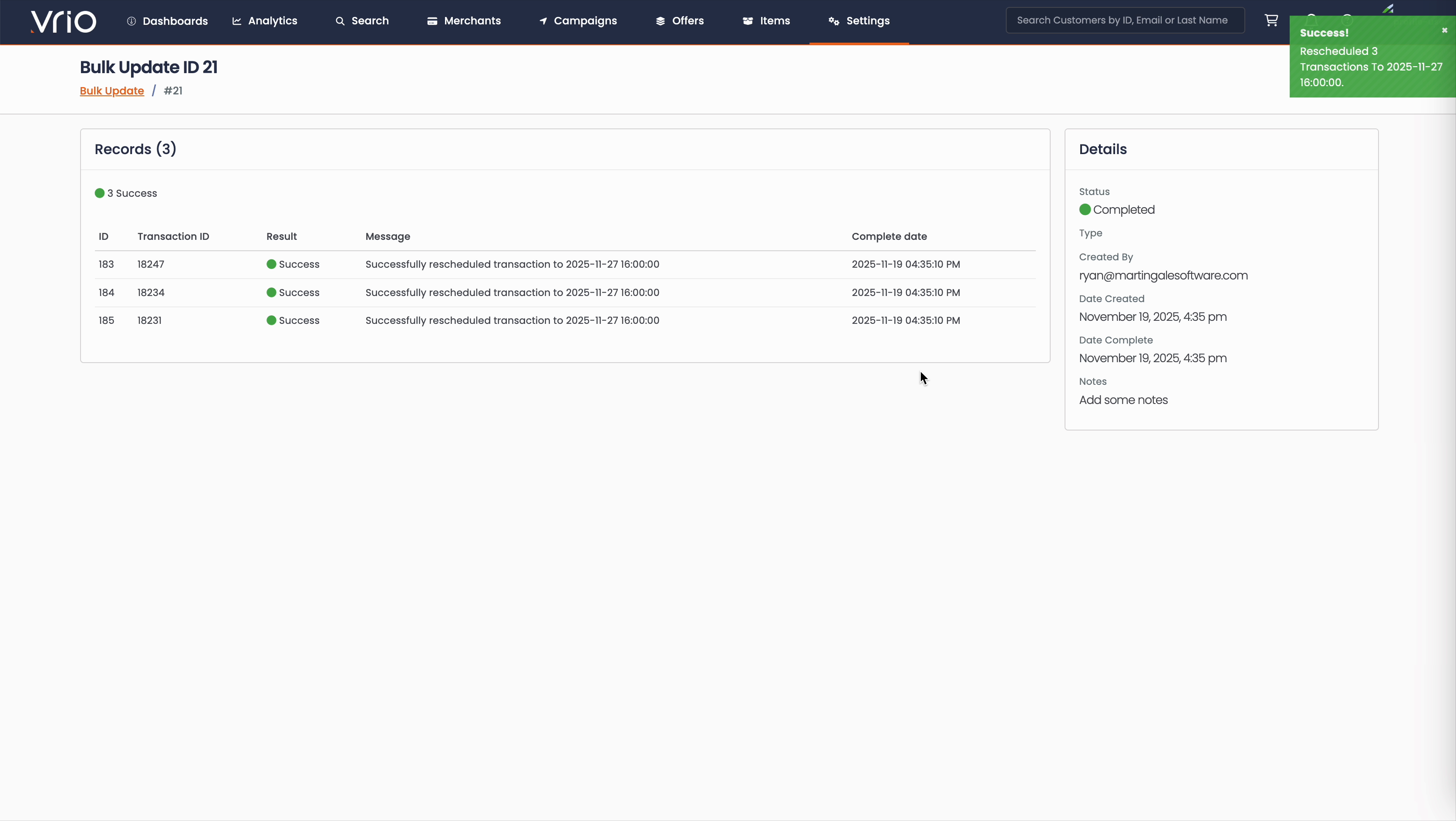
You will be taken to a Bulk Update results page showing the outcome for each transaction:
- Success - Transaction was successfully rescheduled
- Failed - Transaction could not be rescheduled
Change Merchant
Changing the merchant allows you to route transactions to a different payment processor or merchant account.
Important
- Change Merchant is only available for Credit Card payment methods
- CVV is not stored and cannot be passed to the new merchant, potentially causing declines if CVV verification is required
-
Follow the steps above to select your scheduled transactions
-
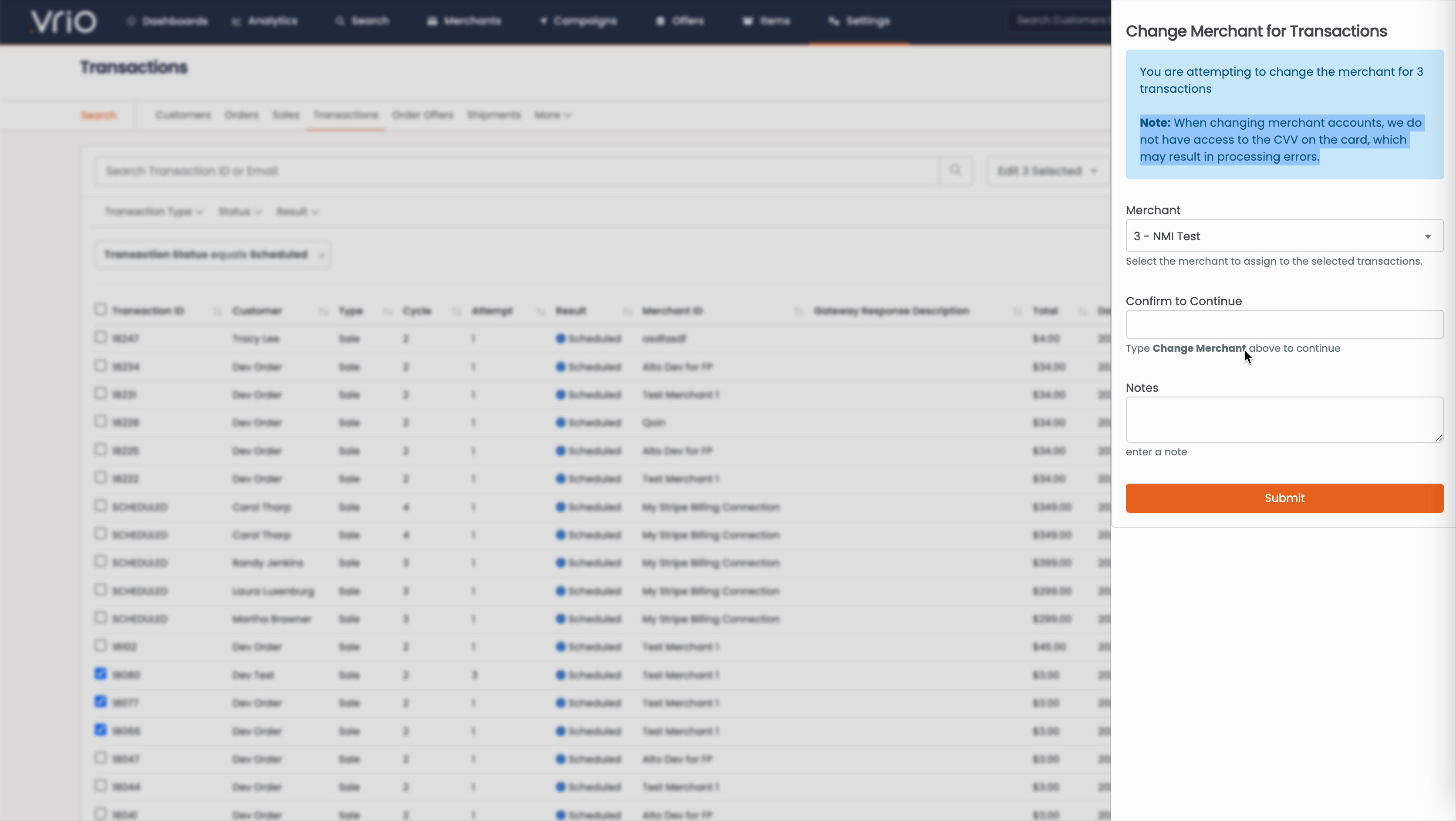
From the Edit Selected dropdown, choose Change Merchant
-
In the modal that appears:
- Select a Merchant from the dropdown list
- Type "Change Merchant" in the confirmation field
- Optionally add Notes for your records
-
Click Submit
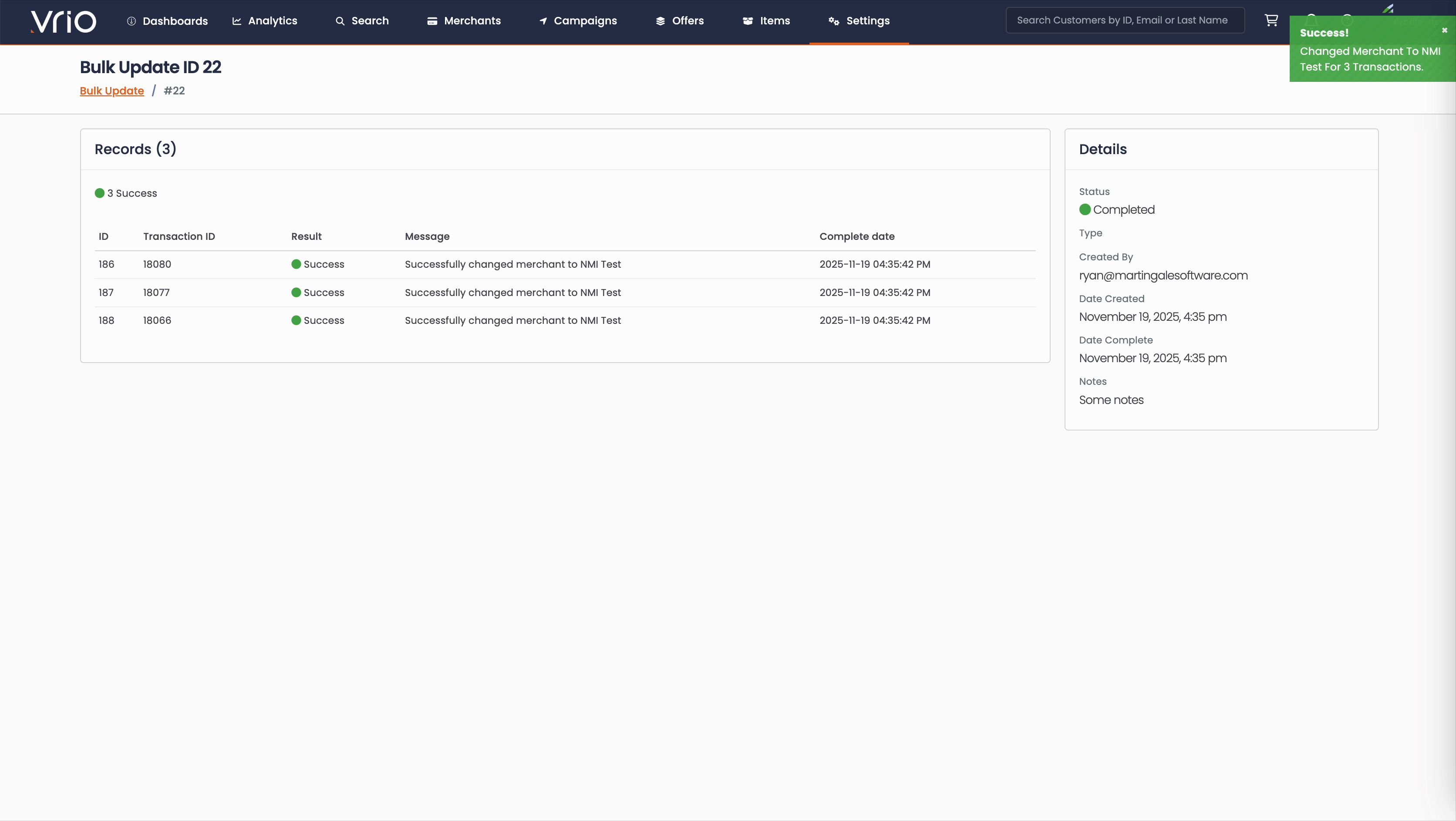
You will be taken to a Bulk Update results page showing the outcome for each transaction:
- Success - Merchant was successfully changed
- Failed - Merchant could not be changed (possibly due to validation errors or merchant configuration)
FAQ
Q: Can I modify transactions that have already been processed?
A: No, only transactions with a Status of Scheduled can be modified using these bulk actions.
Q: How many transactions can I modify at once?
A: You can modify up to 200 transactions at once using the View By selector to adjust how many records are displayed.
Q: Will changing the merchant affect the payment method on file?
A: No, the payment method remains the same. Only the merchant account that will process the transaction is changed.
Q: Can I undo these changes?
A: You can make additional modifications to reschedule or change merchants again, but there is no automatic undo function.
Updated 6 days ago